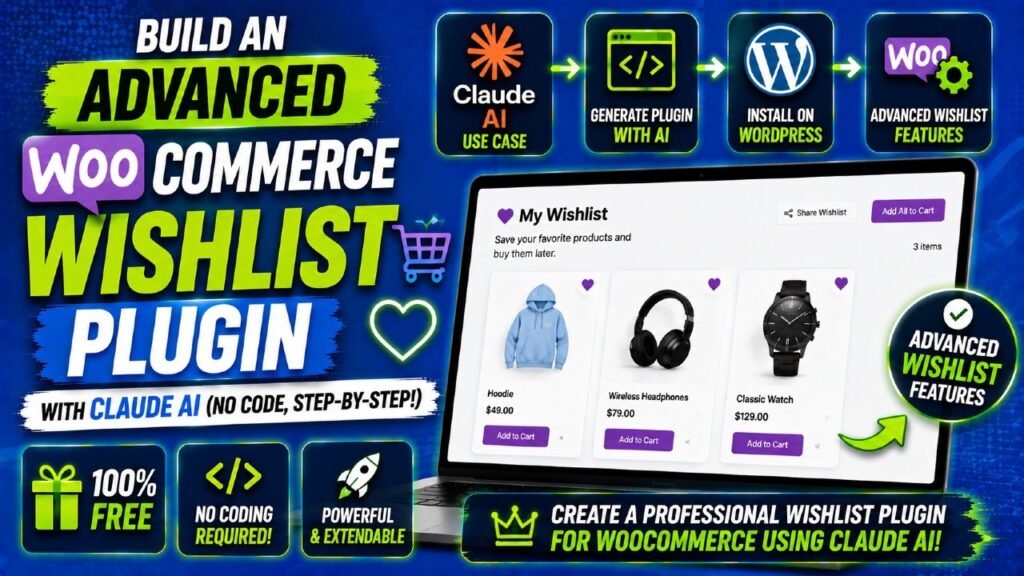
If you run a WooCommerce store and you’ve been searching for the perfect WooCommerce Wishlist plugin — one that actually does everything you want without paying for multiple premium subscriptions — this guide is for you. In this article, I’ll walk you through exactly how I built a fully featured, advanced WooCommerce Wishlist plugin from scratch using Claude AI, without writing a single line of PHP, JavaScript, or CSS myself. Using nothing but plain-English prompts — a method known as vibe coding — I created a wishlist plugin that rivals or surpasses the most popular paid options on the market today.
Whether you’re a WooCommerce store owner with zero coding experience or a developer looking to accelerate your workflow, this step-by-step guide will show you what’s possible when you combine the right AI tool with a clear vision for your plugin.
Table of Contents
Why Your WooCommerce Store Needs a Wishlist Plugin
WooCommerce doesn’t include wishlist functionality out of the box. That’s a significant gap when you consider how fundamental wishlists are to the modern online shopping experience. Every major eCommerce platform — Amazon, eBay, Etsy — gives shoppers the ability to save products they love but aren’t ready to buy yet.
The numbers back this up. According to the Baymard Institute, the average cart abandonment rate across online stores is over 70%. Shoppers browse, find things they like, and leave — often to return later, if they can remember where they found the item. A wishlist bridges that gap. It gives customers a personal, organized space to save the products that caught their attention, removing the friction between interest and purchase.
The Business Case for a WooCommerce Wishlist
For store owners, a wishlist plugin delivers benefits that go well beyond customer convenience:
- Reduced cart abandonment — customers who save products to a wishlist are significantly more likely to return and buy
- Valuable data — you can see which products customers are most interested in, even before they buy
- Social proof and organic traffic — when customers share wishlists on Facebook, X, Pinterest, and WhatsApp, your products reach new audiences for free
- Marketing opportunities — price-drop and back-in-stock email alerts let you reach customers at exactly the right moment
- Improved user experience — customers who enjoy using your store become loyal, repeat buyers
Research shows that wishlists can boost conversion rates by up to 20%. For busy stores, that’s a meaningful revenue uplift — and it’s available to anyone who installs the right WooCommerce Wishlist plugin. [Suggested image: Screenshot of a wishlist page with multiple saved products]
Why WooCommerce Needs a Plugin for This
Unlike platforms like Shopify that include some wishlist-like features natively, WooCommerce is lean by design. It focuses on core checkout functionality and leaves feature additions to the massive ecosystem of plugins. This is actually a strength: you can add exactly what you need without bloating your store. But it does mean you need to either install an existing WooCommerce Wishlist plugin or build your own — which is exactly what we’ll do in this guide.
What Is Vibe Coding and Why Claude AI Is Perfect for It
Vibe coding is the practice of building software entirely through plain-English conversation with an AI. Instead of writing PHP, JavaScript, or CSS, you describe what you want, and the AI generates all the code for you. The term was named Collins Dictionary’s Word of the Year for 2025 and has become a legitimate development methodology embraced by developers and non-developers alike.
Claude AI — the AI assistant built by Anthropic — is particularly well-suited for WordPress and WooCommerce plugin development. Here’s why:
Claude AI’s Strengths for Plugin Development
- It understands WordPress coding standards and WooCommerce hooks deeply
- It can plan a complete plugin architecture in a single prompt
- It writes PHP classes, JavaScript, and CSS files all in one place
- It can lint and debug its own code before you even test it
- It explains every decision in plain English so you understand what’s happening
The workflow is simple: you describe what you want, Claude AI plans and builds it, you test it, and if anything needs fixing, you just tell Claude what went wrong in plain English. No Stack Overflow, no developer forums, no waiting on a freelancer.
[Suggested image: Screenshot of Claude AI chat interface with a WooCommerce plugin prompt]
Who Can Use This Approach
You don’t need any programming background. If you can clearly describe what you want your plugin to do — as if you were explaining it to a developer — Claude AI can build it for you. The only skills you need are:
- A clear idea of the features you want
- The ability to install and activate a WordPress plugin
- Basic familiarity with your WooCommerce admin dashboard
Features of the Advanced WooCommerce Wishlist Plugin I Built
Before diving into the build process, let me show you exactly what this custom WooCommerce Wishlist plugin can do. I wanted to build something that matched or beat the feature sets of premium plugins costing $79–$150+ per year — and that’s precisely what I ended up with.
Core Wishlist Features
- Add to Wishlist heart button displayed on both shop/archive pages and single product pages
- Works for guest users — no account required to save products
- Guest wishlists automatically merge into the customer’s account when they log in or register
- Full wishlist management page accessible from the customer’s account area
Advanced Wishlist Features
- Multiple named wishlists per customer — customers can organize by occasion, category, or recipient
- Save to Wishlist picker — a dropdown that lets customers choose which of their wishlists to add a product to
- Public wishlist sharing via a unique shareable link
- Social media sharing to Facebook, X (formerly Twitter), WhatsApp, and Pinterest directly from the wishlist page
- Email sharing of wishlists to friends and family
- Price-drop email alerts — automated emails sent when a wishlisted product’s price decreases
- Back-in-stock email notifications when an out-of-stock product becomes available
Admin and Store Owner Features
- Admin dashboard report: Most Wishlisted Products — see at a glance which items generate the most customer interest
- Full plugin settings page for button text, icon, placement, sharing toggles, and notification schedule
- Translation-ready — prepared for multilingual stores
- Built to match your active theme’s styling with minimal setup
[Suggested image: Side-by-side comparison table of this plugin’s features vs popular premium wishlist plugins]
Feature | This Custom Plugin | Typical Free Plugin | Typical Premium Plugin |
Add to Wishlist Button | ✅ | ✅ | ✅ |
Guest Wishlist Support | ✅ | ⚠️ Limited | ✅ |
Guest-to-Account Merge | ✅ | ❌ | ✅ |
Multiple Named Wishlists | ✅ | ❌ | ✅ (paid) |
Social Sharing | ✅ | ⚠️ Basic | ✅ |
Price-Drop Email Alerts | ✅ | ❌ | ✅ (paid) |
Back-in-Stock Alerts | ✅ | ❌ | ✅ (paid) |
Admin Wishlist Reports | ✅ | ❌ | ✅ (paid) |
Custom Button Settings | ✅ | ⚠️ Limited | ✅ |
Cost | Free to build | Free | $79–$150/year |
How I Built the WooCommerce Wishlist Plugin with Claude AI — Step by Step
Here is the exact process I followed. Each step involved a conversational prompt to Claude AI — no code was written by hand.
Step 1: List Your Plugin Features
The first step was writing a clear, comprehensive list of everything I wanted the plugin to do. I divided this into core features and advanced features. Being specific at this stage is crucial — the more detail you give Claude AI, the better the output.
My prompt looked something like this: ‘I want to build a WooCommerce wishlist plugin. Core features include: Add to Wishlist button on shop and product pages, guest wishlist support, wishlist management page. Advanced features include: multiple named wishlists per user, social sharing, price-drop email alerts, back-in-stock notifications, and an admin report for most wishlisted products. Plan the full plugin for me.’
Step 2: Ask Claude AI to Design the Plugin Structure
Once the feature list was clear, I asked Claude AI to plan the plugin’s technical structure. This included:
- The file and folder layout for the plugin
- Database tables needed to store wishlists and wishlist items
- The main PHP class and file names
- Key WooCommerce action hooks and filter hooks to use
Claude AI came back with a full blueprint: a main plugin file, separate PHP class files for the wishlist manager, the admin dashboard, the email handler, and the shortcode renderer — plus a JavaScript file and a CSS file. This level of planning would normally require a senior WooCommerce developer.
Step 3: Generate the Full Plugin Code
With the structure approved, I asked Claude AI to write every file. I went class by class, asking for the full PHP code for each module. Claude wrote clean, well-commented code that followed WordPress coding standards — including proper nonces for security, sanitization of user inputs, and WooCommerce-compatible data handling.
[Suggested image: Screenshot of Claude AI generating PHP code for the wishlist class]
Step 4: Have Claude AI Lint and Test Every File
Before packaging the plugin, I asked Claude AI to review each file for errors. This included checking for:
- PHP syntax errors
- Missing WordPress functions or incorrect hook names
- JavaScript issues in the AJAX handlers
- CSS conflicts with typical WooCommerce themes
Claude AI flagged and fixed several minor issues during this step — exactly the kind of quality check you’d run a developer through before shipping code.
Step 5: Download as a Ready-to-Install ZIP
Once all files were reviewed and corrected, I asked Claude AI to package everything into a plugin ZIP file. It produced a clean, installation-ready ZIP with the correct folder structure that WordPress expects.
Installing and Activating the Plugin on WordPress
Installing a plugin you’ve built with Claude AI is identical to installing any other WordPress plugin. Here’s how to do it:
- Log in to your WordPress admin dashboard
- Navigate to Plugins > Add New > Upload Plugin
- Click ‘Choose File’ and select the ZIP file Claude generated
- Click ‘Install Now’ and wait for the installation to complete
- Click ‘Activate Plugin’ to enable it on your site
Within seconds, the plugin will be live and running. You’ll see a new menu item in your WordPress admin sidebar — in my case, it was labeled ‘Wishlist Settings.’
[Suggested image: WordPress Plugins > Add New > Upload Plugin screen with the ZIP file selected]
What to Check Immediately After Activation
As soon as the plugin is active, visit your shop page and single product pages to confirm the Add to Wishlist button is appearing in the correct position. Also check your WordPress admin dashboard for the new plugin settings page.
Setting Up Your Wishlist Page with a Shortcode
Most WooCommerce Wishlist plugins — including this one — use a shortcode to display the wishlist on a dedicated page. Setting this up takes about two minutes.
Creating the Wishlist Page
- Go to Pages > Add New in your WordPress admin
- Give the page a title — for example, ‘My Wishlist’
- In the page content area, add the plugin’s wishlist shortcode (for example, [my_wishlist])
- Publish the page
- Go to the plugin settings page and assign this new page as the Wishlist Page
Customers can now visit this page to see all the products they’ve saved. The page automatically displays the customer’s wishlist items with product images, prices, stock status, and options to move items to the cart or remove them.
Configuring Plugin Settings for Sharing and Notifications
The plugin’s settings page is the control center for everything. Here’s a quick tour of the main configuration options:
Button Settings
- Button text — change from the default heart icon label to any text you prefer
- Button position — choose whether the button appears above or below the Add to Cart button on product pages
- Icon style — select from the available heart icon variations to match your theme
Sharing Settings
- Enable or disable public wishlist sharing links
- Toggle social sharing buttons for Facebook, X, WhatsApp, and Pinterest
- Enable or disable email sharing functionality
Notification Settings
- Enable price-drop email alerts and set how frequently to check for price changes (daily, weekly)
- Enable back-in-stock notifications
- Customize the email sender name and subject lines for notification emails
One of the most powerful features is the email notification system. When a customer’s wishlisted product drops in price, they receive a personalized email — and personalized, timely emails are among the highest-converting marketing messages any store can send.
Testing the Plugin Live and Fixing Issues with Claude AI
Once the plugin was configured, I tested every feature on my live WooCommerce store:
- Added products to the wishlist as a guest user and confirmed they were visible on the wishlist page
- Logged in and verified the guest wishlist merged correctly into the customer account
- Created multiple named wishlists and tested the ‘Save to…’ picker on the product page
- Tested wishlist sharing via a public link and all four social sharing buttons
- Triggered a test price-drop notification email and confirmed delivery
Fixing an Issue Without Writing Code
During testing, I found a minor issue — the wishlist button was appearing in an unexpected position on a specific product page template. Rather than debugging PHP myself, I described the issue to Claude AI in plain English: ‘The Add to Wishlist button is appearing below the product description instead of below the Add to Cart button on variable product pages. How do I fix this?’
Claude AI identified the correct WooCommerce action hook to use and gave me the updated code. I replaced the relevant section in the plugin file, re-uploaded the ZIP, and the issue was resolved. The entire fix took under five minutes.
[Suggested image: Claude AI chat window showing a bug fix prompt and response]
This is the real power of vibe coding with Claude AI: even when things go wrong, you don’t need to understand the code to fix it. You just need to describe the problem clearly.
Why Build a Custom WooCommerce Wishlist Plugin Instead of Using an Off-the-Shelf One
You might be wondering: why go through this process when there are already WooCommerce Wishlist plugins available? It’s a fair question. Here’s the honest answer:
The Limitations of Existing Wishlist Plugins
Most free WooCommerce Wishlist plugins are deliberately limited. Features like multiple wishlists, price-drop alerts, and admin reporting are locked behind premium tiers that cost $79–$150 per year. The most popular plugins can also be surprisingly heavy — adding hundreds of kilobytes of code and dozens of server requests to every page load, which can slow down your store and hurt your Google rankings.
Some off-the-shelf plugins also create SEO concerns by generating extra URLs with query strings that Google crawls but doesn’t index, potentially wasting your crawl budget.
The Advantages of a Custom-Built Plugin
- Complete feature control — you get every feature you want, not just what the free tier offers
- No annual subscription costs — build once, use forever
- Optimized for your store — no unnecessary features adding weight to your pages
- Easy to update and modify — just ask Claude AI for changes as your needs evolve
- No vendor lock-in — you own the code entirely
For store owners who are serious about their WooCommerce experience, building a custom WooCommerce Wishlist plugin with Claude AI is one of the best investments of a few hours you can make.
That said, if you’re not ready to build your own plugin yet, established free options like YITH WooCommerce Wishlist, TI WooCommerce Wishlist, and WPC Smart Wishlist remain solid starting points. The beauty of WooCommerce is that you have options.
Is a Custom Plugin Right for You?
You Should Build Custom If… | You Should Use Off-the-Shelf If… |
You want features only available in expensive premium tiers | You need something installed and working today in minutes |
You want full control over design and behavior | Your wishlist needs are basic (single list, simple sharing) |
You’re comfortable spending 1–2 hours with Claude AI | You’re not comfortable uploading and testing plugin ZIP files |
You want to own the code with no ongoing costs | You prefer ongoing plugin updates and dedicated support |
Frequently Asked Questions
Can I build a WooCommerce Wishlist plugin without coding?
Yes. Using Claude AI and plain-English prompts — a method called vibe coding — you can build a fully functional WooCommerce Wishlist plugin without writing a single line of PHP, JavaScript, or CSS yourself. Claude AI handles all the code generation, and you simply test and install the result.
What features can a Claude AI-built WooCommerce Wishlist plugin include?
A Claude AI-built WooCommerce Wishlist plugin can include an Add to Wishlist heart button, guest wishlist support with account merge on login, multiple named wishlists, social sharing via Facebook, X, WhatsApp and Pinterest, price-drop and back-in-stock email alerts, an admin dashboard with Most Wishlisted Products reports, and a complete plugin settings page. In short, it can match or exceed premium off-the-shelf plugins.
Does WooCommerce have a built-in wishlist feature?
No. WooCommerce does not include native wishlist functionality. Store owners must either install a wishlist plugin or build a custom one to offer this feature to their customers. This makes a wishlist plugin one of the first additions most serious WooCommerce stores should consider.
How long does it take to build a WooCommerce Wishlist plugin with Claude AI?
Most store owners can complete a fully featured WooCommerce Wishlist plugin in under two hours using Claude AI. The time depends on the complexity of the features you want and how quickly you iterate on prompts. Simple plugins with core wishlist features can be done in 30–45 minutes.
Can the Claude AI-built wishlist plugin handle guest users?
Yes. You can prompt Claude AI to build guest wishlist support, where items saved by a non-logged-in visitor are automatically merged into their account the moment they log in or register. This ensures no customer loses their saved products during the sign-up process.
How do price-drop alerts work in a WooCommerce Wishlist plugin?
Price-drop alerts work by running a scheduled WordPress cron job that checks the current prices of wishlisted products at regular intervals (daily or weekly, based on your settings). When the price of a wishlist item decreases, the plugin sends an automated, personalized email to the customer, bringing them back to complete the purchase.
Is a custom WooCommerce Wishlist plugin better than an off-the-shelf one?
A custom-built WooCommerce Wishlist plugin gives you complete control over features, design, and performance. Unlike off-the-shelf options that charge annual fees for advanced features, a Claude AI-built plugin can be tailored exactly to your store’s needs with no recurring costs. However, off-the-shelf plugins offer faster setup and ongoing developer support, which may matter for some store owners.
What is vibe coding in WordPress plugin development?
Vibe coding is the practice of building software by describing what you want in plain English to an AI model like Claude, which then generates all the code for you. It requires no programming knowledge — only the ability to clearly describe your requirements. The term was coined in 2025 and became widely adopted across the developer and no-code communities alike.
Conclusion: Your WooCommerce Store Deserves a Better Wishlist
A WooCommerce Wishlist plugin isn’t a nice-to-have — it’s a core feature that helps your customers save products they love, share their lists with friends and family, and receive timely reminders that bring them back to buy. Every day your store operates without wishlist functionality is a day you’re leaving conversions on the table.
What makes this moment exciting is that you no longer need to pay a developer hundreds or thousands of dollars to build exactly the wishlist experience you want. With Claude AI and the vibe coding approach I’ve walked you through in this guide, you can build an advanced, production-ready WooCommerce Wishlist plugin in an afternoon — and modify it anytime your needs change, just by describing the update in plain English.
Ready to get started? Open Claude AI, describe your perfect WooCommerce Wishlist plugin, and start building. The video tutorial linked at the top of this article walks through the complete build process from beginning to end — including the live test and the bug fix — so you can follow along in real time.
[Suggested image: Final wishlist page running on a WooCommerce store showing multiple saved products, sharing buttons, and price-drop notification badge]
If you found this guide helpful, consider sharing it with other WooCommerce store owners who could benefit from building their own plugin with Claude AI. The future of WordPress development is conversational — and it’s available to everyone right now.