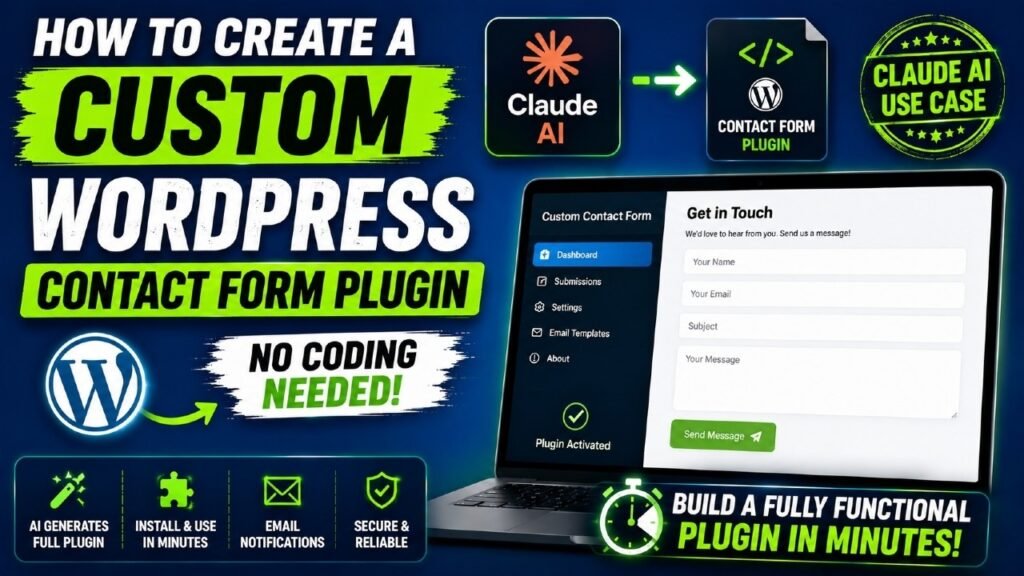
Creating a custom WordPress contact form plugin used to mean hours of PHP coding, debugging, and fighting with WordPress hooks. Not anymore. Thanks to Claude AI, anyone — even someone with zero coding background — can generate a fully functional, installable WordPress contact form plugin in just minutes. In this guide, you will learn exactly how to do it: from crafting the perfect prompt to activating your plugin and testing it live. Whether you’re a blogger, freelancer, or business owner, this is the fastest way to add a professional contact form to your WordPress site without relying on bloated third-party plugins.
Watch step by step video tutorial: https://youtu.be/n9xUVJtW9AM
Table of Contents
What Is a WordPress Contact Form Plugin?
A WordPress contact form plugin is a piece of software that adds a contact form to your website. It allows visitors to send you messages directly from a page on your site, without revealing your email address publicly. The plugin handles everything from rendering the form fields to processing submissions and delivering notifications to your inbox.
Standard contact form plugins like Contact Form 7, WPForms, and Gravity Forms are downloaded and installed from the WordPress plugin repository. A custom WordPress contact form plugin, on the other hand, is one you build yourself — or, in this case, one that Claude AI builds for you — tailored to your exact requirements.
Custom plugins offer a massive advantage: you get only what you need. No upsell screens, no unnecessary features eating up server resources, and no monthly subscription fees. Just clean, lightweight code that works exactly the way you want.
Why Build a Custom Plugin Instead of Using WPForms or Contact Form 7?
You might be wondering: why bother building a custom WordPress contact form plugin when there are already dozens of free options available? Here are the key reasons:
1. Full Control Over Features
Popular plugins include hundreds of features you’ll never use. A custom plugin contains only what you actually need — nothing more. This makes your site faster and easier to maintain.
2. No Monthly Fees
Most premium contact form plugins charge between $49 and $299 per year. A custom-built plugin costs nothing to run — you own it outright.
3. No Plugin Conflicts
Third-party plugins sometimes conflict with your theme or other plugins. When you build your own, you control the code and can resolve conflicts instantly.
4. Better Performance
Heavyweight form plugins load extra CSS, JavaScript, and PHP libraries on every page. A lightweight custom plugin only loads the resources it needs on the pages where the form appears.
5. Custom Branding and Design
Building your own plugin allows you to match the form design perfectly to your website’s branding, without fighting with a plugin’s built-in CSS that overrides your styles.
Why Claude AI Is Perfect for WordPress Plugin Development
Claude AI, developed by Anthropic, is a conversational AI model that excels at writing, understanding, and generating code. Unlike generic AI tools, Claude is particularly well-suited for WordPress plugin development for several reasons:
Handles Long Code Blocks Accurately
Claude has a large context window, which means it can read, generate, and revise long PHP files without losing track of what was written earlier. WordPress plugins often span hundreds of lines — Claude handles this with ease.
Follows WordPress Coding Standards
When you include instructions in your prompt, Claude writes code that follows WordPress best practices: proper sanitization using sanitize_text_field(), nonce verification with wp_nonce_field(), and use of the wp_mail() function for email delivery.
Understands Natural Language Instructions
You don’t need to know any PHP to use Claude. Simply describe what you want in plain English, and Claude translates that into working plugin code. For example, you can say: “Create a WordPress contact form plugin with name, email, phone, and message fields. Store submissions in the database and send an email to the admin.” Claude will generate the full plugin.
Fast Iteration and Debugging
If something doesn’t work as expected, you can paste the error message back into Claude and ask it to fix the issue. Claude can also refactor, extend, or explain any part of the generated code on demand.
Features of the AI-Generated Contact Form Plugin
When you prompt Claude AI to build a WordPress contact form plugin, the generated plugin can include all of the following features depending on what you ask for:
Core Form Fields
- Full Name field (required)
- Email Address field with format validation
- Phone Number field (optional)
- Subject field for categorizing messages
- Message textarea for detailed inquiries
Security Features
- WordPress nonce verification to prevent CSRF attacks
- Data sanitization on all user inputs
- Input validation with user-friendly error messages
- Honeypot field for basic spam protection
- Optional Google reCAPTCHA v3 integration
Email Notifications
- Automatic email to the website admin upon form submission
- Customizable email subject lines
- Auto-reply confirmation email to the person who submitted the form
- HTML-formatted email templates
Admin Panel Integration
- A dedicated admin menu page to view all form submissions
- Submissions stored in a custom WordPress database table
- Display of name, email, message, and submission timestamp
- Ability to delete individual entries from the admin panel
Frontend Display
- A WordPress shortcode (e.g., [custom_contact_form]) to place the form anywhere
- Responsive CSS styling that works on mobile and desktop
- Success and error messages displayed after form submission
- JavaScript validation before form submission to improve user experience
Steps to Create the Plugin Using Claude AI
Follow these steps exactly to create your custom WordPress contact form plugin using Claude AI. No coding experience is required.
Step 1: Open Claude AI
Go to claude.ai and log in to your account. If you don’t have one, signing up is free. You can use the free plan to generate a basic contact form plugin, though a paid plan (Claude Pro or Claude Sonnet) handles longer and more complex code requests more reliably.
Step 2: Write a Detailed Prompt
The quality of the plugin Claude generates depends heavily on how clearly you describe what you want. Here is an example of a strong prompt you can use or adapt:
“Create a WordPress plugin called Custom Contact Form. The plugin should add a contact form to WordPress using the shortcode [custom_contact_form]. The form should collect the following fields: Full Name (required), Email Address (required, validated), Phone Number (optional), Subject (required), and Message (required, textarea). On submission: 1. Validate all required fields and display inline error messages. 2. Sanitize all inputs. 3. Use WordPress nonce verification. 4. Send an email to the admin using wp_mail() with all form details. 5. Store each submission in a custom database table called wp_contact_submissions with columns: id, name, email, phone, subject, message, submitted_at. 6. Show a success message after submission. Also create a WordPress admin menu page under a top-level menu item called Contact Submissions where all entries are displayed in a table with Name, Email, Subject, Message, and Date. Add a Delete button for each entry. Include responsive CSS. The plugin should follow WordPress coding standards and include nonce verification in the admin panel as well.”
Step 3: Review and Copy the Generated Code
Claude will generate the complete PHP code for your plugin. Read through it to make sure it includes all the features you requested. If anything is missing, ask Claude to add it: “Please also add an auto-reply email to the person who submitted the form.”
Once satisfied, copy the entire PHP code block that Claude has generated.
Step 4: Create the Plugin Folder and File
On your computer or web server, navigate to the WordPress plugins directory: wp-content/plugins/. Create a new folder named custom-contact-form. Inside that folder, create a file named custom-contact-form.php. Paste the code Claude generated into this file and save it.
Step 5: Upload to Your WordPress Site
If you are working locally, the plugin is already in place. If you are working on a live server, use FTP (FileZilla) or your hosting control panel’s file manager to upload the custom-contact-form folder to wp-content/plugins/. Alternatively, compress the folder into a ZIP file and upload it via WordPress Admin > Plugins > Add New > Upload Plugin.
Step 6: Activate the Plugin
Log in to your WordPress admin dashboard. Go to Plugins in the left sidebar. Find your plugin — it will appear as “Custom Contact Form” or whatever name you gave it. Click Activate.
Step 7: Test the Plugin
After activation, create a new page or post in WordPress and add the shortcode [custom_contact_form] to the content. Publish the page and visit it on your website. Fill out the form and submit it. Check your admin email for the notification, and verify that the submission appears in your WordPress admin under Contact Submissions.
How to Install Your Custom Plugin in WordPress
There are two main ways to install your AI-generated WordPress contact form plugin:
Method 1: Manual FTP Upload
- Connect to your web server using an FTP client like FileZilla.
- Navigate to wp-content/plugins/.
- Upload your custom-contact-form folder to this directory.
- Log in to your WordPress admin and go to Plugins.
- Find your plugin and click Activate.
Method 2: ZIP Upload via WordPress Dashboard
- Compress your plugin folder into a .zip file.
- In your WordPress admin, go to Plugins > Add New.
- Click the Upload Plugin button at the top.
- Choose your .zip file and click Install Now.
- After installation, click Activate Plugin.
How to Add the Contact Form to a Page
After activating your WordPress contact form plugin, adding the form to any page or post takes just seconds:
- In your WordPress admin, go to Pages > Add New (or edit an existing page).
- Click anywhere in the content area of the Block Editor (Gutenberg).
- Add a Shortcode block by clicking the + icon and searching for ‘Shortcode’.
- Inside the shortcode block, type: [custom_contact_form]
- Click Publish or Update to save the page.
- Visit the page on your website to see your contact form live.
If your theme uses the Classic Editor, simply type [custom_contact_form] directly into the content area of the page editor and publish.
How to View Form Submissions in the Admin Panel
One of the standout features of a properly built WordPress contact form plugin is an admin submissions panel. If you asked Claude to include this feature in your prompt, here is how to access it:
- Log in to your WordPress admin dashboard.
- Look for a new menu item in the left sidebar — it will be called something like “Contact Submissions” or whatever name you specified in your prompt.
- Click on it to see a table displaying all form submissions.
- Each row will show the submitter’s name, email, subject, message, and the date and time of submission.
- Use the Delete button to remove individual entries if needed.
This admin panel is created entirely by Claude AI through a combination of WordPress’s add_menu_page() function and a custom database table query. All submissions are securely stored in your WordPress database.
Common Mistakes to Avoid When Using AI for Plugin Development
While Claude AI makes it remarkably easy to build a WordPress contact form plugin, there are a few common pitfalls to watch out for:
Vague Prompts Produce Vague Code
If your prompt is too general — for example, “make me a contact form” — Claude will generate something minimal that may not meet your needs. Always be specific about every feature you want, including fields, validation, email behavior, and admin panel requirements.
Skipping Security Review
Claude writes security-conscious code by default, but it is always wise to review the generated PHP, especially the nonce handling and input sanitization. If you are unsure, paste the generated code back into Claude and ask: “Review this code for WordPress security vulnerabilities.”
Not Testing Before Going Live
Always test your AI-generated plugin in a local or staging environment before activating it on your live WordPress site. Use tools like Local by Flywheel or InstaWP to create a safe testing environment.
Ignoring PHP Version Compatibility
Make sure to tell Claude which PHP version your server is running. Ask Claude to generate code compatible with PHP 8.0 or higher if you are on a modern server. Older syntax can cause errors on newer hosting environments.
Forgetting to Backup
Before installing any new plugin on a live site, take a full backup using a plugin like UpdraftPlus or your hosting control panel’s backup tool. This protects you if something goes wrong.
Tips to Improve Your Claude AI Plugin Prompt
Getting the best results from Claude AI comes down to crafting a great prompt. Here are expert tips to help you generate a better WordPress contact form plugin:
- Specify WordPress version compatibility: Tell Claude your WordPress version (e.g., “compatible with WordPress 6.5 and above”) to ensure it uses supported APIs.
- Mention your PHP version: Include something like “PHP 8.1 compatible” to ensure modern, clean code.
- Ask for comments in the code: Say “please add comments explaining each section of the code” so you can understand and modify it later.
- Request a plugin header: Ask Claude to include the standard WordPress plugin header with Plugin Name, Description, Version, and Author.
- Include security requirements explicitly: Mention nonce verification, input sanitization, and output escaping if you want Claude to prioritize security.
- Ask for CSS to be separated: For cleaner code, request that the CSS be enqueued via wp_enqueue_style() rather than inline styles.
- Use follow-up prompts: Start simple and ask Claude to add more features in follow-up messages. This gives you more control over the output.
How Claude AI Compares to Other AI Tools for WordPress
Several AI tools can generate WordPress plugin code. Here is how Claude AI stacks up against the alternatives:
Feature | Claude AI | ChatGPT | GitHub Copilot |
Long Context Window | ✅ 200K+ tokens | ✅ 128K tokens | ⚠️ Limited |
WP Security Awareness | ✅ Excellent | ✅ Good | ⚠️ Moderate |
Natural Language Prompts | ✅ Excellent | ✅ Excellent | ⚠️ Code-focused |
Free Plan Available | ✅ Yes | ✅ Yes | ❌ No |
Debugging Assistance | ✅ Excellent | ✅ Good | ✅ Good |
Full Plugin Generation | ✅ Yes | ✅ Yes | ⚠️ Partial |
Claude AI is particularly strong for WordPress plugin generation due to its ability to handle large, complex prompts and its understanding of WordPress-specific security patterns. For best results when building a WordPress contact form plugin, Claude is the recommended choice.
FAQs About WordPress Contact Form Plugin with Claude AI
Can I create a WordPress contact form plugin without coding experience?
Yes! Using Claude AI, you can create a fully functional WordPress contact form plugin simply by writing a detailed prompt in plain English. Claude generates all the PHP, HTML, and CSS code you need, and you just copy, paste, and activate it in your WordPress dashboard.
Is a Claude AI-generated WordPress plugin secure?
Claude AI generates plugins with WordPress security best practices, including nonce verification, data sanitization, and input validation. However, you should always review the generated code or have a developer audit it before using it on a production site.
How long does it take to create a WordPress contact form plugin with Claude AI?
With Claude AI, you can generate a complete, installable WordPress contact form plugin in under 5 minutes. The process involves writing a prompt, copying the generated code, and activating the plugin in WordPress.
What features can I add to an AI-generated WordPress contact form plugin?
You can ask Claude AI to include features like name, email, phone, and message fields, spam protection via CAPTCHA, email notifications to admin, database storage of submissions, custom shortcode, responsive design, and an admin panel to view all entries.
Do I need a paid Claude AI plan to create a WordPress plugin?
The free plan of Claude AI can generate basic plugin code. However, for complex plugins with many features, a paid plan like Claude Pro offers higher token limits and faster response times, making the process smoother.
How do I install the Claude AI-generated WordPress plugin?
Create a folder inside your WordPress wp-content/plugins directory, place the generated PHP file inside it, then go to WordPress Admin > Plugins and click Activate next to your new plugin. Alternatively, you can compress the folder into a ZIP file and upload it via Plugins > Add New > Upload Plugin.
Can Claude AI help me debug a WordPress plugin?
Yes. If your AI-generated plugin has errors, you can paste the error message or the code back into Claude and ask it to fix the issue. Claude can also explain what each part of the code does, helping you understand and learn as you build.
What is the best WordPress contact form plugin built with AI?
The best approach is to create a custom WordPress contact form plugin using Claude AI tailored to your exact needs. This gives you only the features you need, no bloat, and full control over the code — unlike off-the-shelf plugins.
Conclusion: Start Building Your WordPress Contact Form Plugin Today
Building a custom WordPress contact form plugin is no longer a task reserved for experienced PHP developers. With Claude AI, anyone can generate a fully functional, secure, and feature-rich contact form plugin in minutes — simply by describing what they need in plain English.
The AI-generated plugin includes everything you’d expect from a professional solution: form validation, email notifications, spam protection, database storage, and a dedicated admin panel. Best of all, you own the code completely, with no recurring fees and no unwanted features.
Whether you’re building your first WordPress site or managing a portfolio of client projects, using Claude AI to create custom plugins is a game-changing workflow that saves time, reduces costs, and gives you total control over your website’s functionality.
Ready to get started? Head over to claude.ai, write your plugin prompt, and have your custom WordPress contact form plugin live on your site today. Watch the full video tutorial for a complete walkthrough of this process in action.