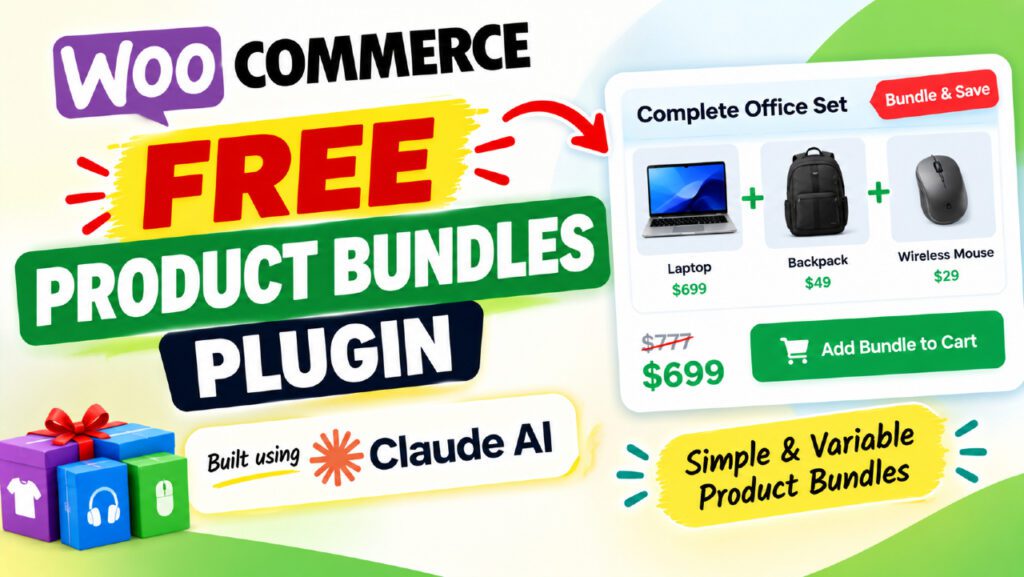
Are you looking for a free WooCommerce product bundles plugin that actually works with variable products? Most free plugins fall short the moment you try to add a T-shirt with size options or a product with color variations. You either hit a paywall or end up with a half-broken bundle that confuses customers. In this guide, you will learn exactly what a WooCommerce product bundles plugin does, how product bundling works, and how to set up the QT WooCommerce Product Bundles plugin — a completely free solution built to handle both simple and variable products, with professional-grade pricing controls and a clean customer experience.
Table of Contents
What Is a WooCommerce Product Bundle?
Definition
A WooCommerce product bundle is a special product type that groups two or more individual products and sells them together as a single package. Instead of customers adding each product to the cart separately, they add one bundle item and the store automatically handles all the products inside it.
Bundles are different from grouped products. With grouped products, each item is added to the cart individually. With a bundle, all items are linked together — changing the bundle quantity changes every item inside it, and bundled items cannot be removed individually from the cart.
How Product Bundles Work in WooCommerce
When you use a WooCommerce product bundles plugin, it creates a new product type — usually called “Product bundle” — in your product editor. You then search for and add existing simple or variable products to that bundle. Each item gets its own quantity settings, pricing rules, and optional status.
On the front end, customers see the bundle product page with all items listed. If any item is a variable product, customers pick their preferred options (like size or color) right on the bundle page. After clicking Add to Cart, the entire bundle appears as a parent item in the cart, with each bundled product listed underneath it.
Bundle vs. Grouped Product vs. Kit
A grouped product is a collection of standalone products displayed together — each must be added to the cart separately. A product bundle groups items into one unit with a shared price. A kit is essentially the same concept as a bundle; the terms are used interchangeably in most WooCommerce contexts.
Why Sell Product Bundles in WooCommerce?
Increase Average Order Value
Product bundles are one of the most effective ways to increase the average order value in your store. Instead of selling a coffee mug for ₹200, you bundle it with a notebook and a pen, and sell the set for ₹400. The customer perceives higher value; you move more inventory in one transaction.
Move Slow-Moving Inventory
Bundles let you pair popular products with slower-moving items. A customer who was only going to buy your best-selling T-shirt might also pick up a pack of notebooks when they are offered together at a small discount.
Simplify the Shopping Experience
For gift buyers or customers who are unsure what to choose, a pre-packaged bundle removes the decision fatigue. A “Starter Kit” or “Gift Box” bundle gives them a ready-to-go option in a single click.
Offer Discounts Without Devaluing Individual Products
With a WooCommerce product bundles plugin that supports discount pricing, you can offer 10% off when products are bought together — without reducing the regular price of each item individually. This protects your price positioning while still rewarding customers who buy more.
Introducing the QT WooCommerce Product Bundles Plugin
The QT WooCommerce Product Bundles plugin is a free WordPress plugin developed by Quick Tips. Unlike many free bundle plugins that limit variable product support or advanced pricing to paid tiers, QT Product Bundles includes all of those features at no cost.
The plugin was built using Claude AI (developed by Anthropic), which allowed the entire plugin architecture — from the custom product type and cart logic to the admin interface and REST API — to be designed and iterated rapidly with a focus on WooCommerce compatibility and real-world usability.
Who Should Use It?
QT WooCommerce Product Bundles is ideal for:
- WooCommerce store owners who sell gift sets, starter kits, or product kits
- Stores that carry variable products (clothing, accessories) and want to bundle them
- Anyone who wants bundle pricing without paying for a premium plugin
- Developers building custom WooCommerce stores who need REST API access to bundle data
Full Feature List of the QT WooCommerce Product Bundles Plugin
Product & Item Management
- New “Product bundle” product type with a dedicated Bundled Items tab
- Search and add simple and variable products to your bundle
- Per-item: default quantity, minimum quantity, and maximum quantity
- Mark any item as optional (customer can include or exclude it)
- Set items to be selected by default when optional
- Add a custom title and custom description for each bundled item
- Hide individual item thumbnails if needed
- Drag-and-drop reordering of bundled items in the admin
Variable Product Support
- Customers pick attributes (size, color, etc.) for each variable item inside the bundle
- Restrict which variations are allowed per bundle item
- Preset default attribute selections for each variable item
- Lock a specific variation so customers cannot change it
- Live price, image, and stock updates as customers choose options
- Unavailable or out-of-stock variations are automatically disabled
Pricing Modes
- Sum of item prices — bundle costs the sum of its individual product prices
- Fixed bundle price — set a regular price and optional sale price (supports scheduled sales)
- Item prices minus discount — percentage or fixed-amount discount per item, plus an optional whole-bundle discount
- “From ₹X” price range display when optional items, variations, or quantities make the total vary
- Sale price formatting when discounts apply
Quantity Controls
- +/− stepper buttons on each bundled item quantity field
- Buttons disable at the minimum and maximum limits
- If the active theme provides its own +/− buttons, those are used instead — no duplicates
- Typed quantity values are clamped to min/max automatically
- Bundle total updates live as quantities change
Cart, Checkout, and Orders
- Bundle shown as a parent line item with children grouped underneath
- Bundled items cannot be removed individually from the cart
- Changing the bundle quantity updates all child item quantities accordingly
- Mini-cart displays bundle contents under the bundle
- Admin order pages, customer order pages, and emails show bundles with their contents
- “Order again” correctly rebuilds the entire bundle from a past order
- Compatible with both classic shortcode cart/checkout and WooCommerce Cart & Checkout blocks
Stock Management
- Stock is deducted from each individual bundled product or variation
- Bundle automatically shows as out of stock when a required item is unavailable
- Optional separate stock count for the bundle product itself
- Add-to-cart and cart quantity changes check stock for every bundled item
Shipping
- Ship as one package — uses the bundle’s configured weight and dimensions
- Ship items individually — each product ships with its own weight, dimensions, and shipping class
Compatibility & Extras
- HPOS (High-Performance Order Storage) compatible
- Cart and Checkout blocks compatible
- Gutenberg block — “QT Product Bundle” — to embed a bundle form on any page
- Shortcode: [qt_product_bundle id=”123″] with show_title, show_price, show_image, show_excerpt options
- Elementor widget for drag-and-drop bundle placement
- REST API: bundle data on wc/v3/products endpoints plus dedicated qtpb/v1/bundles routes
- Translation-ready with POT file included
- RTL-friendly styles
- Theme-overridable templates
How to Install the QT WooCommerce Product Bundles Plugin
Requirements
- WordPress 6.0 or higher
- WooCommerce 7.0 or higher
- PHP 7.4 or higher
Installation Steps
- Download the QT WooCommerce Product Bundles plugin zip file.
- In your WordPress dashboard, go to Plugins > Add New > Upload Plugin.
- Choose the zip file and click Install Now.
- Click Activate Plugin.
- Make sure WooCommerce is already installed and active. The plugin will not activate without it.
After activation, you will find a new “Product bundle” option in the Product data dropdown whenever you create or edit a product.
How to Create Your First WooCommerce Product Bundle
Step 1 — Create a New Product
Go to Products > Add New. Enter a product name such as “Starter Kit”. In the Product data dropdown (below the description area), select Product bundle.
Step 2 — Add Bundled Items
Click the Bundled Items tab in the product data panel. Use the search box to find the products you want to include. Click Add to add each one. You can add multiple simple and variable products.
For each item, set:
- Default quantity — how many the customer gets by default
- Min quantity — the minimum they must order
- Max quantity — the maximum they can order (leave blank for unlimited)
- Optional — tick this if the customer can choose to include or exclude this item
Step 3 — Choose a Pricing Mode
Go to the General tab (or a dedicated Pricing tab if shown). Select your pricing mode from the dropdown. See the next section for a full explanation of each mode.
Step 4 — Choose a Shipping Mode
In the shipping section, choose either “Ship as one package” or “Ship items individually”. If you choose to ship as one package, configure the bundle’s weight and dimensions in the Shipping tab.
Step 5 — Publish
Click Publish. Visit the product page to confirm the bundle form loads, quantities show with +/− buttons, and the total price updates as you change options.
Pricing Modes Explained
Sum of Item Prices
In this mode, the bundle costs whatever its individual items cost. If a mug is ₹200 and a notebook is ₹150, the bundle is ₹350. If an item is on sale, the bundle total reflects the sale price automatically. This mode is ideal when you want completely transparent pricing.
Fixed Bundle Price
You set a specific Regular price (and optionally a Sale price with schedule support). Optional items and quantities above each item’s default quantity are charged on top of the fixed price. For example: a Gift Box is fixed at ₹849 (sale, was ₹900). If the customer adds an extra mug (₹200), the total becomes ₹1,049.
This mode is great for gift sets and curated bundles where you want full price control regardless of which products are inside.
Item Prices Minus Discount
In this mode, you set discounts per item — either as a percentage (e.g., 10% off each mug) or a fixed amount per unit (e.g., ₹50 off each T-shirt). You can also apply a whole-bundle discount on top. The product page shows the original price struck through and the discounted total, making the deal immediately obvious to customers.
This mode works well for volume discounts and bundle deals where you want the savings to be visible.
Variable Products Inside Bundles
One of the biggest limitations of free bundle plugins is their lack of variable product support. The QT WooCommerce Product Bundles plugin handles variable products as a core feature, not an upsell.
How Attribute Selection Works
When you add a variable product to a bundle, a dropdown for each attribute (Size, Color, etc.) appears on the bundle product page. Customers pick their preferred options just as they would on a regular variable product page. The price, image, and stock status update live as they make their selections.
Restricting Allowed Variations
In the bundle admin, you can choose which specific variations are allowed for each item. For example, you might only allow the Large Red and Large Blue options of a T-shirt in a bundle. Any variation you have not allowed will be hidden from the customer.
Locking a Variation
You can also lock a specific variation so the customer cannot change it. This is useful for bundles where you want to control exactly which product variant is included — for example, a bundle that always ships with a Medium White T-shirt, with no customer choice.
Out-of-Stock Handling
If a particular variation is out of stock, that option is disabled in the dropdown and marked with an availability notice. The customer cannot add the bundle to their cart with an out-of-stock variation selected.
Cart, Checkout, and Order Display
Cart Grouping
When a customer adds a bundle to their cart, it appears as a parent row with each bundled product listed underneath. Bundled items are visually indented and labelled as part of the bundle. Customers cannot remove individual items — they can only remove the entire bundle or change the bundle quantity.
Updating Bundle Quantity
Changing the bundle’s quantity in the cart automatically updates all its child items proportionally. Stock is checked for every bundled item when the quantity changes.
Mini-Cart
The mini-cart also shows bundle contents under the bundle parent, so customers see a complete summary without going to the full cart page.
Order Pages and Emails
In the WooCommerce admin order view, bundled items are shown grouped under their parent bundle, clearly labelled as “Part of: [Bundle Name]”. This same grouping appears on the customer’s order page and in order confirmation emails, providing a clean, professional order summary.
“Order Again” Support
When a customer uses the “Order again” feature on a past order that contained bundles, the plugin correctly reconstructs the entire bundle configuration — including selected variations and quantities — in a new cart.
Shortcode, Gutenberg Block, and Elementor Widget
Shortcode
Use the shortcode [qt_product_bundle id=”123″] to display a bundle’s add-to-cart form on any page or post. You can pass extra parameters:
- show_title=”yes” — shows the bundle’s product title
- show_price=”yes” — shows the price range
- show_image=”yes” — shows the featured image
- show_excerpt=”yes” — shows the short description
Gutenberg Block
The “QT Product Bundle” block is available in the WordPress block editor. Search for it in the block inserter, then type or select a product ID. The block renders a fully interactive bundle form wherever you place it — on landing pages, custom layout pages, or anywhere in a block-theme template.
Elementor Widget
If you use Elementor, a dedicated “QT Product Bundle” widget is available in the widget panel. Drag it onto your page, enter the product ID in the widget settings, and the bundle form renders in your Elementor layout. No shortcode required.
Free vs. Paid: Feature Comparison
Here is how the QT WooCommerce Product Bundles plugin compares to typical free plugins and the kinds of features often locked behind paid plans:
Feature | Free Plugins (Typical) | QT Product Bundles (Free) |
Variable product bundles | ❌ Paid only | ✅ Free |
3 pricing modes | ❌ Limited | ✅ Sum / Fixed / Discount |
+/− qty stepper buttons | ❌ Rare | ✅ Built-in |
Min / Max qty per item | ⚠️ Basic | ✅ Full control |
Optional items | ❌ Paid only | ✅ Free |
Live price update | ⚠️ Partial | ✅ Real-time |
Cart grouping | ⚠️ Basic | ✅ Parent + children |
HPOS compatible | ⚠️ Varies | ✅ Fully compatible |
Elementor / Block widget | ❌ Rare | ✅ Included |
REST API support | ❌ Paid only | ✅ Built-in |
As you can see, the QT Product Bundles plugin offers a feature set that usually requires a premium subscription, completely free of charge.
Frequently Asked Questions
What is a WooCommerce product bundle?
A WooCommerce product bundle is a custom product type that groups two or more individual products and sells them together as a single package. Customers add the entire bundle to their cart at once, and the store owner controls pricing, quantities, and which items are included.
Can I add variable products to a WooCommerce bundle?
Yes. The QT WooCommerce Product Bundles plugin supports variable products inside bundles for free. Customers can select attributes like size and color directly on the bundle product page. You can restrict which variations are allowed and pre-set or lock attribute selections.
What pricing modes does the QT bundle plugin support?
The plugin offers three pricing modes: (1) Sum of item prices — the bundle costs whatever its individual items cost; (2) Fixed bundle price — you set a regular and optional sale price; (3) Item prices minus discount — you apply percentage or fixed discounts per item and optionally an overall bundle discount.
Is the QT WooCommerce Product Bundles plugin free?
Yes. The QT WooCommerce Product Bundles plugin is completely free and includes features that many paid plugins charge for, including variable product support, three pricing modes, per-item quantity controls, optional items, live price updates, HPOS compatibility, and REST API support.
How does stock management work for product bundles?
Stock is deducted from each individual bundled product or variation when the bundle is purchased. If any required item runs out of stock, the bundle automatically shows as out of stock. You can also optionally manage a separate stock count for the bundle itself.
Can I set minimum and maximum quantities for bundled items?
Yes. Each bundled item has a default quantity, a minimum quantity, and a maximum quantity. You can also make items optional so customers can include or exclude them from their purchase.
Does the plugin work with the WooCommerce Cart and Checkout blocks?
Yes. The QT WooCommerce Product Bundles plugin is compatible with both the classic shortcode cart/checkout and the modern WooCommerce Cart and Checkout blocks. It is also HPOS (High-Performance Order Storage) compatible.
Can I display a bundle on pages other than the product page?
Yes. The plugin includes a shortcode [qt_product_bundle id=”123″], a Gutenberg block called “QT Product Bundle”, and an Elementor widget. Use any of these to embed a fully interactive bundle form on any page of your site.
Conclusion
Product bundles are one of the smartest tools in a WooCommerce store owner’s toolkit. They increase average order value, simplify the shopping experience, and let you run bundle discounts without devaluing your individual products.
The QT WooCommerce Product Bundles plugin makes all of this accessible without any cost. Whether you are building a simple gift box or a complex configurable kit with variable products, multiple pricing modes, and custom quantity controls, this plugin handles it cleanly — from the product editor right through to the order confirmation email.
Ready to get started? Download the QT WooCommerce Product Bundles plugin, install it on your WooCommerce store, and create your first bundle today. Watch the full video tutorial on the Quick Tips YouTube channel for a step-by-step walkthrough of every feature covered in this guide.