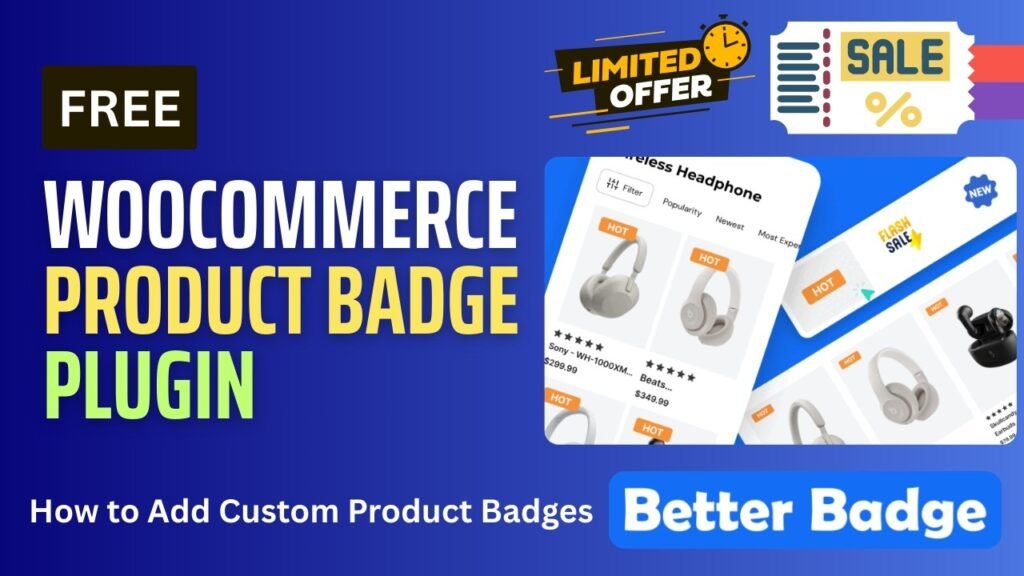
If you want to highlight products, boost conversions, and improve the visual appeal of your online store, adding product badges in WooCommerce is one of the most effective strategies. I am going to use Free WooCommerce product badge plugin.
Product badges help grab user attention and highlight important product information like:
Sale offers
New arrivals
Best sellers
Limited stock
Featured products
In this tutorial, you will learn:
What is a WooCommerce product badge
Benefits of adding product badges
Features of the Better Badge plugin
How to add product badges in WooCommerce
Better Badge Free vs Pro comparison
Using the Better Badge plugin, you can easily create eye-catching badges without coding.
Watch Full video tutorial: https://youtu.be/s5bpbB2mth4
What is a WooCommerce Product Badge?
A WooCommerce Product Badge is a visual label displayed on product images or listings to highlight special information.
These badges are used to attract attention and encourage customers to take action.
Common examples include:
“Sale”
“New”
“Hot”
“Best Seller”
“Limited Offer”
Product badges are typically displayed on:
shop pages
category pages
product pages
They act as visual indicators that guide customers toward important products.
Why Product Badges Are Important in WooCommerce
Online shoppers make decisions quickly.
Product badges help communicate key information instantly without requiring users to read detailed descriptions.
This makes them a powerful marketing tool for WooCommerce stores.
Benefits of Adding Product Badge in WooCommerce
1. Increase Product Visibility
Badges make products stand out visually.
Customers are more likely to notice products with labels.
2. Boost Conversions
Labels like “Sale” or “Limited Offer” create urgency.
This encourages customers to make faster purchase decisions.
3. Highlight Promotions
You can use badges to promote:
discounts
seasonal offers
special deals
4. Improve User Experience
Badges help users quickly identify important products.
This improves browsing experience.
5. Promote Best-Selling Products
You can highlight top-performing products using badges like “Best Seller”.
6. Increase Click-Through Rate
Eye-catching badges attract attention and improve product click rates.
Plugin Used in This Tutorial
To add product badges, we use:
Better Badge – Custom Product Badge for WooCommerce
This plugin allows you to create and display custom badges on WooCommerce products.
It supports both:
free version
premium version with advanced features
Features of Better Badge Plugin
1. Custom Product Badges
Create custom badges with your own text like:
Sale
New
Trending
2. Pre-Designed Badge Styles
The plugin provides ready-made badge designs to choose from.
3. Dynamic Badge Rules
You can assign badges based on:
product category
price
stock status
sale status
4. Position Control
You can place badges on different areas of the product image.
5. Color & Style Customization
Customize:
badge color
background
font size
shape
6. Schedule Badges
Display badges for a limited time during promotions.
7. Multiple Badge Support
Assign multiple badges to a single product.
8. Lightweight Performance
The plugin is optimized for performance and does not slow down your store.
How to Add Product Badge in WooCommerce (Step-by-Step)
Step 1: Install WooCommerce
Make sure your website has:
WordPress installed
WooCommerce plugin activated
Products added
Step 2: Install Better Badge Plugin
Steps:
Go to WordPress Dashboard
Click Plugins → Add New
Search for Better Badge
Install and activate the plugin
Step 3: Open Plugin Settings
After activation:
Navigate to the plugin settings
Start creating a new badge
Step 4: Create a New Product Badge
Add details such as:
badge text (e.g., “Sale”, “New”)
badge style
color and design
Step 5: Set Display Conditions
You can assign badges based on:
specific products
product categories
sale products
price range
This allows targeted badge display.
Step 6: Choose Badge Position
Select where the badge should appear:
top-left
top-right
center
Step 7: Publish Badge
Save and publish the badge.
It will automatically appear on selected products.
Step 8: Test on Frontend
Visit your shop page and confirm that badges are displaying correctly.
Better Badge Free vs Pro
| Feature | Free Version | Pro Version |
|---|---|---|
| Custom badges | Yes | Yes |
| Basic styling | Yes | Advanced |
| Badge conditions | Limited | Advanced rules |
| Multiple badges | Limited | Yes |
| Scheduling | No | Yes |
| Priority support | No | Yes |
The Pro version offers advanced targeting and customization options.
Best Practices for WooCommerce Product Badges
Use Clear and Short Text
Keep badge text simple:
“Sale”
“New”
“Hot”
Avoid Overusing Badges
Too many badges can confuse customers.
Use them strategically.
Use Contrasting Colors
Make sure badges stand out visually.
Highlight Important Products
Use badges for:
discounts
top products
new arrivals
Combine with Marketing Campaigns
Use badges during:
festive sales
seasonal offers
clearance sales
Use Cases of WooCommerce Product Badges
Product badges can be used in various scenarios:
eCommerce stores
fashion websites
electronics stores
digital product stores
seasonal sales campaigns
Frequently Asked Questions (FAQ)
1. What is a WooCommerce product badge?
A WooCommerce product badge is a label displayed on product images to highlight offers, features, or important product information.
2. Can I add product badges in WooCommerce for free?
Yes. You can use free plugins like Better Badge to add product badges.
3. Do product badges increase sales?
Yes. Product badges attract attention and create urgency, which can improve conversions.
4. Can I customize WooCommerce product badges?
Yes. You can customize badge text, color, position, and style using plugins.
5. Can I show badges on specific products only?
Yes. You can assign badges based on conditions like category, price, or product type.
Final Thoughts
Adding a WooCommerce Product Badge is a simple yet powerful way to improve your online store’s performance.
With the Better Badge plugin, you can easily:
highlight important products
promote offers
increase conversions
improve user engagement
Even the free version provides enough features to get started.
If you want advanced customization and targeting, you can upgrade to the Pro version.