💬 Prashant’s Note
When I first set this up for a wholesale gift store client in the UK, the part that surprised her most was how much faster her customers started ordering — they could see everything in one place and just tick what they needed. I’ve since used this same plugin for restaurant menus, book catalogues, and even a spare parts store in Australia. It’s one of those free plugins that genuinely punches above its weight, and I always recommend it when a client asks how to make their WooCommerce shop easier to browse.
Watch Video tutorial for WooCommerce product table plugin
Table of Contents
What Is a WooCommerce Product Table and Why Do You Need One?
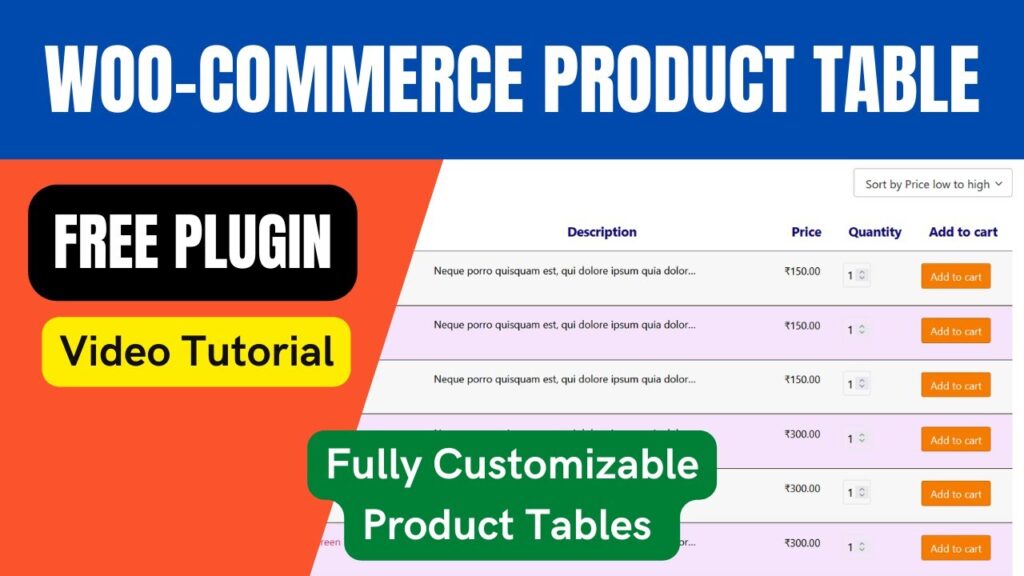
By default, WooCommerce shows your products in a grid format — product image, name, price, and an Add to Cart button arranged in rows of three or four. It looks great for fashion stores and photography shops, but it’s genuinely limiting for a lot of businesses. A WooCommerce product table replaces that grid with a clean, spreadsheet-style layout where each row is one product and each column shows a specific piece of information — price, SKU, stock status, category, add-to-cart button, and more. Customers can search by keyword, sort by price or name, filter by category or attribute, and add multiple products to their cart without ever leaving the page. Here is why this matters for your store: – Customers can compare products side by side on a single page without jumping between product pages – The search and filter tools help shoppers find exactly what they need fast, which reduces frustration and cart abandonment – For wholesale buyers or repeat customers, bulk ordering becomes genuinely quick and easy – You can display many more products per page without it feeling overwhelming If you run a wholesale shop, a digital downloads store, a restaurant with an online menu, a spare parts shop, or really any store with a large catalogue, a product table layout will make a noticeable difference to the shopping experience — and to your conversion rate.
Which Free WooCommerce Product Table Plugin Should You Use?
There are several product table plugins in the WordPress.org repository. Some are free, some are paid, and some are freemium. After testing a fair few of them across client projects over the years, the one I keep coming back to for free setups is the Woo Product Table plugin by CodeAstrology (also listed on WordPress.org as “Product Table for WooCommerce”). Here is why I recommend it over the others: – It is genuinely free with a solid set of features — not a heavily crippled trial version – The interface is straightforward enough for a complete beginner to set up in under 30 minutes – It supports shortcodes, Gutenberg blocks, and works well with Elementor – It handles simple products, variable products, and even lets you show variations in separate rows – It has been actively maintained and tested with the latest versions of WordPress and WooCommerce Other solid options worth knowing about include JustTables by HasThemes (great free version, pro available at $49/year) and the WC Product Table Lite plugin (now called Product Table and List Builder for WooCommerce). All three are legitimate choices. But for straightforward setups — particularly for small business clients — the Woo Product Table plugin by CodeAstrology is what I reach for first. You can download it directly from your WordPress dashboard by searching for “Woo Product Table” under Plugins > Add New.
Key Features of the Woo Product Table Plugin (Free Version)
Before we get into setup, let me give you a quick rundown of what the free version actually includes — because it is quite generous. – 31 predefined columns including product name, image/thumbnail, price, SKU, categories, tags, stock status, add-to-cart button, rating, and more – Drag-and-drop column ordering so you can arrange the table exactly how you want – A built-in search box that lets customers search by product name, SKU, category, and more – Category, tag, and attribute filters above the table – Support for variable products — you can show each variation as its own row in the table – Quick Order Table mode — increase quantity and the item adds to cart automatically – User Conditional Table — hide certain columns from guest users who are not logged in – Attributes as individual columns — useful for stores with lots of product specs – Shortcode support for embedding the table on any page or post – Gutenberg block support – Works with Elementor (shortcode widget) – AJAX-powered add-to-cart (no page reload when a customer clicks Add to Cart) – Responsive design — the table adapts cleanly on mobile and tablet – Over 16 pre-made table templates to get you started quickly For the vast majority of small business WooCommerce stores, this free version is more than enough.
How to Install the Free WooCommerce Product Table Plugin
Installation takes about two minutes. Here are the exact steps: – Log into your WordPress dashboard – Go to Plugins > Add New – In the search box, type “Woo Product Table” or “Product Table for WooCommerce” – Find the plugin by CodeAstrology — it will show the author name clearly – Click Install Now – Once installation is complete, click Activate Once the plugin is active, you will see a new menu item in your WordPress dashboard left sidebar labelled “Product Table.” That is where everything happens. Before you move on, make sure WooCommerce is already installed and active on your site and that you have at least a few products set up — otherwise the table will have nothing to pull from.
How to Create Your First Product Table
Now comes the fun part. Here is how to create your first product table from scratch: – In your WordPress dashboard, go to Product Table > Add New – Give your table a name — something descriptive like “All Products” or “Men’s Clothing” works well – The plugin will automatically generate a shortcode for this table. You will see it displayed near the top of the editor — copy it and keep it handy for later – Click Publish to save the table At this point you have a basic table. Now let’s configure it properly before we put it live on a page.
Setting Up the Query — Which Products to Show
After publishing, go back to edit the table. You will see several tabs including Column, Query, Search Box, and Configure. Click the Query tab. This is where you tell the table which products to display. By default, it will show all your published WooCommerce products. But you can narrow it down by: – Specific product categories – Specific product tags – Specific product IDs – Product type (simple, variable, grouped) – Stock status (in stock only, for example) For most clients I work with, filtering by category makes the most sense — especially if you want a separate table for each product category on its own page. Set your category filter here, save, and move on to columns.
Configuring the Table Columns
Click the Column tab. This is where you decide what information appears in each column of your table. The plugin gives you a list of available columns on the left side. You simply drag the ones you want across to the right side (the active column area). A typical setup for a small business might include: – Product thumbnail (image) – Product name – Price – SKU (if relevant) – Stock status – Add to Cart button You can reorder the columns by dragging them up or down in the active list. Each column also has its own settings — you can rename the column header, set a custom width, and control whether it shows on mobile or hides on smaller screens to keep things clean. Once you are happy with the columns, click Update to save.
How to Configure Columns, Search, and Filters
The Search Box tab lets you control the search functionality at the top of your product table. You can choose which fields are searchable (product name, SKU, category, tags, custom fields), set a placeholder text for the search input, and decide whether to show the search box above or below the table. For most small business stores, I recommend enabling search by product name and category at minimum. If you sell products with specific SKU codes — like a hardware shop or spare parts store — definitely enable SKU search too, because your customers will type those codes directly. The Configure tab gives you global table settings: – Number of products to show per page (pagination) – Whether to show a results count above the table – Default sort order (by name, by price, by date added, etc.) – Whether to enable or disable the popup notice when a product is added to cart – Load more button vs standard pagination Play around with these settings — the live preview at the top of the page updates in real time so you can see exactly what the table will look like before publishing.
How to Display the Product Table on a Page Using Shortcode
Once you have your table set up the way you want, it is time to put it on an actual page on your website. Here is how: – Go to Pages > Add New (or edit an existing page) – Add a Shortcode block (in Gutenberg) or a Text/HTML block – Paste the shortcode that was generated when you created your table — it looks something like [woo_product_table id=”123″] – Give the page a name and click Publish If you are using Elementor (which I use on pretty much every build), just add a Shortcode widget from the Elementor panel, paste your table shortcode inside it, and you are done. The table will render cleanly inside your Elementor layout. You can also place the same shortcode on multiple pages if you want the same table to appear in more than one location. And you can create different tables for different categories and embed each one on its own dedicated page — which is a great way to organise a large catalogue. One extra tip: the plugin also lets you override the default WooCommerce shop or category archive pages so that the table layout replaces the grid automatically. You will find this option under Product Table > Configure > Archive Override.
Free vs Pro: When Should You Upgrade?
For most of my clients — local service businesses, small retail shops, cafes, and coaches — the free version covers everything they need. But there are a few situations where the pro version genuinely pays for itself. Consider upgrading if you need: – A dedicated Select Variation element inside the table so customers can pick sizes, colours, or options directly from the table row (without a popup) – Advanced taxonomy filters with unlimited filter options – Header sorting controls and richer design styling options – The ability to control thumbnail click behaviour and title click behaviour independently – Display of stock availability or rich stock quantity columns – Import and export of table settings – Priority support The pro version pricing is very reasonable — it is a one-time or annual fee depending on the option you choose, and for a business that is doing a significant chunk of its orders through the product table, it will pay back quickly. That said, if you are just getting started or running a modest-sized WooCommerce store, stick with free. It is excellent.
Best Use Cases for a WooCommerce Product Table
Not every type of WooCommerce store benefits equally from a product table layout. Here are the types of businesses where I have seen it make the biggest difference: – Wholesale and B2B stores — buyers know what they want and just need to enter quantities and place an order fast. A table with a quick-order mode is ideal. – Restaurants and cafes with online ordering — displaying a menu in table format is much cleaner than a grid, and customers can build their order from a single page. – Book stores and digital product shops — showing title, author, format, and price in a clean table makes browsing fast and comparison easy. – Spare parts and hardware stores — SKU search is a lifesaver here. Technicians type the part number and find exactly what they need without scrolling. – Clothing and fashion with many variants — showing each size and colour as a separate row in the table removes friction from the buying process. – Course and coaching packages — listing different tiers or packages in a table makes it easy for clients to compare what is included at each price point. In my experience, any WooCommerce store with more than 15–20 products and more than one or two product categories will benefit from having at least one product table page.
Frequently Asked Questions
Is the Woo Product Table plugin completely free?
Yes, the core version of the Woo Product Table plugin by CodeAstrology is completely free and available to download from the WordPress.org plugin repository. It includes a generous set of features including 31 predefined columns, search, filters, AJAX add-to-cart, shortcode support, and Gutenberg blocks. A pro version with additional advanced features is available separately.
Will a WooCommerce product table slow down my website?
The Woo Product Table plugin is built to be lightweight — it only loads its scripts and styles on pages where the shortcode is actually present, which minimises any performance impact. For stores with very large product catalogues (thousands of products), you may want to use pagination to limit the number of rows loaded at once, but for most small business stores the performance impact is negligible.
Can I use the product table plugin with Elementor?
Absolutely. The plugin generates a simple shortcode for each table you create. In Elementor, you just add a Shortcode widget to your page, paste the table shortcode inside it, and the table renders automatically inside your Elementor layout. It works cleanly with Elementor and most other major page builders.
Can customers add multiple products to cart at once from the table?
Yes. The product table includes an Add to Cart column where each product has its own quantity selector and Add to Cart button, all visible from the same page. With the Quick Order Table mode enabled, customers can even increment quantity to instantly add items to cart without clicking a button at all.
Does the free WooCommerce product table support variable products?
Yes. The free version supports variable products. When a customer clicks Add to Cart on a variable product in the table, a popup form appears allowing them to select their variation options (size, colour, etc.). The pro version goes further and allows you to display variation selectors directly inside the table row itself, which removes the extra popup step.
Can I show only certain categories of products in the table?
Yes, the Query tab in the table editor allows you to filter which products appear in any given table. You can filter by category, tag, product ID, type, and other parameters. This means you can create separate product tables for different sections of your catalogue and embed each one on its own page.
How do I put the product table on my WooCommerce shop or category pages?
You can embed the table on any regular WordPress page using the shortcode generated by the plugin. For replacing the default WooCommerce shop or category archive pages with the table layout, you can look at the Archive Override option available under Product Table settings. The Woo Product Table pro version has full archive override support; for the free version you can add the shortcode to a custom shop page you build yourself.
Final Thoughts
Thanks so much for reading this guide on setting up a free WooCommerce product table plugin. I hope it gives you a clear picture of how quick and straightforward the whole process really is — no coding, no complicated settings, just a clean table layout that makes life easier for your customers and puts more products in front of them at once. If you are a visual learner, I have recorded a full step-by-step video tutorial walking through this entire setup from installing the plugin to embedding the finished table on a live page. Make sure to watch it on my YouTube channel — it covers a few extra tips that are easier to show than explain in writing. If you have any questions or run into anything unclear, leave a comment below — I read every single one and will do my best to help. And if you would rather have someone just handle this for you, feel free to reach out to me directly at paramfreelance.com. With 1800+ websites built for small businesses around the world, setting up clean, fast WooCommerce stores is exactly what I do.
I hope that this article on How to install Free WooCommerce Product Table Plugin will help you. Read more articles on WooCommerce Tutorials.
Do not forget to subscribe to our Quick Tips Youtube Channel for upcoming videos on Website Design, WordPress Tutorials, Elementor, and WooCommerce tutorials.