💬 Prashant’s Note
When I set this up for a boutique clothing client in Australia, the thing that surprised her most was how quickly the whole thing was running — we had gift cards live on her WooCommerce store in under 20 minutes. The free WP Swings plugin is the one I reach for first with local business clients because it does the job cleanly without bloating the site. If you need more advanced features like scheduled delivery or PDF gift cards, the Pro version is worth it, but start with free and see how your customers respond.
Watch Video: Gift Cards plugin for WooCommerce
Table of Contents
What Is the WP Swings Free WooCommerce Gift Card Plugin?
The plugin we’re using in this tutorial is called ‘Ultimate Gift Cards for WooCommerce’ by WP Swings. It’s available free on the WordPress plugin repository and works directly with your existing WooCommerce store. No third-party accounts, no monthly fees — just install, activate, and go. With this plugin, you can: – Create gift card products with fixed or variable pricing – Automatically email a unique coupon code to the gift card recipient – Allow customers to add a personal message when purchasing – Set expiry dates on gift cards – Let customers check their gift card balance from your store – Track gift card sales and usage from your WP admin dashboard It’s a clean, well-supported plugin that works smoothly with standard WooCommerce setups. I’ve used it on multiple client sites and haven’t run into any major compatibility headaches.
Why Add Gift Cards to Your WooCommerce Store?
You might be wondering whether it’s actually worth adding gift cards to your WooCommerce store. Here’s why I think it almost always is, especially for local and service-based businesses. Gift cards bring in immediate cash flow. When a customer buys a $50 gift card, you get paid right now — before a single product or service has been used. That’s money in your pocket upfront. They also tend to increase your average order value. Most recipients end up spending more than the value of the card. So that $50 gift card might turn into a $75 or $80 purchase when the recipient checks out. For businesses that struggle with returns and refunds, gift cards help there too. A customer who wants to return an item is far more likely to accept store credit or exchange it for a gift card than request a cash refund — which is better for your cash flow. And finally, every gift card is essentially a referral. When someone buys a gift card for a friend or family member, that recipient becomes a brand-new customer who has never shopped with you before. Gift cards are one of the most organic ways to expand your customer base without spending on ads.
Free vs Pro: What’s the Difference?
The free version of the WP Swings gift card plugin handles the core use case well, but there are some limitations worth knowing about before you get started. What the free version includes: – Create and sell gift card products in WooCommerce – Automatic email delivery of coupon codes to recipients – Fixed-amount and variable-amount gift card pricing – Basic gift card templates (4 default templates) – Set expiry dates on gift cards – Minimum and maximum redemption limits – Gift card balance checker page – Basic usage reporting in WP admin What you get with the Pro version: – 20+ customizable gift card email templates – Scheduled delivery (send on a specific future date) – PDF gift card attachments – QR code and barcode support for faster redemption – SMS delivery via Twilio integration – Import and export gift card codes via CSV – Group gifting (multiple people pool contributions) – Advanced gifting portal for in-store redemption – Unlimited employee access to the gifting portal For most small business stores I work with, the free version is perfectly fine to start. You can always upgrade later if your customers start asking for features like scheduled delivery or PDF downloads.
How to Install the Free WooCommerce Gift Card Plugin
Installing this plugin takes less than two minutes. Here’s exactly what to do: – Step 1: Log in to your WordPress admin dashboard. – Step 2: Go to Plugins > Add New in the left sidebar. – Step 3: In the search bar, type ‘Gift Cards for WooCommerce’ and look for the plugin by WP Swings. – Step 4: Click ‘Install Now’ and then click ‘Activate’ once it’s installed. – Step 5: After activation, you’ll see a new ‘Gift Cards’ menu item appear under WooCommerce in your sidebar. That’s it — the plugin is live. Now let’s configure it properly before creating your first gift card product.
How to Configure the Plugin Settings
Before you create any gift card products, spend a few minutes going through the settings. Head to WooCommerce > Gift Cards > General Settings. Here’s what to look for: – Enable the Plugin: Make sure the gift card plugin is enabled. There’s a checkbox at the top of the General Settings tab — tick it and save. – Coupon Code Prefix: You can set a prefix for the auto-generated coupon codes (for example, ‘GIFT-‘). This keeps your gift card coupons easy to identify in your WooCommerce coupon list. – Coupon Code Length: Set how long the generated coupon codes will be. – Tax Settings: Decide whether tax should apply to gift card purchases. This varies by country, so check with your accountant if you’re unsure. – Product Settings: Under the Product Settings tab, you can choose which product categories are excluded from gift card redemptions. For example, if you don’t want customers using gift cards on already-discounted sale items, you can exclude those here. – Email Template: Under Email Template settings, you can preview and adjust the email that gets sent to the gift card recipient. The free version gives you basic template options. Make sure the sender name and email address are set correctly so the email doesn’t look spammy. – Delivery Settings: Choose how the gift card is delivered. By default, it’s via email to the recipient — that’s the option you want for digital gift cards. Once you’ve gone through these settings and saved, you’re ready to create your first gift card product.
How to Create Your First Gift Card Product
Creating a gift card in WooCommerce with this plugin works similarly to creating any other product. Here’s how to do it: – Step 1: Go to Products > Add New in your WordPress dashboard. – Step 2: Give the product a clear name like ‘Store Gift Card’ or ‘$50 Gift Card’. – Step 3: In the Product Data section (below the description area), open the dropdown and select ‘Gift Card’ as the product type. – Step 4: Set the pricing type. You can choose from fixed price, user-defined price (the customer enters an amount), price range, or predefined amounts. For most local business stores, I recommend either a fixed price (like $25, $50, $100) or a range where the customer picks an amount between a minimum and maximum. – Step 5: Select a gift card template. The free version comes with 4 default templates. Pick the one that fits your brand best. – Step 6: Set an expiry date if you want — for example, you might set gift cards to expire 12 months from the purchase date. – Step 7: Add a product image and write a short product description. – Step 8: Hit Publish. Your gift card product is now live on your WooCommerce store. It will appear in your shop just like any other product, and customers can add it to their cart and check out normally.
How Customers Buy and Redeem Gift Cards
Here’s what the experience looks like from your customer’s perspective — this is the part that really matters. Buying a gift card: The customer finds the gift card product in your store, selects the amount (if you’ve set up variable pricing), and fills in the recipient’s name, email address, and an optional personal message. They then add it to the cart and check out as normal. Receiving the gift card: Once the order is completed and payment is confirmed, WooCommerce automatically sends an email to the recipient’s address. That email contains the unique coupon code for the gift card value, along with the message from the buyer. The recipient can click directly from the email to start shopping. Redeeming the gift card: At checkout, the recipient enters the coupon code in the discount/coupon field. The gift card amount is deducted from the order total. If the order is less than the gift card value, the remaining balance stays on the code and can be used in a future purchase. If the order is more than the card value, the customer simply pays the difference. Checking the balance: You can add a gift card balance checker page to your store using the plugin’s shortcode or Gutenberg block. Customers enter their email and coupon code to instantly see how much credit they have remaining.
How to Track Gift Card Usage as Admin
One of the things I always check when recommending a free plugin is whether the admin reporting is any good — because if you can’t track what’s happening, the plugin becomes a bit of a black box. With the WP Swings plugin, you can monitor gift card activity directly from your WordPress dashboard. Go to WooCommerce > Gift Cards and look for the reporting section. From here you can see details like: – Which gift cards have been purchased – The original amount and remaining balance on each card – The sender and recipient names and email addresses – The expiry date of each card – Cards that have been fully redeemed or expired This gives you a clear picture of your gift card liability at any time — meaning you always know how much outstanding gift card credit your customers are holding. That’s useful both for your accounting and for spotting whether gift cards are actually being redeemed (if they’re not, you might want to send a reminder email to holders).
Tips for Getting the Most Out of Gift Cards
Setting up the plugin is the easy part. Here are a few practical tips I give clients to actually make their gift card program work: – Promote gift cards before seasonal peaks. Christmas, Mother’s Day, Valentine’s Day — these are the moments when gift cards sell fastest. Add a banner or pop-up to your store a few weeks before these dates. – Feature gift cards on your homepage. A lot of store owners bury their gift card product inside a category nobody visits. Put a link to it in your navigation or add it to your homepage as a featured product. – Offer a small range of amounts. Having $25, $50, and $100 options is usually enough. Too many choices can cause analysis paralysis — keep it simple. – Remind holders when their card is about to expire. If you’ve set expiry dates, consider sending a follow-up email reminder closer to the expiry date. This is easier with the Pro version but can also be handled manually. – Pair gift cards with your loyalty or points program. If you’re already running a WooCommerce points and rewards program, gift cards work nicely alongside it — giving customers multiple reasons to come back.
Frequently Asked Questions
Is the WP Swings WooCommerce gift card plugin really free?
Yes, the core version of the plugin is completely free and available on the WordPress plugin repository. The free version lets you create and sell gift cards, automatically email coupon codes to recipients, and track usage from your admin dashboard. A paid Pro version is available with more advanced features like scheduled delivery, PDF attachments, and SMS notifications.
Can customers use a gift card to partially pay for an order?
Yes. If a customer has a $50 gift card but their order is $75, they can apply the coupon code and pay the $25 difference with their normal payment method. The remaining balance after a partial redemption stays on the coupon code and can be used in a future purchase.
How does the customer receive the gift card after purchase?
Once the order is placed and payment confirmed, the plugin automatically sends an email to the recipient’s email address with the unique coupon code and the buyer’s personal message. The recipient can click directly from the email to start shopping on your store.
Can I set an expiry date on WooCommerce gift cards?
Yes. When creating a gift card product, you can set an expiry date. You can configure the expiry to apply from the date of purchase or from the scheduled delivery date if you’re using the Pro version’s scheduled delivery feature.
Does the free gift card plugin work with all WooCommerce payment gateways?
Yes. The gift card coupon code is applied as a discount at checkout, which means it works alongside any standard WooCommerce payment gateway including Stripe, PayPal, and bank transfers. The payment gateway only processes whatever balance remains after the gift card discount is applied.
Can customers check their gift card balance without placing an order?
Yes. The plugin provides a shortcode and Gutenberg block that you can add to any page on your site. Customers enter their email address and coupon code to instantly see their remaining gift card balance without needing to go to checkout.
What’s the difference between the free and Pro versions of the WP Swings gift card plugin?
The free version covers the essentials — creating gift card products, automatic email delivery, expiry dates, basic templates, and balance tracking. The Pro version adds features like 20+ email templates, PDF gift cards, scheduled delivery, QR/barcode support, SMS notifications, and a dedicated gifting portal for in-store redemptions.
Final Thoughts
And that’s everything you need to get a free WooCommerce gift card plugin up and running on your store. It genuinely is one of the easier features to add to a WooCommerce site, and the impact on sales and customer retention can be significant — especially if you promote it well around seasonal events. I’ve put together a full video walkthrough of this entire setup process on my YouTube channel, so if you’d rather watch it step by step than read through it, head over there and look for the WooCommerce gift card tutorial. If you have any questions about the process — or if something isn’t working the way you expect — drop a comment below and I’ll do my best to help. And if you’d like me to set this up directly on your WooCommerce site, feel free to reach out to me through the contact page on paramfreelance.com. I’m always happy to help local businesses get more out of their websites.
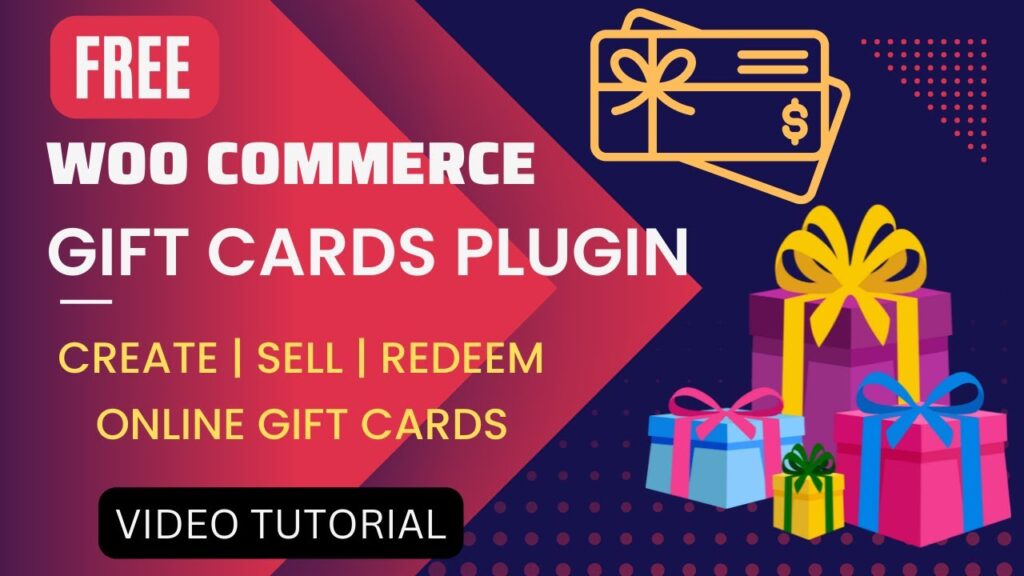
I hope that this article on How to Install Free WooCommerce Gift Card Plugin will help you. Read more articles on WooCommerce Tutorials.
Do not forget to subscribe to our Quick Tips Youtube Channel for upcoming videos on Website Design, WordPress Tutorials, Elementor, and WooCommerce tutorials.