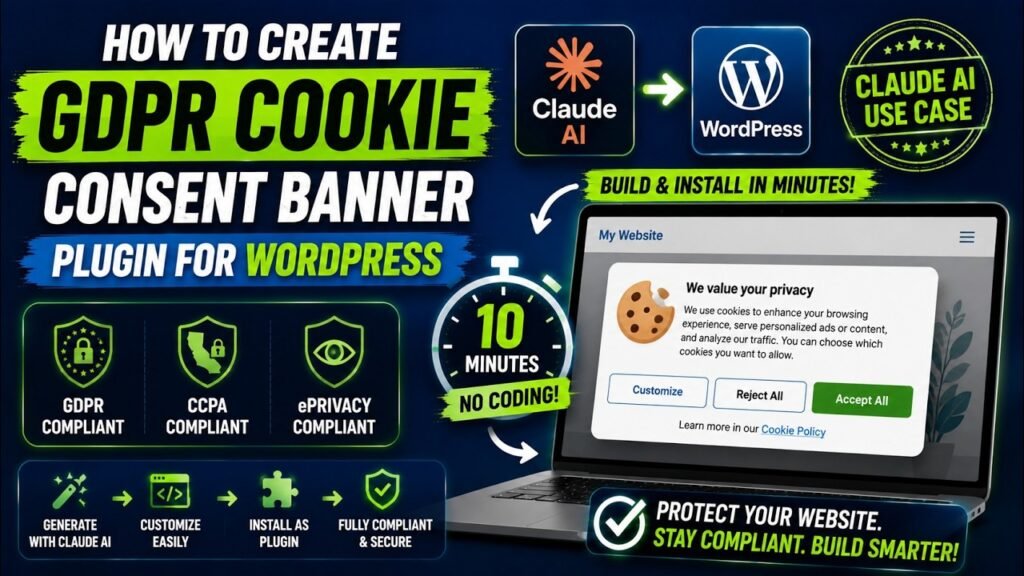
If you run a WordPress website, you already know that a cookie consent banner plugin is no longer optional — it is a legal requirement. GDPR, CCPA, and ePrivacy regulations demand that visitors give informed consent before any non-essential cookies track their data. Most website owners install a third-party plugin and pay recurring fees, accept limitations in design, or end up with bloated code that slows their site down. But what if you could build a fully custom, GDPR-compliant cookie consent banner plugin from scratch — without writing a single line of code yourself? That is exactly what this guide shows you. Using Claude AI, you will generate all the PHP and JavaScript needed to create a professional cookie consent plugin tailored to your exact needs, in a fraction of the time and cost of hiring a developer.
Table of Contents
What Is a Cookie Consent Banner Plugin and Why Do You Need One?
A cookie consent banner plugin is a piece of software that displays a notice to website visitors informing them that your site uses cookies. More importantly, it collects explicit, verifiable consent from each visitor before any non-essential tracking scripts are allowed to run. Without this mechanism in place, your website may be violating privacy laws that carry serious financial consequences.
The General Data Protection Regulation (GDPR), which applies to any website collecting data from EU residents, requires prior informed consent before setting analytics, marketing, or functional cookies. The California Consumer Privacy Act (CCPA) similarly mandates that US-based businesses give California residents the right to opt out of data sharing. The ePrivacy Directive goes even further, requiring explicit consent before even storing cookies on a visitor’s device.
In 2025 alone, regulators issued roughly 1.2 billion euros in GDPR penalties across more than 2,685 documented enforcement actions. Cookie consent violations represented a significant portion of these fines. More sobering still, research across the top 10,000 EU-facing websites found that only 15 percent actually meet minimum GDPR requirements. The other 85 percent have a cookie banner — but that alone is not enough.
What Makes a Cookie Consent Plugin Truly Compliant?
A compliant cookie consent banner plugin must do more than just display a notice. It must actively block all non-essential scripts until the visitor makes a deliberate choice. The banner must offer equally prominent Accept and Reject options — dark patterns that nudge users toward acceptance are specifically prohibited. Consent records must be stored with timestamps for audit purposes, and visitors must be able to withdraw consent at any time as easily as they gave it.
Your plugin also needs to categorise cookies properly: typically Necessary (always active), Analytics (optional), and Marketing (optional). Visitors should be able to accept or reject categories granularly, not just as a binary all-or-nothing decision.
How Cookie Consent Affects Your Google Analytics and Ads
Since March 2024, Google Consent Mode v2 has been mandatory for EU and EEA publishers using Google Analytics 4, Google Ads, or the Google Marketing Platform. Without a properly integrated cookie consent solution that passes consent signals to Google, personalised ad campaigns stop working effectively and your analytics data becomes unreliable. Your cookie consent banner plugin must fire the correct consent signals to remain compatible with your marketing stack.
Why Most WordPress Cookie Plugins Fall Short
Walk into the WordPress plugin repository and you will find dozens of cookie consent solutions. CookieYes, Cookiebot, Complianz, WPConsent, and Real Cookie Banner are among the most popular. Each has genuine strengths — but each also comes with trade-offs that frustrate many website owners.
The Problem with Free Plugins
Free cookie consent plugins often restrict their most important features behind premium paywalls. Geo-targeting, consent logging, advanced customisation, and Google Consent Mode v2 integration are commonly reserved for paid tiers. You install the plugin expecting full compliance, only to discover that the features you actually need cost between 60 and 200 dollars per year.
The Problem with Premium Plugins
Premium cookie solutions like Cookiebot charge on a per-pageview basis, which means your costs scale with your traffic — the opposite of what you want. Larger sites can easily spend hundreds of dollars annually just to display a cookie banner. These SaaS platforms also store your consent records on their own servers, raising data sovereignty concerns for privacy-conscious site owners.
The Problem with Bloated Code
Many popular cookie plugins load heavy JavaScript libraries, make external API calls on every page load, or include dozens of features you never use. This code weight adds to your page load time, hurts your Core Web Vitals scores, and can negatively affect your search engine rankings. A custom-built plugin that does exactly what you need — and nothing more — will always outperform a general-purpose solution.
Why Use Claude AI to Build a WordPress Cookie Consent Plugin?
Claude AI, developed by Anthropic, is one of the most capable AI coding assistants available today. It excels at generating structured, secure, multi-file codebases from natural language descriptions. Unlike simpler AI chatbots, Claude understands WordPress architecture deeply — hooks, filters, admin pages, nonces, sanitisation, and PHP best practices are all within its grasp.
Zero Coding Experience Required
You do not need to know PHP, JavaScript, or any programming language to build a WordPress plugin with Claude AI. You describe what you want in plain English, and Claude writes the complete, production-ready code for you. If something does not work as expected, you simply tell Claude what the problem is and ask for a fix. This conversational approach to development — sometimes called vibe coding — makes plugin creation accessible to any website owner, blogger, or small business operator.
Save Hundreds of Dollars
Hiring a freelance WordPress developer to build a custom cookie consent plugin would typically cost between 500 and 2,000 dollars depending on complexity. Using Claude AI, you can achieve the same result in an afternoon at a fraction of the cost. You also eliminate ongoing subscription fees charged by third-party cookie platforms.
Full Control Over Design and Functionality
When you build your own cookie consent banner plugin with Claude AI, you decide exactly how the banner looks, where it appears, which categories it offers, and how consent is stored. There are no forced branding elements, no locked features, and no features you do not understand. You own the code completely and can modify it at any time just by chatting with Claude.
Compatible with Any WordPress Theme
Your custom plugin will work seamlessly with Elementor, Divi, Astra, Kadence, GeneratePress, and any other WordPress theme because it operates independently of the theme layer. It hooks into WordPress at the core level, not at the theme level, which means it survives theme switches without breaking.
Features of Your Custom Cookie Consent Banner Plugin
The cookie consent banner plugin you will build with Claude AI includes a comprehensive feature set that rivals premium paid solutions — but with zero ongoing cost and complete customisation freedom.
Regulatory Compliance Features
- GDPR, CCPA, and ePrivacy Regulation compliant out of the box
- Accept All, Reject All, and Manage Preferences buttons with equal visual prominence
- Granular cookie category control: Necessary, Analytics, and Marketing
- Consent preferences saved securely in browser cookies
- Consent expiry date management with configurable duration
- Re-consent trigger mechanism when your cookie policy changes
Design and Customisation Features
- Fully customisable banner position: top bar, bottom bar, or popup modal
- Custom colours, fonts, and button styles managed from the WordPress admin panel
- Mobile responsive design with no extra configuration needed
- Translation-ready architecture for multilingual WordPress sites
Performance and Technical Features
- Lightweight vanilla JavaScript with no jQuery dependency
- Zero external API calls on page load — everything runs locally
- Clean uninstall routine that removes all plugin data from the database on deletion
- Compatible with WordPress multisite installations
What You Need Before You Start
Getting started is simpler than you might expect. You need only a few basic tools, all of which are free or low-cost.
Required Tools and Accounts
- A Claude AI account — the free tier works for generating the plugin code, though a Claude Pro subscription unlocks faster responses and longer context windows
- A local WordPress development environment — WordPress Studio (free from Automattic) is the easiest option for beginners, or you can use LocalWP or XAMPP
- A text editor for reviewing the generated code — Visual Studio Code is free and excellent for this purpose
- Basic familiarity with the WordPress admin dashboard — you will need to upload and activate the plugin
Setting Up Your Local WordPress Environment
Before you test any plugin code, always work in a local development environment rather than your live website. AI-generated code is highly reliable, but no code should go straight to production without testing. WordPress Studio is a free desktop application that creates a full local WordPress installation in under two minutes on both Mac and Windows. Download it from the official WordPress website, create a new local site, and you are ready to begin.
Step-by-Step: Building Your Cookie Consent Banner Plugin with Claude AI
Follow these steps precisely and you will have a working, GDPR-compliant cookie consent banner plugin ready to install in WordPress within the hour.
Step 1: Open Claude AI and Set the Context
Navigate to claude.ai and start a new conversation. Begin by giving Claude clear context about what you want to build. Providing rich context upfront produces better code with fewer revisions. Paste the following prompt, adjusting the details to match your specific requirements:
I want to build a WordPress plugin called ‘My Cookie Consent’ that displays a GDPR-compliant cookie consent banner.
The plugin should include Accept All, Reject All, and Manage Preferences buttons.
Cookie categories should include Necessary, Analytics, and Marketing.
The banner should be customisable from the WordPress admin panel (position, colours, button styles).
Consent preferences should be saved in a browser cookie with a 30-day expiry.
The JavaScript should be vanilla JS with no jQuery dependency. Please generate the complete plugin with all PHP and JS files.
Step 2: Review the Plugin Structure Claude Generates
Claude will generate a complete WordPress plugin structure. A well-formed plugin typically includes a main PHP file that registers hooks and loads dependencies, a separate JavaScript file that handles the banner display and user interactions, a CSS file for styling, and an admin settings page PHP file. Review each file briefly to confirm they exist and are logically organised before moving forward.
Step 3: Request the Admin Settings Page
If Claude has not already included it, ask specifically for an admin settings page. This is what allows you to customise the banner without editing code. Prompt Claude to add a WordPress options page under Settings that lets you configure the banner position (top bar, bottom bar, popup), banner background colour, button colours, font choices, consent expiry duration, and the text for the banner message and each button label.
Step 4: Add GDPR-Specific Compliance Features
Now ask Claude to ensure full regulatory compliance by adding re-consent triggering, consent logging, and proper cookie blocking. A recommended prompt at this stage is: ‘Please add a version number to the consent cookie so that when I update my cookie policy, I can increment the version and trigger re-consent for all returning visitors. Also ensure that no analytics or marketing scripts fire until the visitor explicitly accepts those categories.’
Step 5: Request Mobile Responsiveness and Translation Support
Ask Claude to make the banner fully responsive for mobile devices and to add translation support using WordPress standard internationalisation functions. Claude will wrap all user-facing strings in __() and _e() functions, making the plugin compatible with WPML, Polylang, and TranslatePress without any additional work.
Step 6: Add the Clean Uninstall Routine
Request a clean uninstall function that removes all plugin options from the WordPress database when the plugin is deleted. This is both good practice and a requirement under GDPR if your plugin stores any user-related data. Claude will create an uninstall.php file that hooks into WordPress’s plugin deletion process automatically.
Step 7: Package and Install the Plugin
Copy all the generated files into a single folder named my-cookie-consent (or your chosen plugin slug). Create a ZIP file of this folder. In your WordPress admin panel, navigate to Plugins > Add New > Upload Plugin, select your ZIP file, and click Install Now. Activate the plugin and visit your website to see the cookie consent banner in action.
Understanding the Plugin Code Claude AI Generates
You do not need to understand every line of the code to use your plugin effectively. However, a basic understanding of how the plugin works helps you describe changes to Claude accurately, debug issues confidently, and make informed decisions about customisation.
The Main Plugin PHP File
The main PHP file is the entry point for your plugin. It contains the plugin header comment that WordPress uses to identify the plugin, registers WordPress hooks that tell the system when to run your code, and enqueues your JavaScript and CSS files on the front end. Claude typically generates clean, well-commented code that follows WordPress coding standards.
The JavaScript File
The JavaScript file handles all the interactive behaviour of your cookie consent banner. It checks on every page load whether the visitor has already consented, displays the banner if they have not, records their choice in a browser cookie when they make a decision, and optionally fires or blocks analytics and marketing scripts based on that choice. Because Claude writes this in vanilla JavaScript without jQuery, it loads faster and works on any WordPress site regardless of whether jQuery is enqueued.
The Admin Settings PHP File
The admin settings file creates the configuration page in your WordPress dashboard. It registers WordPress options using the Settings API, renders the form fields for your customisation options, and saves the values securely using WordPress’s built-in sanitisation and nonce verification. This is how your banner position, colours, and text choices get stored in the database.
Installing and Testing Your Cookie Consent Plugin in WordPress
Thorough testing before deployment to your live site is essential. Even well-generated AI code can have edge cases that need attention, and testing in your local environment is far safer than discovering issues on a live website.
Testing the Initial Banner Display
After activating the plugin, open your local WordPress site in an incognito or private browsing window. This simulates a first-time visitor with no existing cookies. Your cookie consent banner should appear immediately on page load. Verify that all three buttons — Accept All, Reject All, and Manage Preferences — are visible and clearly labelled.
Testing Consent Storage and Expiry
Click Accept All, then refresh the page. The banner should not reappear because the consent cookie is now set. Open your browser’s developer tools, navigate to the Application or Storage tab, and locate the cookie your plugin set. Confirm it contains the expected value and expiry date. Then clear your cookies and verify the banner reappears on the next page load.
Testing Mobile Responsiveness
Use your browser’s responsive design mode (available in Chrome DevTools, Firefox, and Safari’s Web Inspector) to test the banner at various mobile screen sizes. The banner should remain fully readable and usable at 375px width (iPhone SE) and 390px width (iPhone 14). All three buttons should be accessible without horizontal scrolling.
Testing the Admin Settings Page
Navigate to your WordPress admin panel and find the cookie consent settings page. Change the banner position from bottom bar to top bar, modify the button colour, and save the changes. Refresh your website and confirm that the banner now reflects your new settings. This confirms the admin panel is correctly reading and writing to the WordPress options table.
Customising Your Cookie Consent Banner from the WordPress Admin Panel
One of the most valuable aspects of building your own cookie consent banner plugin is the ability to customise every detail without touching any code. Your plugin’s admin settings page gives you complete control over the visual presentation and functional behaviour of the banner.
Banner Position Options
Your plugin supports three banner position styles. The top bar option displays a full-width banner anchored to the top of the browser window — a common choice for sites that want the banner to feel part of the site header. The bottom bar option is the most prevalent choice globally because it is less intrusive and does not push page content downward. The popup modal option centres a dialog box over the page content with a dark overlay, which is best for sites that need to ensure the visitor cannot interact with content before making a consent decision.
Colour and Typography Customisation
The admin panel lets you set the banner’s background colour, the primary text colour, the Accept All button colour, the Reject All button colour, and the Manage Preferences button style. You can match these exactly to your brand colours using hex codes. Typography options let you choose from system fonts or specify a Google Font name to match your site’s existing typography.
Consent Duration and Re-Consent Settings
You can configure how long consent remains valid before the visitor is asked again. The default is 30 days, which balances user experience against compliance requirements. Longer durations reduce friction for returning visitors; shorter durations ensure more frequent consent refreshes. The re-consent trigger field lets you increment a version number whenever you update your cookie policy, automatically presenting the banner again to visitors who have previously consented.
How to Stay GDPR, CCPA, and ePrivacy Compliant
Building a technically sound cookie consent banner plugin is only part of the compliance picture. Staying compliant over time requires ongoing attention to how your plugin is configured and how your overall website handles visitor data.
Ensure True Cookie Blocking
The most common compliance mistake is displaying a consent banner while analytics and marketing scripts continue to load in the background regardless of the visitor’s choice. True compliance requires that no non-essential cookies are set until explicit consent is given. Your Claude-built plugin blocks these scripts by default, but verify this in your browser’s developer tools Network tab. No requests to Google Analytics, Facebook Pixel, or other tracking services should fire before the visitor clicks Accept.
Keep Your Cookie Policy Updated
Your cookie consent banner should link to a detailed cookie policy that lists every cookie your site uses, its purpose, duration, and the third party that sets it. When you add new plugins, tracking scripts, or advertising pixels, update your cookie policy and increment the re-consent version in your plugin settings. This ensures returning visitors see the updated banner and make an informed decision about the new cookies.
Maintain Equal Prominence for Accept and Reject
Under GDPR, presenting a large colourful Accept button alongside a small grey Reject link is considered a dark pattern and is non-compliant. Your plugin must display Accept All and Reject All buttons with equal visual weight. This means matching font sizes, similar button sizes, and comparable colour treatment. Claude generates compliant button styles by default, but review them visually on your site to confirm they truly feel equal to the visitor.
Test Across Different Browsers and Devices
Cookie handling behaviour can differ slightly between browsers, particularly for third-party cookie blocking settings that are increasingly enforced by default in Chrome, Firefox, and Safari. Test your cookie consent banner in at least three browsers on both desktop and mobile to confirm consistent behaviour. Pay particular attention to whether consent cookies persist correctly across sessions in Safari, which has aggressive intelligent tracking prevention settings.
Common Mistakes to Avoid When Building a Cookie Plugin
Whether you are new to WordPress development or an experienced site owner exploring AI-assisted development, these mistakes appear frequently and are easily avoided with a little forethought.
Starting with Too Many Features
The most common mistake when using Claude AI to build any WordPress plugin is asking for too many features in a single prompt. A prompt that asks for a cookie consent banner, a consent logging dashboard, a cookie scanner, geo-targeting, Google Consent Mode integration, and multilingual support all at once tends to produce overwhelming code that is harder to test and debug. Start with the core banner and consent storage, confirm it works perfectly, then add features one at a time in follow-up prompts.
Skipping the Testing Phase
AI-generated code is impressive in its quality and accuracy, but it is not infallible. Skipping thorough testing and deploying directly to a live site is a risk not worth taking. Set aside at least 30 minutes to test every feature in a local environment before uploading to production. Pay special attention to the consent cookie storage, the admin settings save functionality, and the script blocking behaviour.
Not Updating the Plugin When Regulations Change
Privacy regulations are not static. The ePrivacy Regulation updates, national GDPR implementations, and new US state privacy laws regularly change compliance requirements. A plugin that was fully compliant in 2024 may have gaps by 2026. Review your plugin at least annually and ask Claude to update specific components as regulations evolve. The conversational nature of Claude AI makes this refreshingly simple.
Using jQuery When It Is Not Needed
Many WordPress developers default to jQuery for JavaScript functionality. However, jQuery adds approximately 87KB to your page weight and is increasingly unnecessary for modern JavaScript tasks. Your Claude-built cookie consent plugin uses vanilla JavaScript exclusively, which keeps it fast, lightweight, and free from jQuery version conflicts that can plague jQuery-dependent plugins.
Custom-Built vs. Third-Party Cookie Consent Plugins: A Comparison
Feature | Custom (Claude AI) | Third-Party Plugin |
Ongoing Cost | Zero (one-time build) | 60-200+ USD/year |
Customisation | Unlimited — you own the code | Limited by plugin settings |
Page Load Impact | Minimal (vanilla JS) | Varies (often jQuery-dependent) |
Data Sovereignty | Fully local | Often stored on vendor servers |
Compliance Updates | Ask Claude to update | Dependent on vendor releases |
Feature Bloat | Only what you need | Many unused features bundled |
Brand Consistency | Pixel-perfect to your brand | Constrained by plugin templates |
Frequently Asked Questions
Do I need coding experience to build a cookie consent banner plugin with Claude AI?
No coding experience is required. You describe what you want in plain English, and Claude AI generates all the PHP and JavaScript code. You only need to copy the generated files, package them into a ZIP folder, and upload them through the standard WordPress plugin installer. No command line knowledge or programming background is needed.
Is the plugin Claude AI builds actually GDPR-compliant?
Yes, when properly configured. Claude AI generates a plugin that blocks non-essential cookies until consent is given, provides equally prominent Accept and Reject options, saves categorised consent preferences, supports consent withdrawal, and includes a re-consent mechanism for policy updates. These are the core technical requirements for GDPR compliance. However, you should also pair the plugin with an accurate, up-to-date cookie policy on your website.
Will this cookie consent banner plugin work with my existing WordPress theme?
Yes. The plugin is designed to work with any WordPress theme, including page builder themes like Elementor, Divi, Astra, GeneratePress, and Kadence. It hooks into WordPress at the core level rather than the theme level, so theme switches will not affect its functionality.
Can I customise the look of the banner without editing code?
Absolutely. The plugin includes a WordPress admin settings page where you can configure the banner position (top bar, bottom bar, or popup), background colour, text colour, button colours, button labels, consent expiry duration, and the banner message text. All changes take effect immediately without any code editing.
How do I update the plugin if cookie regulations change?
Simply open a new conversation in Claude AI, paste the relevant section of your existing plugin code, describe the change you need (for example, ‘add support for Google Consent Mode v2’), and Claude will generate the updated code. This conversational update process takes minutes rather than the hours a traditional developer update would require.
Does the plugin slow down my website?
No — in fact, it is likely faster than most third-party cookie consent solutions. The plugin uses vanilla JavaScript with no jQuery dependency, makes no external API calls on page load, and loads a minimal CSS file. This translates to faster page load times and better Core Web Vitals scores compared to heavier plugin alternatives.
What happens to my data if I uninstall the plugin?
The plugin includes a clean uninstall routine. When you delete the plugin through the WordPress admin panel, all plugin settings and data stored in the WordPress options table are automatically removed. No orphaned data is left in your database, which is both good practice and aligned with GDPR’s data minimisation principle.
Can I use this approach for other WordPress plugins beyond cookie consent?
Yes. The same methodology applies to any WordPress plugin you want to build. Product review plugins, custom contact forms, lead capture tools, membership features, and WooCommerce extensions are all within reach using Claude AI and the conversational development approach described in this guide.
Conclusion: Build Smarter, Comply Better, Spend Less
A fully compliant cookie consent banner plugin does not have to cost you recurring subscription fees, bloated code, or a developer retainer. With Claude AI as your development partner, you can build a lightweight, fully customisable, GDPR and CCPA-compliant cookie consent plugin for WordPress in an afternoon — even with zero programming experience.
The approach is straightforward: describe what you need in clear, detailed English, let Claude generate the code, test thoroughly in a local environment, and deploy to your live site with confidence. When regulations change or you want new features, the same conversational process applies. You stay in control of your plugin, your data, and your costs.
Start your first Claude AI session today, follow the step-by-step process in this guide, and build a cookie consent banner plugin that is genuinely yours — built to your specifications, running at your speed, and compliant on your terms. Watch the full tutorial video for a live walkthrough of every step covered in this guide.