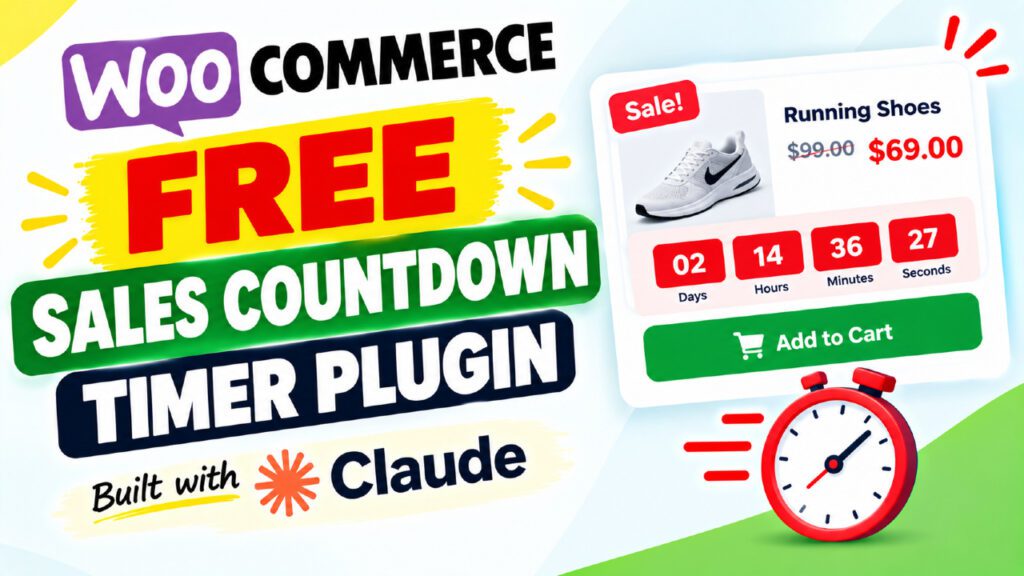
Are you leaving sales on the table simply because your WooCommerce store lacks urgency? A WooCommerce sales countdown timer is one of the most proven tools for driving immediate action from shoppers. When visitors see a ticking clock next to a sale price, they don’t think twice — they buy.
In this guide, you’ll discover a completely free WooCommerce countdown timer plugin built entirely using Claude AI. You’ll learn what it does, how it was created, how to install and configure it, and why it can genuinely transform your store’s conversion rate. Whether you run flash sales, category-specific promotions, or per-product deals, this plugin has you covered with five distinct timer styles, a smart flash sale banner, and even a cart reservation timer.
Table of Contents
What Is a WooCommerce Sales Countdown Timer?
A WooCommerce sales countdown timer is a visual element on your online store that shows customers how much time remains before a sale ends, a promotion expires, or stock runs out. It counts down in real time — displaying days, hours, minutes, and seconds — creating a sense of urgency that motivates shoppers to act now rather than later.
Countdown timers are rooted in consumer psychology. The fear of missing out (FOMO) is one of the most powerful drivers of online purchasing decisions. Research from MarketingExperiments and various CRO agencies consistently shows that adding a countdown timer to product pages or checkout flows can increase conversion rates by 10% to 30% or more, depending on how and where it’s deployed.
There are several types of countdown timers commonly used in WooCommerce stores:
- Sale end timers – Display the countdown to when a WooCommerce sale price expires
- Flash sale banners – Sitewide or category-specific sticky banners alerting shoppers to a limited-time deal
- Cart reservation timers – Show customers that items in their cart are reserved for a limited time
- Custom product timers – Per-product countdowns you set manually, independent of WooCommerce sale dates
Each type serves a different strategic purpose, and the best WooCommerce countdown timer plugins support all of them.
Why Your WooCommerce Store Needs a Countdown Timer
If you run a WooCommerce store without urgency-building elements, you are competing at a disadvantage. Most shoppers add items to their cart and leave, intending to come back later — but often they don’t. A countdown timer changes that behavior.
The Psychology Behind Countdown Timers
Urgency and scarcity are two of Robert Cialdini’s famous principles of persuasion. A countdown timer activates both. When a customer sees “Sale ends in 2 hours 45 minutes”, they no longer treat the purchase as optional. The decision shifts from “should I buy this?” to “can I afford NOT to buy this right now?”
The Business Case: Real Numbers
Studies and case reports from eCommerce platforms show compelling results:
- Countdown timers can reduce cart abandonment by up to 20%
- Flash sale banners paired with timers increase average order value during promotional periods
- Cart reservation timers reduce “thinking time” and speed up the checkout process
Types of Stores That Benefit Most
A WooCommerce sales countdown timer is especially valuable for:
- Fashion and apparel stores running seasonal sales
- Digital product stores running limited-time launch promotions
- Subscription businesses offering new member discounts
- Dropshipping stores promoting flash deals
- Event-based businesses (holiday sales, Black Friday, Cyber Monday)
In short, if your store runs any kind of time-sensitive promotion, a countdown timer is not optional — it’s essential.
Introducing the QT Woo Sales Countdown Timer Plugin
The QT Woo Sales Countdown Timer Plugin is a free, fully featured WordPress plugin built specifically for WooCommerce stores. It was created using Claude AI (Anthropic’s AI model), and the entire build process was documented as part of a video tutorial series by Quick Tips at youtube.com/@ParamFreelance.
What makes this plugin remarkable is not just what it does, but how it was built. Instead of spending weeks writing PHP, JavaScript, and CSS from scratch, the plugin was developed through a conversational back-and-forth with Claude AI, describing the features needed and refining the code until everything worked perfectly.
The plugin’s full name is QT Woo Sales Countdown Timer (version 1.1). It is compatible with:
- WordPress 6.0 and above
- WooCommerce 7.0 and above
- WooCommerce HPOS (High-Performance Order Storage)
- PHP 7.4, 8.0, 8.1, and 8.2
Key Features of the Plugin
Before diving into the setup, here is a complete overview of what the QT Woo Sales Countdown Timer Plugin offers.
Five Timer Display Styles
The plugin ships with five visually distinct countdown timer styles:
- Flip Clock – An animated card-flip effect, popular in luxury and fashion stores
- Circular SVG – A ring-shaped SVG progress indicator that counts down graphically
- Minimal Text – A clean, text-only display for minimalist store themes
- Digital – A retro LCD-style display that resembles a digital clock
- Progress Bar – A horizontal bar that depletes as time runs out
Each style uses CSS custom properties (–qt-primary, –qt-bg, –qt-text) for easy theming without touching plugin files.
Flash Sale Countdown Banner
A sticky, site-wide flash sale banner that displays at the top of your store pages, showing a countdown with days, hours, minutes, and seconds. The banner can be restricted to specific product categories and their subcategories, automatically appearing on shop pages, category archives, and single product pages within the selected category.
Per-Product Countdown Timers
Through a dedicated Countdown Timer tab in the WooCommerce product editor, you can configure an individual countdown timer for any product. Options include: enable/disable the timer per product, set custom start and end dates, enter custom promotional text, and override the global timer style for that specific product.
WooCommerce Sale Date Integration
If you have set a sale price with start and end dates in WooCommerce’s product pricing panel, the plugin automatically detects those dates and displays a countdown without any additional configuration required.
Cart Reservation Timer
A countdown timer that appears in the cart, showing shoppers that their selected items are reserved for a limited window (default: 15 minutes). This is particularly effective for reducing cart abandonment and encouraging prompt checkout.
Analytics Dashboard
A built-in analytics dashboard in the WordPress admin tracks timer views, conversion clicks, top converting products, and flash sale performance — all stored in your own WordPress database with no external services required.
Widget and Shortcode Support
Drop a countdown timer into any widget area using the WordPress Widget API, or use the [qt_countdown] shortcode with a product ID to embed a timer anywhere in your content.
How We Built This Plugin with Claude AI
Building a WooCommerce plugin from scratch typically requires deep knowledge of PHP object-oriented programming, the WordPress Hooks API, WooCommerce internal data structures, JavaScript, CSS, and database management. For many store owners and small agencies, that’s a significant barrier.
This plugin was built entirely through conversation with Claude AI (Anthropic), an AI model capable of writing, debugging, and iterating on code based on plain-language descriptions.
The Development Process
The process started with a simple request: describe the features needed and ask Claude to build it. The initial version 1.0 created a functional plugin with the core timer display, WooCommerce sale date integration, and the flash sale banner.
Three Bugs Fixed in Version 1.1
Version 1.1 was developed after identifying three real bugs in the live store:
Bug 1: Flash banner showing only hours, not days
The JavaScript function updateFlashTimer() was not updating the days unit, and the banner HTML was missing a data-unit=”days” span. Claude diagnosed the issue and fixed both the PHP template and the JavaScript in a single conversation turn.
Bug 2: Flash sale banner appearing on all pages
The render_banner() function was being called unconditionally. Claude implemented a should_show_banner() method checking is_product_category(), is_product(), and is_shop(), with get_term_children() support for child category targeting.
Bug 3: No timer on single product pages
The timer’s priority chain was checking WooCommerce sale dates before checking custom meta fields. Claude reordered the get_sale_end_timestamp() logic to check custom meta first, fixing the issue immediately.
What This Demonstrates
Building this plugin with Claude AI demonstrated that AI can write production-quality WordPress plugin code when given precise feature descriptions, bug fixing is faster with AI assistance, and iterative development works well — building version 1.1 on top of 1.0 seamlessly.
How to Install and Configure the Plugin
Getting the plugin up and running on your WooCommerce store takes about five minutes.
Step 1: Download the Plugin Files
The plugin consists of 14 files organized in a standard WordPress plugin structure, including the main PHP file, includes folder with 6 class files, and an assets folder with CSS and JavaScript.
Step 2: Upload to WordPress
- Log in to your WordPress admin panel
- Navigate to Plugins > Add New > Upload Plugin
- Upload the plugin ZIP file
- Click Install Now, then Activate
Step 3: Access Plugin Settings
After activation, go to WooCommerce > Countdown Timer Settings in your WordPress admin. From here you can configure the default timer style, global timer colors, cart reservation timer duration, and analytics data retention settings.
Step 4: Verify WooCommerce Integration
Check that the plugin correctly detected your WooCommerce installation by confirming the Countdown Timer tab appears when editing any product.
Setting Up a Flash Sale Countdown Banner
The flash sale banner is one of the plugin’s most impactful features. Here’s how to configure it for maximum effect.
Accessing Flash Sale Settings
Navigate to WooCommerce > Countdown Timer Settings > Flash Sale in your WordPress admin dashboard.
Configuring the Flash Sale
Fill in the following fields:
- Flash Sale End Date and Time: Set when the sale ends (the banner counts down to this moment)
- Banner Headline Text: What appears in the banner (e.g., “Summer Flash Sale – Ends In:”)
- Target Product Categories: Select which categories this flash sale applies to
How Category Targeting Works
When you select a parent category, the plugin uses WordPress’s get_term_children() function to automatically include all subcategories. This means you don’t have to manually select every subcategory — the plugin handles it automatically, including deeply nested child categories.
Preview and Test
After saving, visit your store’s shop page or a product page in the target category. The sticky banner should appear at the top with a live countdown showing days, hours, minutes, and seconds. Always test on both desktop and mobile.
Adding Countdown Timers to Individual Products
Per-product countdown timers give you granular control over urgency messaging. Unlike the flash sale banner, these timers appear directly on the single product page, next to the add-to-cart button.
Using WooCommerce Sale Dates (Automatic)
If you already use WooCommerce’s built-in sale pricing with start and end dates, the plugin will automatically detect this date and display a countdown timer on the product page — no additional configuration needed.
Setting a Custom Product Countdown
- Edit any product in WooCommerce
- Click the Countdown Timer tab in the Product Data panel
- Toggle Enable custom countdown to On
- Set your countdown start date and countdown end date
- Enter custom promotional text (e.g., “Deal expires in:” or “Offer ends soon!”)
- Optionally override the timer style for this product specifically
The Priority Chain Explained
The plugin uses a smart four-level priority chain to decide which countdown to show on any given product:
- If the timer is disabled for this product → show nothing
- If a custom countdown is enabled → use the custom dates
- If a WooCommerce sale end date is set → use that
- If a flash sale is active and this product is in the targeted category → use the flash sale end date
This ensures the most relevant and specific timer always takes priority, preventing conflicts between different timer sources.
Timer Display Styles Explained
Choosing the right visual style for your WooCommerce sales countdown timer can significantly impact its effectiveness. Here’s a closer look at each of the five styles.
Flip Clock Style
The flip clock style animates each digit with a card-flip effect. This style is eye-catching and works particularly well for high-end, fashion, or lifestyle stores where visual polish matters. Best for: luxury goods, fashion, beauty, lifestyle brands.
Circular SVG Style
This style uses SVG circles that shrink as time depletes, one ring per time unit (days, hours, minutes, seconds). It’s visually distinctive and communicates urgency through the shrinking circles themselves. Best for: tech products, software, minimalist themes.
Minimal Text Style
A clean, no-frills text display: “Ends in: 2d 14h 32m 09s”. This style is the fastest-loading and least intrusive. Best for: content-heavy stores, blogs with shop functionality, stores with complex product pages.
Digital Style
An LCD-style timer that looks like a retro digital clock. The segmented font gives it a technical, electronic feel. Best for: electronics, tech accessories, gaming stores.
Progress Bar Style
A horizontal bar that depletes from full to empty as the deadline approaches. Even a quick glance tells the customer “time is running out.” Best for: fashion, general merchandise, stores with many products per page.
Customizing Colors
All five styles respect these CSS custom properties:
- –qt-primary: Main accent color (timer digits, ring stroke, bar fill)
- –qt-bg: Background color of the timer widget
- –qt-text: Label text color
Override these in your theme’s style.css or in the WordPress Customizer (Additional CSS) to perfectly match your store’s branding.
WooCommerce Cart Reservation Timer
Cart abandonment is one of the biggest revenue leaks in eCommerce. Shoppers add items to their cart and then wander off, often because they feel no pressure to complete the purchase right away. The cart reservation timer addresses this directly.
How the Cart Timer Works
When a customer adds a product to their cart, the plugin starts a session-based countdown timer. A message appears in the cart that reads: “Your cart is reserved! Complete your purchase in [MM:SS] or your items may be released.” The timer counts down from a configurable duration (default: 15 minutes).
Configuring the Cart Timer
In WooCommerce > Countdown Timer Settings > Cart Timer, you can:
- Set the reservation window (5 to 60 minutes)
- Edit the reservation message text to match your brand voice
- Choose whether to show the timer on the cart page, checkout page, or both
The Psychology of the Cart Timer
The cart timer is subtle but effective. It creates perceived urgency without being aggressive. For stores with genuinely limited stock, you can enable auto-release functionality to actually hold the stock, making the urgency real rather than just psychological.
Countdown Timer Analytics Dashboard
Knowing whether your countdown timers are actually working is just as important as having them. The plugin includes a built-in analytics dashboard in the WordPress admin.
What the Dashboard Shows
Navigate to WooCommerce > Countdown Timer Analytics to see the following metrics:
Metric | Description |
Timer Views | How many times each timer was displayed on product pages |
Conversion Clicks | Clicks on ‘Add to Cart’ or ‘Buy Now’ from timer-visible pages |
Top Converting Products | Products where the timer drove the most engagement |
Flash Sale Performance | Views and conversions during active flash sale periods |
How Analytics Are Tracked
The plugin uses AJAX calls to log timer events (views, interactions) to a custom database table (wp_qt_countdown_analytics). Analytics data is stored in your own WordPress database — no external services, no privacy concerns, no GDPR complications.
Using Analytics to Improve Results
Pay attention to these patterns:
- Low view count + low conversion: Timer may not be visible enough — try a different style or placement
- High view count + low conversion: The offer itself may not be compelling enough — improve the deal
- High view count + high conversion: This combination is working — replicate it on other products
You can reset individual product analytics from the admin panel, which is useful when running A/B tests between timer styles or promotional copy.
Frequently Asked Questions
What is a WooCommerce sales countdown timer and how does it work?
A WooCommerce sales countdown timer is a plugin feature that displays a real-time countdown clock on product pages, the shop page, or the cart. It integrates with WooCommerce sale dates or custom date settings to show customers exactly how much time remains before a sale ends. The countdown updates every second using JavaScript, creating genuine urgency that encourages shoppers to complete their purchase immediately.
Is this countdown timer plugin really free?
Yes, the QT Woo Sales Countdown Timer Plugin was built entirely using Claude AI and is shared for free through the Quick Tips YouTube channel tutorial series. You can follow the build prompt provided in the tutorial to generate the plugin yourself using Claude AI, or watch the complete build walkthrough on the channel.
Do I need coding knowledge to use this plugin?
No. The plugin installs like any standard WordPress plugin — upload the ZIP file, activate it, and configure settings through the WooCommerce admin menus. No coding is required for installation, configuration, or color customization. Color changes use simple CSS variables you can paste into your theme’s Additional CSS area.
Will this plugin slow down my WooCommerce store?
The plugin is built with performance in mind. JavaScript is loaded only on pages where a timer is active, CSS is minimal and uses native browser animation APIs, and analytics tracking uses asynchronous AJAX calls that don’t block page rendering. The overall performance impact is negligible on a well-hosted WordPress/WooCommerce installation.
Can I use multiple timer styles on the same store?
Yes. You set a global default style in the plugin settings, and then override that style on individual products using the product-level Countdown Timer tab. Different products can show different timer styles — a flip clock on featured products, a minimal text timer on sale items, a progress bar on clearance items.
Is this plugin compatible with WooCommerce HPOS?
Yes. The plugin is explicitly declared compatible with WooCommerce’s High Performance Order Storage (HPOS) system. This ensures full compatibility with modern WooCommerce installations using the new order database architecture introduced in WooCommerce 8.0.
What happens when the countdown timer reaches zero?
When a timer reaches zero, the JavaScript stops the countdown and replaces it with a “Sale Ended” message. If the WooCommerce sale date has also passed, WooCommerce will have automatically reverted the price, so the product will no longer show a sale price regardless of the timer state.
Can I add a countdown timer to non-sale products?
Absolutely. Using the per-product custom countdown feature, you can add a countdown timer to any product regardless of whether it has a WooCommerce sale price. This is useful for creating urgency around limited availability, exclusive offers, bundle deals, or early-bird pricing without setting a formal sale price in WooCommerce.
Conclusion
Adding a WooCommerce sales countdown timer to your store is one of the highest-ROI changes you can make without touching your product catalog or pricing strategy. The psychology is proven, the technology is straightforward, and with the QT Woo Sales Countdown Timer Plugin — built entirely with Claude AI — there is no cost barrier to getting started.
This plugin gives you everything a premium countdown timer plugin would charge $49 or more for: five visual styles, flash sale banners with smart category targeting, per-product custom countdowns, cart reservation timers, and a built-in analytics dashboard.
Ready to add urgency to your WooCommerce store? Watch the full tutorial on the Quick Tips YouTube channel at youtube.com/@ParamFreelance, follow the AI-assisted build process, and start converting more browsers into buyers today.