💬 Prashant’s Note
When I set this up for a client running a small online retail store, the part that confused her most was the difference between the WPC Product Timer (which works in the back-end and controls actual product behaviour like pricing and availability) and the WPC Countdown Timer (which is purely a front-end display tool). My simple way of explaining it: the Product Timer is the engine under the hood, and the Countdown Timer is the dashboard clock your customers actually see. For most small business clients, I recommend installing both together — they work as a great team.
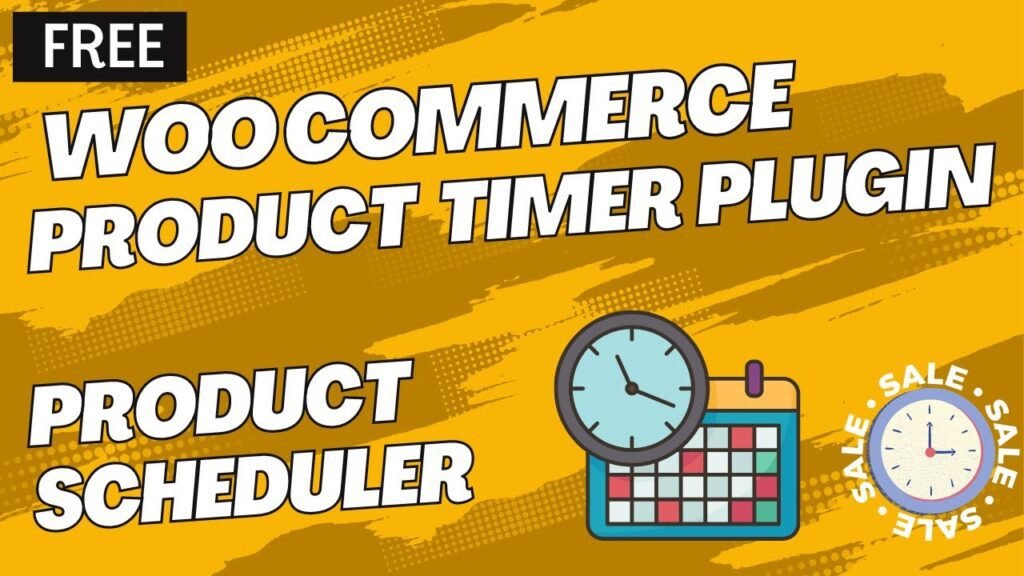
Watch Video: Free Woocommerce Product Timer
Table of Contents
What Is a WooCommerce Product Timer Plugin?
A WooCommerce product timer plugin is a tool that lets you attach time-based rules and countdown clocks to your products. At its core, it is a digital clock that counts down from a set time to zero — marking when a sale or promotional period ends. The WPC Product Timer specifically works in the back-end of your WooCommerce store. That means it does not just display a pretty timer — it actually controls what happens to your product when the time runs out. You can set it to put a product on sale, mark it as out of stock, hide it from search results, or make it unpurchasable, all based on a schedule you define in advance. If you want shoppers to also see a visible countdown clock on the product page, WPC offers a companion plugin called the WPC Countdown Timer, which handles the front-end display. The two plugins work together seamlessly, and both have solid free versions available from the WordPress plugin repository.
Why Countdown Timers Increase WooCommerce Sales
There is solid logic behind why countdown timers work. When a customer sees a ticking clock on a product page, they know the deal will not wait for them. That sense of scarcity pushes them to make a decision faster instead of closing the tab and coming back never. Here is what a well-placed timer does for your store: – Encourages snap purchase decisions by making customers feel the urgency of a limited-time offer – Raises conversion rates by pushing shoppers to act before the offer expires – Boosts revenue during promotional periods by marketing time-sensitive deals more visibly – Increases customer engagement by adding a lively, dynamic element to your product pages – Reduces cart abandonment, because when time is running out, shoppers are less likely to leave and think about it later For local businesses especially — a gym selling a limited-intake class, a salon running a flash discount, or a restaurant offering a weekend meal deal — a countdown timer on your WooCommerce product page can make a real difference in how many people actually complete the purchase.
Key Features of the Free WPC Product Timer Plugin
The free version of the WPC Product Timer is surprisingly capable for a no-cost plugin. Here is what you get out of the box: – Simple installation with an intuitive admin interface — no coding needed, and you can start using it right away without reading any documentation – Customisable timers that match your store’s branding, including fonts, sizes, and colour schemes – Flexible timer types — you can set product-specific timers, category-wide timers, or global timers that apply to your entire store – Responsive design so the timer looks great on both desktop and mobile devices – Scheduled start and stop times so you can plan promotions well in advance and let the plugin handle everything automatically – Real-time countdown updates so customers always see an accurate clock – A wide range of time conditionals including exact dates, recurring dates, date ranges, daily time windows, odd/even dates, and weekly schedules One thing worth noting: the plugin displays the current date and time inside the settings panel, which makes it much easier to set your timer deadlines accurately without second-guessing yourself.
Free vs Premium: What Is the Difference?
The free version covers everything a small to medium-sized store needs to get started with urgency marketing. But if you want to go further, WPC does offer a premium version with some meaningful upgrades. Here is a straightforward comparison: Free version: – One action per product timer – Standard time conditionals – Community support via WordPress forums – Works on all products and categories Premium version: – Unlimited actions per product — you can stack multiple timed rules on a single product – Priority support from the WPC team – Lifetime updates – More advanced scheduling combinations For most of my clients — local business owners running simple seasonal sales or flash discounts — the free version is completely sufficient. I would only recommend upgrading if you are running a larger store with complex overlapping promotions across dozens of products.
How to Install the WPC Product Timer Plugin
Installing the plugin is straightforward. Here are the two methods: Method 1 — Install directly from the WordPress dashboard (recommended): – Go to your WordPress admin dashboard – Click Plugins > Add New – Search for “WPC Product Timer for WooCommerce” – Click Install Now next to the plugin by WPClever – Click Activate once it is installed Method 2 — Manual upload: – Download the plugin ZIP file from the WordPress plugin repository or the WPC website – Go to Plugins > Add New > Upload Plugin – Choose the ZIP file and click Install Now – Activate the plugin from the Plugins menu Once activated, the plugin is ready to use immediately. There are no global settings you need to configure before you can start adding timers to products — everything is built in and works out of the box.
How to Set Up Your First Countdown Timer
Now for the part that actually matters — setting up your first timer. Here is how to do it step by step: – Open any product in your WooCommerce store (Products > All Products > Edit) – Scroll down to the Product Data section and click on the Timer tab – Click Add Action to create a new timed rule – Choose the action you want to trigger — for example, put the product on sale, mark it as out of stock, or hide it from search – Set the time conditional — choose from options like an exact start and end date, a recurring daily window, a weekly schedule, and more – Save the product For a Global Timer (which applies across multiple products or categories): – Go to your WordPress dashboard and navigate to WPClever > Product Timer – Click the Global Timer tab – Choose whether the timer applies to all products, selected categories, or products with specific tags – Set your actions and time conditions the same way as above – Save your settings If you also want customers to see a visible countdown clock on the product page, install the companion WPC Countdown Timer plugin and follow the same steps in the Countdown tab of the product data panel — set Active to Yes, then choose your start and end times using the calendar picker.
Customising the Timer Appearance
Once your timer is set up and active, you can customise how it looks to match your store’s design. The plugin lets you adjust colours, font sizes, and the overall style of the countdown display. The goal is to make the timer feel like a natural part of your product page, not a generic widget that was slapped on at the last minute. A timer that matches your brand looks professional and trustworthy — both of which matter when you are asking someone to make a purchase decision quickly.
Real-World Use Cases for Local Business Stores
This is where I find this plugin really earns its keep for the kinds of clients I work with. Here are some practical scenarios where a WooCommerce product timer makes perfect sense: – A clothing or accessories store running a 48-hour flash sale on seasonal stock — the timer shows customers exactly when the discount expires, pushing them to buy now rather than think about it – A gym or fitness coach selling a limited-intake online programme — set the product to automatically become unpurchasable once the intake date passes, with no manual work needed – A restaurant or food business offering a weekend meal deal — schedule the product to go on sale Friday morning and automatically revert to full price Sunday night – A beauty salon running a “Book before midnight” promotion — the countdown timer on the booking product page creates urgency right at the moment the customer is deciding – A product launch countdown — keep a product visible but unpurchasable until your launch date, then have it automatically switch to purchasable at the exact moment you go live Strategically placed countdown timers do not just improve conversion rates — they also reduce the manual work of remembering to switch sale prices on and off.
Tips for Getting the Best Results from Your Timer
A timer on its own will not magically fix a poorly set up product page. Here are a few practical tips to make sure your countdown actually converts: – Be honest with your deadlines. If your timer resets the moment it hits zero, customers notice — and it destroys trust. Use real, fixed end dates for your promotions. – Match the timer to a genuine offer. A ticking clock next to a product at full price makes no sense. Always pair the timer with an actual discount or limited availability. – Test your timer before going live. Open the product page in a private browser window to see exactly what your customers will see, and confirm the countdown is ticking correctly. – Use a WooCommerce-compatible theme for best results. The plugin is designed to work with most WordPress themes, but a WooCommerce-native theme will give you the smoothest experience. – Keep the page clean and simple around the timer. My philosophy with all client sites is to build fast, clean, simple pages — a countdown timer works best when it is not competing with heavy images and animations for the visitor’s attention.
Frequently Asked Questions
Is the WPC Product Timer plugin really free?
Yes, the WPC Product Timer for WooCommerce has a fully functional free version available directly from the WordPress plugin repository. It includes all the core features a small to medium-sized store needs to run countdown-based promotions. A premium upgrade is available for stores that need unlimited actions per product and priority support.
What is the difference between WPC Product Timer and WPC Countdown Timer?
The WPC Product Timer works in the back-end — it controls what actually happens to your product (such as going on sale, becoming out of stock, or being hidden) based on a time schedule. The WPC Countdown Timer is a front-end display plugin that shows a visible ticking clock to your customers on the product page. For best results, use both plugins together.
Will the countdown timer work on mobile devices?
Yes, the WPC Product Timer plugin is built with responsive design, so your countdown timers will display correctly on both desktop computers and smartphones. Always preview your product page on mobile after setting up a timer to confirm everything looks right.
Can I set a timer for all products in my store at once?
Yes. The plugin includes a Global Timer feature that lets you apply timed actions to all products in your store, to selected categories, or to products with specific tags — all from one settings panel. This is very useful for sitewide flash sales or seasonal promotions.
What happens to the product when the countdown reaches zero?
That depends on the action you configured. You can set the product to go off sale, become out of stock, become unpurchasable, or be hidden from search entirely — all automatically at the moment the timer expires. This means you do not have to manually switch anything off after your promotion ends.
Does the WPC Product Timer plugin work with Elementor?
The WPC Product Timer itself is a WooCommerce back-end plugin and is not Elementor-specific. However, the companion WPC Countdown Timer (for front-end display) has been noted by some users as needing testing for full Elementor compatibility. It is always a good idea to test any new plugin in a staging environment before going live.
Can I customise the look of the countdown timer?
Yes. The plugin offers customisation options for colours, font sizes, and style to help you match the timer to your store’s branding. You can adjust these settings from within the product edit panel or the global timer settings in the WPClever dashboard.
Final Thoughts
Thanks for reading through this guide on the free WooCommerce product timer plugin by WPC. If there is one thing I want you to take away from this, it is that adding urgency to your product pages does not have to be complicated or expensive — this plugin handles the hard work for you, and the free version is more than enough to get started. I have recorded a full video walkthrough of this setup on my YouTube channel, so if you are more of a visual learner, go ahead and watch that — it will make the steps even clearer. If you have any questions, drop them in the comments below and I will get back to you. And if you would like me to set this up directly on your WooCommerce store, feel free to reach out — I am always happy to help.
I hope that this article on How to use Free Woocommerce Product Timer Plugin will help you. Read more articles on Woocommerce Tutorials.
Do not forget to subscribe to our Quick Tips YouTube Channel for upcoming videos on Website Design, WordPress Tutorials, Elementor, and WooCommerce tutorials.