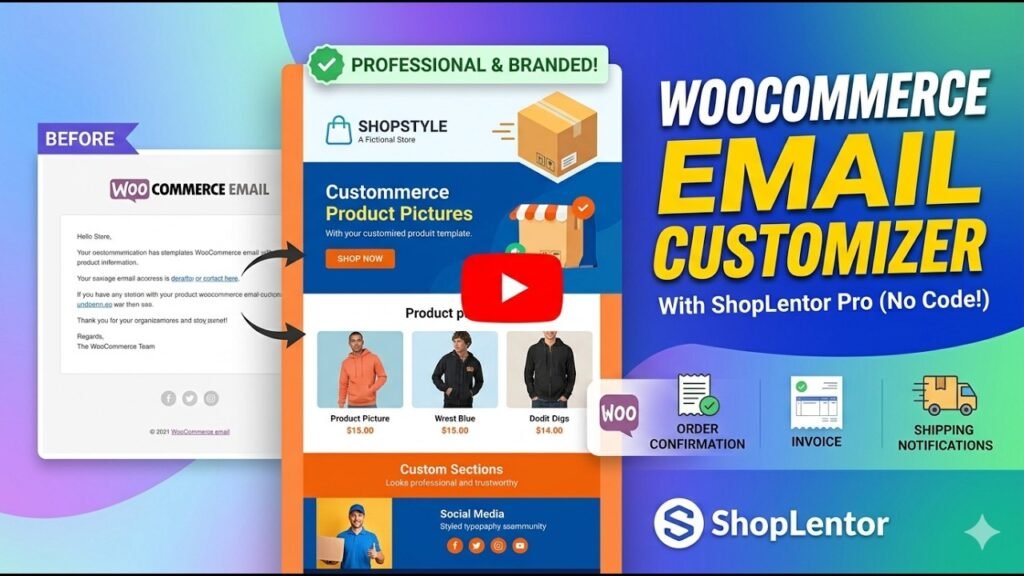
Your WooCommerce store sends dozens of emails every single day — order confirmations, shipping updates, invoices, and more. Yet most store owners never customize these messages, leaving customers with bland, generic-looking emails that feel completely disconnected from their brand. A powerful WooCommerce Email Customizer changes all of that. With the right plugin, you can transform every transactional email into a branded, professional communication that builds trust, reinforces your identity, and even encourages repeat purchases. In this comprehensive guide, we will walk you through exactly what a WooCommerce email customizer does, why it matters, and how ShopLentor Pro makes the entire process effortless — with no coding required.
Watch Step by step video tutorial: https://youtu.be/yP2nlLuh_o4
Table of Contents
What Is a WooCommerce Email Customizer?
A WooCommerce Email Customizer is a tool or plugin that lets you redesign the appearance and content of the automated emails that WooCommerce sends to customers. By default, WooCommerce provides functional but visually basic email templates that look the same for every store. A WooCommerce Email Customizer gives you control over colors, fonts, logos, layouts, and the actual body content of each email — all without touching a single line of code.
Definition: WooCommerce Transactional Emails
Transactional emails are automated messages triggered by a specific customer action or order event. Unlike marketing emails, these are expected by the customer and have exceptionally high open rates — often above 70%, according to industry data. Because of their high visibility, transactional emails are one of the most underutilized branding opportunities in eCommerce.
The Problem with Default WooCommerce Emails
Out of the box, WooCommerce emails are plain and identical across all stores. They include your store name and basic order information, but they carry no visual identity. The moment a customer receives a generic email, an opportunity to reinforce your brand is lost. A good WooCommerce Email Customizer plugin helps you reclaim that opportunity.
Why Customizing WooCommerce Emails Matters
You might wonder — why bother customizing transactional emails? The answer is simple: these emails are your most-read communications. Customers open order confirmation emails almost immediately after purchase. Here is why email customization is worth the effort:
Brand Consistency Across Every Touchpoint
When your emails match the look and feel of your website — same logo, same colors, same typography — customers develop a stronger sense of familiarity and trust. Consistent branding across all customer touchpoints is a proven factor in building brand loyalty.
Higher Perceived Professionalism
A beautifully designed email signals that your store cares about quality. It separates you from competitors who still send plain-text emails. According to a Salesforce report, over 80% of customers expect personalized digital experiences from brands they interact with. Branded emails are a direct way to meet that expectation.
Opportunity for Upselling and Cross-Selling
Customized emails can include product recommendations, coupon codes, or links to related products. Your order confirmation email is not just a receipt — it is a marketing touchpoint that can drive additional revenue when designed thoughtfully.
Types of WooCommerce Transactional Emails You Can Customize
WooCommerce sends a variety of automated emails based on order lifecycle events. With ShopLentor’s WooCommerce Email Customizer, you can redesign all of them:
Order-Related Emails
- New Order Emails — Notifies the store admin of a new purchase
- Processing Order Emails — Sent to the customer when payment is received and the order is being processed
- Completed Order Emails — Confirms order fulfillment and delivery
- Customer Invoice Emails — Sends a payment invoice to the customer
- Cancelled Order Emails — Notifies the customer when an order is cancelled
- Failed Order Emails — Alerts the customer about a failed payment
- Refund Emails — Confirms a refund has been issued
Account and Shipping Emails
- Shipping Notification Emails — Alerts customers when their order has shipped
- Customer Note Emails — Sends custom notes or messages about the order
- Password Reset Emails — Standard account management email
- New Account Emails — Welcome emails for newly registered customers
[Suggested Image: Screenshot showing the full list of email types in ShopLentor’s Email Customizer dashboard]
Introducing ShopLentor: The All-in-One WooCommerce Plugin
ShopLentor (formerly known as WooLentor) is one of the most popular all-in-one WooCommerce plugins in the WordPress ecosystem, trusted by over 100,000 store owners worldwide. It is designed to handle virtually every aspect of WooCommerce store management — from custom page building with Elementor and Gutenberg to checkout optimization, product filters, variation swatches, wishlist functionality, and much more.
ShopLentor Free vs Pro
ShopLentor has a robust free version that covers essential WooCommerce page building features. ShopLentor Pro unlocks advanced modules including the Email Customizer, Multi-Step Checkout, Order Bump, Smart Cross-Sell Popup, Partial Payment, Checkout Field Manager, and GTM Conversion Tracking. The Pro version is available starting from just $29 per year — making it one of the most cost-effective all-in-one WooCommerce growth solutions available.
Why Choose ShopLentor Over Standalone Email Plugins?
Most stores end up installing five or six separate plugins to cover checkout customization, email design, product filters, and conversion tracking. ShopLentor consolidates all of these functions into a single, conflict-free plugin. This means fewer plugins, faster load times, and a simpler admin experience — all while getting access to a world-class WooCommerce email customizer built right in.
Key Features of ShopLentor’s WooCommerce Email Customizer
ShopLentor Pro’s Email Customizer module is packed with features that make it easy to design beautiful, branded transactional emails. Here is a detailed breakdown:
1. Drag-and-Drop Visual Email Editor
The visual editor is the heart of the ShopLentor Email Customizer. It offers an intuitive drag-and-drop interface where you can move, resize, and rearrange email elements — no coding required. Every change reflects in real-time, so you always know exactly what your email will look like before it reaches your customers.
2. Live Preview
As you build your email, a live preview panel shows you exactly how it will appear in the inbox. You can switch between desktop and mobile views to ensure your email looks stunning on every device.
3. 31 Pre-Built Email Templates
Getting started has never been easier. ShopLentor offers 31 professionally designed email templates that you can import in one click. Each template is built with email best practices in mind and is fully customizable to match your store’s brand identity.
4. Dynamic Data and Personalization Placeholders
Personalization is key to effective transactional emails. ShopLentor supports dynamic placeholders that automatically populate with real customer and order data, including customer name, order number, order total, product list, billing address, tracking numbers, and more.
5. Full Brand Control — Colors, Fonts, Logo, Header & Footer
You have complete creative control over every visual element of your email: the header logo, background colors, button colors, font choices, body text styling, and footer content including links to your social media accounts and contact information.
6. Support for All WooCommerce Email Types
Unlike some email customizer plugins that only cover a few email types, ShopLentor allows you to customize every WooCommerce transactional email — from new order notifications and processing alerts to shipping updates, refund confirmations, and customer account emails.
7. Mobile Responsive Designs
All email templates created with ShopLentor’s Email Customizer are fully responsive. They automatically adjust their layout for smartphones, tablets, and desktops, ensuring every customer has an excellent reading experience regardless of the device they use.
[Suggested Image: Screenshot of the drag-and-drop email editor interface in ShopLentor]
How to Set Up the Email Customizer in ShopLentor Pro (Step-by-Step)
Setting up the Email Customizer in ShopLentor is straightforward. Follow these steps to start customizing your WooCommerce emails today:
Step 1: Install and Activate ShopLentor
- Log in to your WordPress dashboard
- Go to Plugins > Add New
- Search for ‘ShopLentor’ and install the free version
- Purchase and install ShopLentor Pro by uploading the Pro plugin file
- Activate both the free and Pro plugins
Step 2: Enable the Email Customizer Module
- Navigate to ShopLentor in the WordPress sidebar
- Click on Modules
- Find the Email Customizer module in the list
- Toggle the module ON to activate it
Step 3: Access the Email Customizer
- In your WordPress dashboard, go to ShopLentor > Email Customizer
- You will see a complete list of all WooCommerce transactional email types
- Click the edit/pencil icon next to the email you want to customize
Step 4: Choose a Template or Build from Scratch
Once inside the editor, you can either select one of ShopLentor’s 31 pre-built templates or start with a blank canvas. For most users, starting with a template and customizing it to match their brand is the fastest approach.
Step 5: Customize Your Email Design
Use the drag-and-drop editor to modify the following elements:
- Upload your store logo to the header
- Set background and body colors to match your brand
- Customize button styles, colors, and text
- Add dynamic placeholders for customer name, order details, and product information
- Edit the footer with your contact information and social links
- Insert any additional sections such as promotional banners or review requests
Step 6: Preview and Test Your Email
Before going live, use the built-in live preview to check your design. Send a test email to yourself to verify that it renders correctly in a real inbox. Check both desktop and mobile views.
Step 7: Save and Go Live
Once you are happy with the design, click Save. Your custom email template is now live and will automatically be used for that email type going forward. Repeat this process for each of the WooCommerce email types you want to customize.
[Suggested Image: Step-by-step screenshots of the ShopLentor Email Customizer module setup process]
Pre-Built Email Templates in ShopLentor
One of ShopLentor’s standout advantages is its library of 31 ready-made email templates. These are not generic placeholder designs — they are professionally crafted layouts built specifically for WooCommerce transactional emails, covering every type of order event.
What the Templates Cover
- Order confirmation email templates with product tables and brand headers
- Processing and shipping notification layouts with tracking call-to-action areas
- Completed order templates with upsell and review request sections
- Customer invoice designs that look polished and professional
- Refund and cancellation email templates with clear, reassuring messaging
How to Import a Template
Importing a template takes just one click from within the email editor. Select the template you like, click Import, and the design is instantly loaded into your email editor — ready for you to personalize with your logo, colors, and brand-specific content.
[Suggested Image: Gallery view of ShopLentor’s pre-built email template library]
ShopLentor Email Customizer vs Other Plugins
How does ShopLentor’s Email Customizer stack up against dedicated email customizer plugins? Here is a detailed comparison:
Feature | ShopLentor Pro | YayMail | Themehigh Customizer |
Drag-and-Drop Editor | ✅ Yes | ✅ Yes | ✅ Yes |
No Coding Required | ✅ Yes | ✅ Yes | ✅ Yes |
Pre-Built Templates | ✅ 31 Templates | Limited | Limited |
Dynamic Data Support | ✅ Yes | ✅ Yes | Partial |
All Email Types Supported | ✅ Yes | ✅ Yes | ✅ Yes |
Elementor/Gutenberg Integration | ✅ Both | ❌ No | ❌ No |
Part of All-in-One Plugin | ✅ Yes (ShopLentor) | ❌ No | ❌ No |
Mobile Responsive | ✅ Yes | ✅ Yes | ✅ Yes |
Live Preview | ✅ Yes | ✅ Yes | ✅ Yes |
Pricing | From $29/yr | $49–$99/yr | $29–$79/yr |
Why ShopLentor Wins for Most Store Owners
While dedicated email customizer plugins like YayMail and the Themehigh Email Customizer are solid standalone tools, ShopLentor offers something they cannot: a fully integrated WooCommerce growth platform. You get a powerful WooCommerce email customizer as part of a plugin that also handles your checkout flow, upsells, conversion tracking, and page building. That means less plugin bloat, lower costs overall, and a much simpler management experience.
Best Practices for WooCommerce Email Design
Having a great tool is just the start. Here are proven best practices to make the most of your customized WooCommerce emails:
Keep It On-Brand
Your email design should feel like a natural extension of your website. Use the same logo, color palette, and font family. Customers should immediately recognize the email as coming from your store, even before they read the sender name.
Write Clear, Customer-Friendly Copy
Avoid jargon. Use conversational, direct language that tells the customer exactly what they need to know. For order confirmations, that means clear order details, expected delivery times, and a contact method if they have questions.
Include a Clear Call-to-Action
Every email should have a purpose beyond just conveying information. Your completed order email could include a review request. Your invoice email could have a ‘Shop Again’ button with a small discount. Think about what action you want the customer to take after reading.
Optimize for Mobile
Over 60% of emails are opened on mobile devices. Always check the mobile preview before activating any email template. Ensure buttons are large enough to tap, text is readable without zooming, and images scale correctly.
Test Before You Activate
Always send a test email and open it across different email clients — Gmail, Outlook, Apple Mail — and on different devices. Email rendering can vary significantly between clients, and catching issues before your customers see them is critical.
Avoid Overloading Your Emails
Transactional emails should be focused and functional first. Do not add so many promotional elements that the customer loses sight of the primary purpose — confirming their order, notifying them of a shipment, and so on. Strategic, subtle marketing elements are welcome; aggressive promotions in transactional emails can frustrate customers.
[Suggested Image: Example of a beautifully branded WooCommerce order confirmation email]
Frequently Asked Questions About WooCommerce Email Customizer
What is a WooCommerce Email Customizer?
A WooCommerce Email Customizer is a plugin or module that lets you redesign the transactional emails WooCommerce sends automatically — such as order confirmations, shipping notifications, and invoices — without writing any code. It gives store owners full control over the visual design and content of their automated customer communications.
Does ShopLentor have a free email customizer?
The Email Customizer is a Pro feature in ShopLentor. You need ShopLentor Pro to access it. However, ShopLentor offers an affordable Pro plan starting from $29/year, which also includes many other premium modules for checkout optimization, upsells, and conversion tracking.
Can I customize WooCommerce emails without coding?
Absolutely. ShopLentor’s Email Customizer features a drag-and-drop visual editor that requires zero coding knowledge. You can design professional email templates entirely through the visual interface by simply dragging elements into place and adjusting settings in the sidebar.
Which WooCommerce transactional emails can I customize with ShopLentor?
ShopLentor allows you to customize all WooCommerce transactional emails including New Order, Processing Order, Completed Order, Customer Invoice, Shipping Notifications, Cancelled Order, Failed Order, Refund emails, Customer Note, Password Reset, and New Account welcome emails.
Are ShopLentor emails mobile responsive?
Yes. All email templates created with ShopLentor’s Email Customizer are fully responsive. They automatically adapt their layout for smartphones, tablets, and desktops, ensuring every customer has an excellent inbox experience regardless of the device they use.
Does ShopLentor support dynamic data in emails?
Yes. ShopLentor’s Email Customizer supports dynamic placeholders that automatically pull in customer-specific information such as the customer’s name, order number, product details, billing address, shipping address, and more — giving each email a personalized touch at scale.
Is ShopLentor compatible with Elementor and Gutenberg?
Yes. ShopLentor is fully compatible with both Elementor and Gutenberg page builders, making it a versatile choice for any WooCommerce store regardless of their preferred page building workflow.
How many pre-built email templates does ShopLentor offer?
ShopLentor offers 31 professionally designed email templates that you can import in one click and customize to match your brand within minutes.
Conclusion: Transform Your WooCommerce Emails with ShopLentor Pro
Your WooCommerce transactional emails are one of your highest-engagement communication channels — yet they are often the most neglected. With a powerful WooCommerce Email Customizer like ShopLentor Pro, you can turn every automated email into a beautifully branded experience that builds customer trust, reinforces your identity, and drives repeat business.
ShopLentor Pro stands out not just as an email customizer, but as a complete WooCommerce growth toolkit. You get 31 pre-built email templates, a drag-and-drop visual editor, full support for all WooCommerce email types, dynamic personalization, and mobile-responsive designs — all without writing a single line of code. And because it is part of ShopLentor’s all-in-one plugin, you avoid the plugin bloat that comes with installing multiple separate tools.
Ready to give your WooCommerce emails the upgrade they deserve? Get started with ShopLentor Pro today and design emails your customers will actually look forward to opening.