Ever noticed how customers land on your WooCommerce product page, scroll all the way down to read reviews and descriptions, and then just… leave? One of the biggest silent conversion killers on WooCommerce stores is a hidden Add to Cart button. By the time your customer has finished reading, that button has scrolled way off the screen — and instead of scrolling back up, they just close the tab. The fix is simple: a free WooCommerce sticky add to cart plugin. This keeps your Add to Cart button visible at all times, no matter how far down the page a customer scrolls. In this tutorial, I’m going to show you two solid free plugins that do exactly this — WPC Sticky Add to Cart and Easy Sticky Add To Cart For WooCommerce — with a step-by-step walkthrough of how to install and set each one up. No coding required, no paid upgrades needed. Let’s get into it.
💬 Prashant’s Note
When I set this up for an online supplement store client in Australia, the owner was surprised at how simple the fix was — literally a 5-minute install and the Add to Cart button never disappears again as customers scroll. I recommend this to pretty much every WooCommerce client I work with, especially if they have product pages with long descriptions or customer reviews. It’s one of those tiny tweaks that can make a real difference to your sales without touching a single line of code.
Watch Video on WooCommerce Sticky Add to Cart button plugin
Table of Contents
What Is a Sticky Add to Cart Button in WooCommerce?
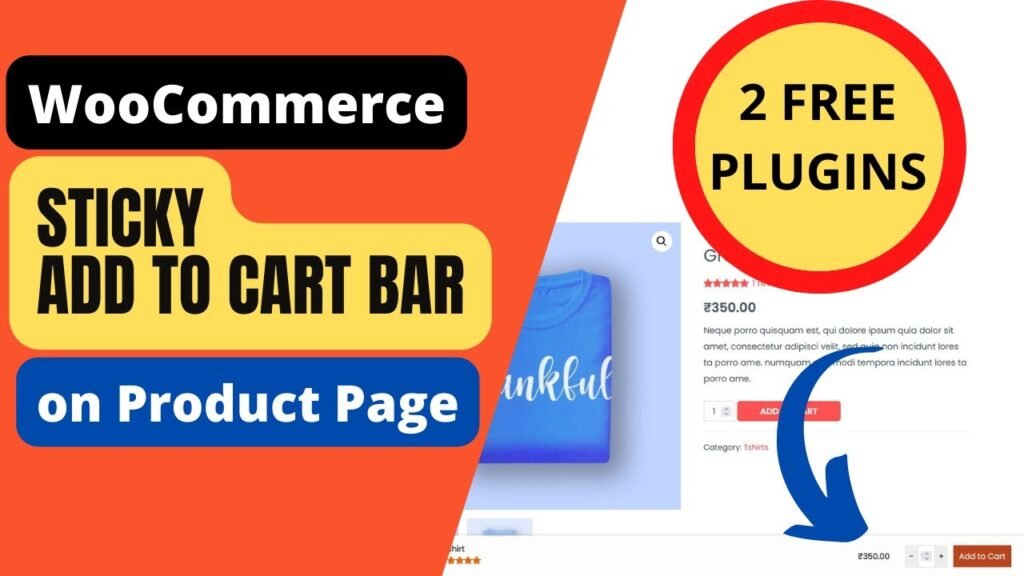
A sticky Add to Cart button is exactly what it sounds like — a button that stays fixed on the screen even as your customer scrolls down the product page. By default, WooCommerce places the Add to Cart button near the top of the product page, right next to the product image and price. That’s fine for short pages. But the moment you have a product with a long description, a photo gallery, customer reviews, FAQs, or related products, that button disappears the second a customer starts scrolling. A sticky add to cart plugin solves this by displaying a floating bar or button — usually at the top or bottom of the screen — that follows the customer as they scroll. It typically shows key product details like the product name, price, and star rating alongside the Add to Cart button, so the customer always has everything they need to make a buying decision without needing to scroll back up.
Why Your WooCommerce Store Needs This Feature
Think about how your customers actually browse. They don’t just hit Add to Cart the moment they land on your product page. They read the description, check the specs, scroll through photos, skim the reviews. By the time they’re convinced and ready to buy, the Add to Cart button is long gone — buried at the top of a page they’ve scrolled far past. That extra friction, even just the need to scroll back up, is enough to lose a sale. Here’s why a sticky Add to Cart button makes a real difference for your store: – Better user experience: Customers can add items to their cart from anywhere on the product page without having to scroll back to the top. – Higher conversion rate: Studies have shown that a sticky add to cart can improve conversion rates and boost sales by keeping the purchase option always accessible. – Mobile-friendly: This is especially important on phones where screen space is limited. A sticky button is always within reach no matter where the customer is on the page. – Works automatically: Once installed, it activates across all your product pages — no need to manually configure each product. – Completely free: Both plugins covered in this tutorial are 100% free from the WordPress repository.
The 2 Best Free WooCommerce Sticky Add to Cart Plugins
There are quite a few sticky add to cart plugins in the WordPress repository, but honestly, most of them are overkill or locked behind a paywall. After testing options with my clients, here are the two free ones I recommend: – WPC Sticky Add to Cart for WooCommerce (by WPClever): A clean, lightweight option that keeps things simple. It displays a sticky button that stays on standby on the screen so customers can easily add products to the cart while scrolling. Great for stores that want a no-fuss setup. – Easy Sticky Add To Cart For WooCommerce: This one comes with more customization options right out of the box — including Ajax add to cart support, color customization, button text editing, product image shape settings, and the ability to hide the bar on specific products or categories. It’s a bit more feature-rich than the WPC option. Both are free, both work well. The WPC plugin is the better choice if you just want something quick and clean. The Easy Sticky plugin is worth it if you want more control over how the bar looks.
How to Install a WooCommerce Sticky Add to Cart Plugin (Step-by-Step)
Installing either plugin follows the exact same process. Here’s how to do it: – Step 1: Log in to your WordPress Dashboard. – Step 2: Go to Plugins → Add New. – Step 3: In the search bar, type “WooCommerce Sticky Add to Cart.” – Step 4: You’ll see several free options appear. Find either “WPC Sticky Add To Cart for WooCommerce” or “Easy Sticky Add To Cart For WooCommerce” and click Install Now. – Step 5: Once installed, click Activate. – Step 6: The plugin will now be active on your site. Head to the plugin’s settings page to customise it for your store. That’s the installation done in under 2 minutes. Now let’s look at the settings for each plugin specifically.
Plugin 1: WPC Sticky Add to Cart — Setup Guide
The WPC Sticky Add to Cart plugin is made by WPClever — a well-known team in the WordPress ecosystem that makes a whole range of WooCommerce addons. This one is open source and completely free. After activating the plugin, you’ll find its settings under WooCommerce → WPC Sticky Add to Cart in your WordPress dashboard. The settings are minimal and easy to follow: – Position: Choose whether you want the sticky bar to appear at the top or bottom of the screen. – Show/hide elements: You can control whether to show the product image, product title, price, and rating inside the sticky bar. – Button label: You can change the text on the Add to Cart button if needed. – Visibility: The plugin lets you decide where to place the button and ensures it won’t interfere with how customers navigate your site. The WPC plugin is best suited for store owners who want a lightweight solution that just works without a lot of tinkering. I’ve used this on several client stores and it activates cleanly without breaking any existing page design.
Plugin 2: Easy Sticky Add To Cart For WooCommerce — Setup Guide
The Easy Sticky Add To Cart For WooCommerce plugin offers a few more features than the WPC option, making it a stronger choice if you want to match the sticky bar more closely to your store’s branding. After installing and activating, go to WooCommerce → Easy Sticky Cart in your dashboard. Here’s what you can configure in the free version: – Ajax Add to Cart: Products get added to the cart without a page reload — a much smoother experience for customers. – Animation: You can add a subtle animation to the sticky bar when it appears. – Color customisation: Change the background color, button color, and text color to match your brand. – Button text: Edit the label on the sticky Add to Cart button. – Product image shape: Choose between a round or square thumbnail in the bar. – Stock count label: Display remaining stock to create urgency. – Star rating color: Customise the rating display color. – Hide on specific products or categories: If you have certain products where you don’t want the sticky bar, you can exclude them. The Easy Sticky plugin gives you more visual control and the Ajax cart feature is a nice bonus that keeps the shopping experience smooth. If you’re working with a client who has a brand-heavy store, this one is worth picking over the WPC option.
Which Plugin Should You Choose?
Here’s my honest take after using both on real client stores: – Choose WPC Sticky Add to Cart if you want the simplest, most lightweight setup possible. It installs fast, has minimal settings, and just works. Great for small stores that don’t need a lot of customisation. – Choose Easy Sticky Add To Cart For WooCommerce if you want more control over the look and feel of the sticky bar. The Ajax add to cart feature, color customisation, and the ability to hide it on specific products give it a clear advantage for more established stores. Either way, both are free, both are available directly from the WordPress plugin repository, and both will solve the core problem — keeping your Add to Cart button visible to every customer, on every scroll.
Key Benefits of Using a Sticky Add to Cart Button
To quickly summarise why this small plugin change can have a real impact on your WooCommerce store: – Reduces cart abandonment by making sure customers can always see the purchase option, regardless of how far down the page they’ve scrolled. – Improves user experience on both desktop and mobile, especially on mobile devices where long product pages are very common. – Increases visibility of your Add to Cart button throughout the entire browsing session on a product page. – Customisable appearance — with the right plugin, you can match the sticky bar to your store’s colors and design. – Works across all product types — simple products, variable products, and more. – Takes just minutes to set up — no developer, no code, no ongoing maintenance required. For most local business WooCommerce stores I work with — whether it’s a health supplement brand, a clothing boutique, or a gift shop — this is one of the first plugins I recommend adding. It’s a no-brainer.
Frequently Asked Questions
What is a sticky Add to Cart button in WooCommerce?
A sticky Add to Cart button is a fixed button or floating bar that stays visible on the screen as a customer scrolls down a product page. Unlike the default WooCommerce button which scrolls out of view, a sticky button is always accessible so customers can add items to their cart at any point on the page.
Is there a free WooCommerce sticky add to cart plugin?
Yes, there are several free options available directly in the WordPress plugin repository. Two reliable ones are WPC Sticky Add to Cart for WooCommerce and Easy Sticky Add To Cart For WooCommerce. Both are 100% free and easy to install without any coding.
Will a sticky add to cart plugin slow down my WooCommerce store?
Both plugins covered in this tutorial are designed to be lightweight. The WPC plugin in particular is very minimal in terms of code. As long as you are not stacking too many plugins on your site, either option should have negligible impact on your page speed.
How does a sticky add to cart button increase conversions?
When a customer finishes reading product details or reviews and decides to buy, the Add to Cart button is often no longer visible on screen. A sticky button eliminates this friction by keeping the purchase option always in view, which reduces the chance of the customer abandoning the page before completing the purchase.
Does the sticky add to cart bar work on mobile devices?
Yes, both recommended plugins are designed to be mobile-responsive. Mobile visitors are especially likely to benefit since product pages on small screens require a lot of scrolling, making a sticky button even more valuable for the shopping experience.
Can I hide the sticky add to cart bar on specific products?
Yes, the Easy Sticky Add To Cart For WooCommerce plugin includes an option to hide the sticky bar on specific products or entire categories. The WPC plugin has more limited control in its free version, so if product-level exclusions are important to you, the Easy Sticky plugin is the better choice.
Do I need to know how to code to set up a sticky add to cart plugin?
No coding is required at all. Both plugins install directly from the WordPress Plugins menu in just a few clicks. Once activated, you configure everything through a standard settings panel inside your WordPress dashboard.
Final Thoughts
And that’s all there is to it! Adding a free WooCommerce sticky add to cart button to your store is one of the quickest wins you can make for your conversion rate — and it costs absolutely nothing. Whether you go with the clean and simple WPC Sticky Add to Cart plugin or the more feature-rich Easy Sticky Add To Cart For WooCommerce plugin, both will keep your Add to Cart button in front of your customers no matter how far they scroll. I’ve put together a full step-by-step video tutorial walking through both plugins in action — make sure to watch it for a visual walkthrough of the entire setup process. If you found this helpful, drop a comment below and let me know which plugin you went with, or if you had any questions along the way. And if you’d like me to set this up on your WooCommerce store for you, feel free to reach out — I’m always happy to help.
I hope that this article on How to install Free WooCommerce Sticky Add to Cart button plugin will help you. Read more articles on WooCommerce Tutorials.
Do not forget to subscribe to our Quick Tips Youtube Channel for upcoming videos on Website Design, WordPress Tutorials, Elementor, and WooCommerce tutorials.