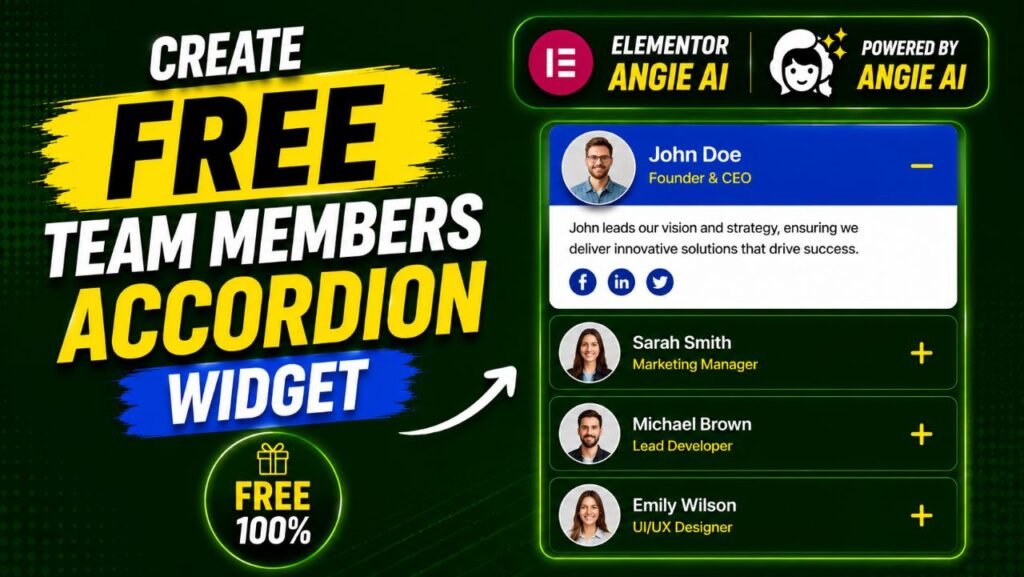
Want a stunning Elementor Team Members Accordion without paying for another addon bundle? You can now build one for free, in minutes, using Angie – Elementor’s new agentic AI for WordPress. Instead of installing a heavy plugin just to get one team widget, you simply describe the widget you want in plain English. Angie then writes the code, previews it safely, and turns it into a real Elementor custom widget you can drag onto any page.
In this guide, I’ll walk you through the exact process I used in my video tutorial. You’ll get the precise prompt that generates an interactive team accordion with grayscale image strips, smooth flex-grow animations, and a repeater control for unlimited members. Moreover, you’ll learn how to install Angie, customize the widget, avoid common mistakes, and reuse your creation across multiple sites. Let’s dive in.
Table of Contents
What Is an Elementor Team Members Accordion?
An Elementor Team Members Accordion is an interactive layout that displays your team as a row of collapsed vertical image strips. When a visitor clicks a strip, it expands smoothly to reveal that person’s full-color photo, name, job title, social icons, and bio, while the other members stay collapsed. In short, it combines a team showcase with accordion behavior in a single, space-saving component.
How the Interactive Accordion Layout Works
The design relies on a few clever front-end techniques. By default, every team photo sits in a narrow column with a 100% grayscale CSS filter applied. Consequently, the row looks like a sleek monochrome film strip. When someone clicks a member, three things happen at once:
- The clicked item grows using the CSS flex-grow property, so the expansion feels fluid rather than jumpy.
- The grayscale filter fades out, revealing the full-color image on the right side of the expanded panel.
- A content area slides in on the left, showing the name, job title, social icons, and bio.
CSS transitions handle the animation, while a small piece of Vanilla JavaScript listens for clicks and toggles an active class. No jQuery, no external libraries, and no render-blocking scripts.
Why Accordions Beat Standard Team Grids
Traditional team grids show everything at once, which quickly becomes cluttered on pages with six or more people. An accordion, on the other hand, invites interaction. Visitors explore members one at a time, which increases time on page and keeps the section compact. Additionally, the grayscale-to-color reveal creates a premium, agency-style feel that static grids simply cannot match.
Meet Angie: Elementor’s Agentic AI for WordPress
Angie is a free plugin developed by Elementor that brings agentic AI directly into your WordPress dashboard. Unlike generic chatbots that only suggest code, Angie understands your site’s structure – themes, plugins, custom fields, and Elementor components – and takes real action inside your environment. You describe what you want, and Angie builds it.
What Is Angie Code?
Angie Code is the widget-building engine inside Angie. It transforms plain-language prompts, screenshots, or even reference URLs into clean, production-ready code. Everything runs in a secure, isolated test environment first, so you can preview and iterate as many times as you need before anything touches your live site. Once approved, the output behaves like a native part of your website and remains fully editable.
What Can You Build with Angie?
Angie Code generates several categories of production-ready assets that integrate directly into WordPress:
- Custom Elementor widgets – built from scratch or extending existing widgets with new controls and behaviors.
- WordPress admin snippets – personalized dashboard views, settings panels, and admin themes.
- Website snippets (CSS and JavaScript) – hover effects, custom cursors, and interactive behaviors.
- Visual front-end apps – quizzes, calculators, custom 404 pages, and store locators.
- Custom Post Types and Fields – structured content you fully control.
For this tutorial, we’re focused on the first category: creating an Elementor custom widget for a team members accordion.
Is Angie Really Free?
Yes. Angie offers a free plan with daily-renewing AI credits, so you can start building right away. The free tier includes AI-generated code snippets, the Community Library of pre-built snippets, a Cloud Library to save and reuse your creations across connected sites, and Super Admin Mode for site management tasks. For a single widget like ours, the free daily credits are more than enough.
Why Build a Custom Widget Instead of Installing Another Addon?
Popular addon bundles like PowerPack, Essential Addons, and Happy Addons all include team member widgets. So why bother generating your own Elementor Angie custom widget? The answer comes down to performance, control, and cost.
The Problem with Addon Bloat
Addon packs typically load dozens of widgets, stylesheets, and scripts – even when you only use one. Every extra plugin also adds update overhead, potential conflicts, and sometimes a recurring license fee just to unlock the layout you actually want. Furthermore, most bundled team widgets follow the same card or carousel patterns, so your site ends up looking like everyone else’s.
Benefits of an Elementor Custom Widget
- Zero bloat: the widget contains only the code it needs – lightweight Vanilla JS and a small CSS file.
- Unique design: the interactive grayscale accordion isn’t available in standard addon packs.
- Full ownership: the code lives on your site; there’s no lock-in and no license renewals.
- Native editing: style controls appear in the Elementor Editor, just like built-in widgets.
- Reusability: save it to Angie’s Cloud Library and deploy it on any connected site in a few clicks.
What You Need Before You Start
The setup is refreshingly short. Before you create your Elementor Team Members Accordion, make sure you have the following ready.
Requirements Checklist
- A WordPress website (Angie works on any WordPress site, with or without Elementor Pro).
- The Elementor page builder installed, since the output is an Elementor widget.
- A free Elementor account – logging in to Angie requires one.
- The free Angie plugin (we’ll install it in the next step).
Preparing Your Team Member Content
To move quickly after the widget is generated, gather your assets first. Collect a portrait photo for each team member – tall images around 600 by 900 pixels work beautifully for vertical strips. Then note each person’s name, job title, a two- or three-sentence bio, and their social profile links. Having this ready means you can fill the repeater control in one sitting.
How to Install the Angie Plugin on WordPress
Installing Angie takes about two minutes and works like any other WordPress plugin. Here’s the process, step by step.
Step 1: Install and Activate Angie
From your WordPress dashboard, go to Plugins → Add New and search for “Angie”. Click Install Now, then Activate. No configuration files, no API keys, and no coding skills are needed. Alternatively, you can download the plugin directly from the official Angie page on Elementor’s website.
Step 2: Connect Your Elementor Account
When you first open Angie, it asks you to log in with your Elementor account. This unlocks your free daily AI credits and connects the Cloud Library. If you don’t have an account yet, creating one is free and takes under a minute.
Step 3: Open the Angie Chat
Once connected, Angie appears as a chat interface inside WordPress. It automatically inherits your installed plugins, theme settings, and content structure, so there’s no context-setting required. You can now describe your widget in plain language, upload a screenshot, or paste a reference URL – all three input types work together or independently.
How to Create the Team Members Accordion with Angie
Now for the fun part. This is where a single, well-written prompt turns into a working Elementor Team Members Accordion. The quality of your prompt directly determines the quality of the widget, so let’s use one that spells out the structure, behavior, and responsiveness precisely.
The Exact Prompt to Use
Copy and paste this prompt into the Angie chat:
Create a custom Elementor widget called ‘Interactive Team Accordion’. It should show team members as a series of vertical image strips. By default, all images must have a 100% grayscale filter. When an item is clicked, it should expand smoothly (using flex-grow) to reveal a content area on the left and the full-color image on the right. The content area should include a Name, Job Title, Social Icons, and a Bio. Include a Repeater control for the members. Use Vanilla JS for the click interaction and CSS transitions for the animation. Ensure it stacks vertically on mobile.
Breaking Down Why This Prompt Works
Every phrase in this prompt earns its place. Understanding the structure will help you write better prompts for any future Elementor Angie custom widget:
Prompt Phrase | What It Tells Angie |
“Custom Elementor widget called ‘Interactive Team Accordion'” | Registers a named widget in the Elementor panel, not just a loose code snippet. |
“Vertical image strips” + “100% grayscale filter” | Defines the default collapsed state and the monochrome aesthetic. |
“Expand smoothly (using flex-grow)” | Specifies the exact CSS mechanism, guaranteeing a fluid animation. |
“Content area… Name, Job Title, Social Icons, Bio” | Lists every field the expanded panel must contain. |
“Include a Repeater control” | Creates a native Elementor repeater so you can add unlimited members without code. |
“Vanilla JS… CSS transitions” | Keeps the widget dependency-free and lightweight. |
“Stacks vertically on mobile” | Bakes responsive behavior in from the start. |
Reviewing and Approving the Widget
After you submit the prompt, Angie writes the widget code and renders a live preview in its isolated test environment – completely separate from your live site. Click through the preview: test the expand animation, check the grayscale-to-color transition, and confirm the content area displays correctly. If anything feels off, simply reply with a refinement like “make the transition slower” or “increase the collapsed strip width.” Once you’re happy, approve the widget and Angie registers it on your site. You stay in control at every step.
How to Add and Customize the Widget on Any Page
With the widget approved, it now lives in your Elementor widget panel like any native element. Here’s how to put it to work.
Adding Your Team Members with the Repeater
- Open any page with the Elementor Editor and search for “Interactive Team Accordion” in the widget panel.
- Drag the widget into your section, just as you would with a heading or image widget.
- In the Content tab, use the Repeater control to add each member: upload the photo, then fill in the name, job title, bio, and social links.
- Click the repeater’s duplicate button to speed up adding members with similar settings.
Styling in the Elementor Editor
Because Angie generates native Elementor controls, you can restyle the widget without touching code. Adjust typography for the name and job title, recolor the social icons to match your brand, and tweak spacing inside the content area. Additionally, you can ask Angie to add new style controls later – for example, a color picker for the overlay or a slider for the collapsed strip width.
Making It Shine on Mobile
The prompt already instructed Angie to stack items vertically on mobile, so phones display the members as a tidy column instead of cramped strips. Even so, always preview the tablet and mobile breakpoints in Elementor’s responsive mode. Check that tap targets feel comfortable and that the bio text remains readable at smaller sizes.
Customization Ideas and Prompt Variations
One of the biggest advantages of building an Elementor custom widget with AI is how easy iteration becomes. Rather than hunting through settings panels, you just describe the change. Here are proven variations to try.
Change the Trigger and Behavior
- “Expand the item on hover instead of click, but keep click behavior on touch devices.”
- “Open the first team member by default when the page loads.”
- “Allow only one item to stay open at a time, collapsing the others automatically.”
Refine the Visual Style
- “Replace the grayscale filter with a dark blue duotone effect.”
- “Add a subtle zoom on the image when an item expands.”
- “Show the member’s name rotated vertically on the collapsed strip.”
Extend the Functionality
- “Add an optional ‘Read full profile’ button linking to a custom URL per member.”
- “Add a control to choose between grayscale, sepia, or no filter.”
- “Add a department field and a filter bar above the accordion.”
Each refinement happens in the same sandbox, so you can experiment freely. When the widget is perfect, save it to the Cloud Library and reuse it on every site you manage – no rebuilding required.
Common Mistakes to Avoid
Building with AI is fast, but a few missteps can slow you down. Watch out for these pitfalls.
Writing Vague Prompts
“Make me a team widget” leaves too much to interpretation, and you’ll spend more credits on revisions than you saved on the first draft. Instead, specify the layout, the interaction, the animation method, and the fields – exactly as our prompt does.
Skipping the Preview Step
Angie’s test environment exists so you can catch issues before going live. Always click through every member, test on the mobile preview, and verify the social links render correctly before approving.
Using Heavy, Uncropped Images
Ten uncompressed 4 MB portraits will drag down any page. Compress your images and keep a consistent aspect ratio across members so the strips align evenly.
Forgetting the Cloud Library
If you manage multiple sites, save the finished widget to Angie’s Cloud Library immediately. Otherwise, you’ll find yourself regenerating the same widget and spending credits twice.
Angie vs. Team Member Addon Plugins
Still deciding between generating your own widget and installing an addon pack? This comparison sums up the trade-offs.
Factor | Angie Custom Widget | Addon Plugin Widget |
Cost | Free (daily AI credits) | Free tier limited; pro features often paid |
Page weight | Only the code your widget needs | Loads bundled assets and extra widgets |
Design uniqueness | Fully bespoke – describe anything | Shared templates used across many sites |
Customization | Unlimited, via prompts or the Editor | Limited to the options the vendor built |
Maintenance | Your code, no third-party updates required | Depends on vendor updates and compatibility |
Reusability | Cloud Library across connected sites | Requires installing the plugin everywhere |
For a one-of-a-kind Elementor Team Members Accordion, the custom route wins on nearly every factor. Addon packs still make sense when you need dozens of ready-made widgets at once, but for a signature team section, Angie gives you more for less.
Frequently Asked Questions
Is the Elementor Team Members Accordion widget really free?
Yes. Angie is a free plugin by Elementor with daily-renewing AI credits, and generating this widget fits comfortably within the free allowance. You don’t need Elementor Pro or any paid addon.
Do I need coding skills to create this Elementor custom widget?
No. You describe the widget in plain language and Angie writes the code. The output includes native Elementor controls, so all customization happens visually in the Editor or through follow-up prompts.
Does Angie work without Elementor Pro?
Yes. Angie works on any WordPress website. You need the free Elementor plugin to use the generated widget on your pages, plus a free Elementor account to log in to Angie, but Pro is not required.
Can I add unlimited team members to the accordion?
Yes. The prompt includes a Repeater control, which lets you add as many members as you like. For usability, six to ten members per accordion tends to look best on desktop.
Is the widget mobile responsive?
Yes. The prompt explicitly instructs Angie to stack the items vertically on mobile, so phone visitors see a clean column layout. You can fine-tune breakpoints in Elementor’s responsive mode.
Can I reuse the widget on other websites?
Absolutely. Save it to Angie’s Cloud Library and deploy it on any connected WordPress site in a few clicks – no rebuilding and no extra credits.
Will the generated code slow down my website?
No. The widget uses lightweight Vanilla JavaScript and CSS transitions with zero external dependencies, which is typically far lighter than loading a full addon bundle for one widget.
Conclusion: Build Your Team Accordion Today
The Elementor Team Members Accordion proves how much the WordPress workflow has changed. What once required a developer, a paid addon, or hours of custom CSS now takes a single well-crafted prompt. With Angie installed, you described the design, previewed it safely in a sandbox, approved it, and dropped a unique, lightweight Elementor custom widget onto your page – all for free.
Ready to try it yourself? Install the free Angie plugin from your WordPress dashboard, paste the prompt from this article, and build your interactive team accordion in the next ten minutes. Then watch the video tutorial for the full walkthrough, and drop a comment with the widget you create next – I read every one.