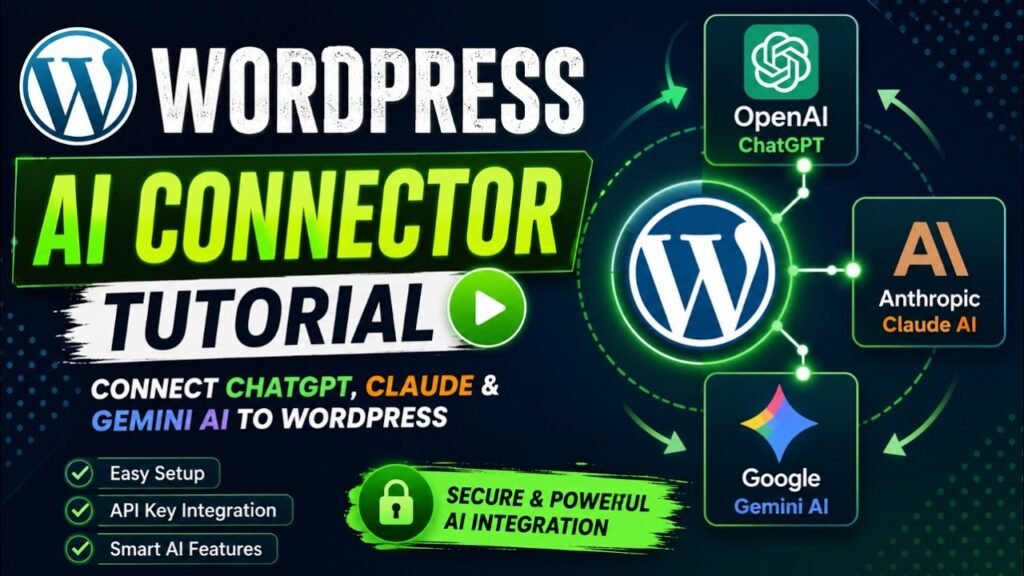
The WordPress AI Connector is one of the most significant developments in WordPress history, and most website owners do not yet know it exists. Released as part of the official WordPress AI Building Blocks initiative, the WordPress AI Connector plugin lets you connect your WordPress site to the world’s leading AI platforms — OpenAI (ChatGPT), Anthropic (Claude), and Google (Gemini) — using your own API keys, from a single settings page in your WordPress dashboard. Instead of managing separate integrations for every AI-powered plugin you install, you configure your AI credentials once and every compatible plugin on your site can use them instantly. In this complete WordPress AI Connector tutorial, you will learn exactly what it is, why it matters, and how to set it up step by step.
Watch step by step video tutorial: https://youtu.be/yIqAYm1F98s
Table of Contents
What Is the WordPress AI Connector Plugin?
The WordPress AI Connector is an official plugin developed by WordPress.org — the same organization behind the WordPress platform itself. It is not a third-party add-on built by an independent developer. It is a core-team initiative designed to establish a standardized, secure, and extensible AI layer inside every WordPress website.
At its heart, the WordPress AI Connector plugin solves a problem that has plagued the WordPress ecosystem for years: fragmented AI integrations. Before this plugin existed, every AI-powered WordPress plugin required its own separate API key setup, its own settings page, and its own direct connection to AI providers. If you wanted to use three different plugins that each leveraged AI, you needed to enter your API credentials three separate times across three different settings screens — and keep all three updated when keys changed.
The WordPress AI Connector changes this completely. You configure your AI provider credentials once, in one place (Settings > Connectors), and every compatible plugin on your site can access those credentials automatically. Think of it as a central credential manager and AI routing layer built directly into WordPress.
The plugin supports the three dominant AI platforms: OpenAI (which powers ChatGPT), Anthropic (which makes Claude), and Google (which offers Gemini). With all three connected, your WordPress site gains access to cutting-edge AI capabilities for content creation, image generation, SEO optimization, moderation, and much more.
Is It the Same as WordPress 7.0?
The WordPress AI Connector plugin was first released as a standalone plugin ahead of WordPress 7.0, allowing sites running WordPress 6.9 and later to install it immediately. With the release of WordPress 7.0 in April 2026, the underlying PHP AI Client SDK and Connectors architecture moved toward becoming a native component of WordPress core itself, making AI integration even more seamless. If you are running WordPress 7.0 or higher, you may find the Connectors settings page already available at Settings > Connectors without needing to install anything extra.
Is the Plugin Free?
Yes, the WordPress AI Connector plugin itself is completely free to download and install from the WordPress.org plugin repository. However, using it requires valid API keys from the AI providers you want to connect (OpenAI, Anthropic, or Google). These providers charge for API usage based on consumption — though all three offer free trial credits for new accounts, which is more than enough to explore the plugin’s capabilities before committing to paid usage.
Why the WordPress AI Connector Matters in 2026
WordPress powers 43.5% of all websites on the internet as of 2026. That massive install base means that how WordPress handles AI integration shapes the AI experience for an enormous share of the web. The WordPress AI Connector is the platform’s answer to the challenge of bringing AI into a CMS used by everyone from solo bloggers to Fortune 500 enterprises.
The Problem It Solves
Before the WordPress AI Connector, the WordPress AI ecosystem was a mess of competing approaches. Every plugin that wanted to offer AI features built its own integration — its own API calls, its own settings UI, its own error handling. This led to several serious problems:
- API key sprawl: Credentials scattered across dozens of plugin settings pages, each needing to be updated independently
- Inconsistent behavior: Different plugins calling the same AI provider in different ways, leading to unpredictable results
- Security risks: Multiple independent integrations meant multiple potential points of credential exposure
- Wasted costs: Each plugin making independent API calls without any shared caching or optimization
- Developer overhead: Every plugin developer rebuilding the same AI connectivity infrastructure from scratch
The WordPress AI Connector eliminates all of these problems by centralizing AI connectivity. Configure once, use everywhere.
What It Means for Content Creators
For non-technical WordPress users — bloggers, marketers, content creators, and small business owners — the WordPress AI Connector is the gateway to a new generation of AI-powered editorial tools. Once your API keys are connected, compatible plugins can offer you features like one-click excerpt generation, automatic meta description writing, AI-powered title suggestions, image alt text generation, and content resizing — all working seamlessly without any additional setup.
What It Means for Developers
For developers and agencies, the WordPress AI Connector provides a standardized PHP API through the wp_ai_client_prompt() function. Instead of hard-coding a specific AI provider into a plugin, developers can write provider-agnostic code that works with whichever AI service the site owner has configured. This eliminates vendor lock-in and makes plugins dramatically more portable and maintainable.
How the WordPress AI Connector Works: Architecture Overview
Understanding how the WordPress AI Connector is structured helps you use it more effectively and troubleshoot any issues that arise. The architecture has three distinct layers that work together.
Layer 1: The Settings > Connectors Page (Credential Management)
This is the user-facing layer — the settings page where you actually enter your API keys. You will find it in your WordPress admin at Settings > Connectors. The page presents individual sections for each supported AI provider: OpenAI, Anthropic (Claude), and Google (Gemini). You install each provider’s companion plugin, enter its API key, and save. The key is then stored securely in your WordPress database and masked in the UI to prevent accidental exposure.
Crucially, this settings page does not add any AI features to your site by itself. It is purely credential infrastructure. The AI features come from other plugins and the built-in AI plugin features that are powered by these credentials behind the scenes.
Layer 2: The PHP AI Client SDK (The Routing Layer)
Underneath the settings page is the PHP AI Client SDK — a code library that plugin developers use to make AI calls. When a plugin calls wp_ai_client_prompt() to request an AI response, the SDK reads which provider has been configured, retrieves the stored API key, formats the request appropriately for that provider’s API, and returns the response. The plugin code itself does not need to know whether it is talking to OpenAI, Claude, or Gemini — the SDK handles all of that transparently.
Layer 3: Provider Plugins (The Connectors)
Each AI provider — OpenAI, Anthropic, and Google — has its own dedicated connector plugin that registers with the SDK. These are the three AI Provider plugins you install from the WordPress repository: AI Provider: OpenAI, AI Provider: Anthropic, and AI Provider: Google. When installed and activated, each provider plugin automatically registers itself with the SDK and makes its AI models available to any plugin on the site.
WordPress AI Connector Features at a Glance
The official WordPress AI plugin (built on top of the Connector architecture) includes an extensive set of AI-powered features that become available once your AI providers are connected. Here is a comprehensive overview:
Feature | Description |
Multi-Provider Support | Connect OpenAI, Anthropic (Claude), and Google Gemini from one settings page |
API Key Management | Store all credentials securely in one place; shared across all installed plugins |
Alt Text Generation | Auto-generate descriptive image alt text for accessibility and SEO |
Content Resizing | Shorten, expand, or rephrase selected blocks with a single click |
Content Summarization | Turn long-form posts into digestible summaries automatically |
Excerpt Generation | Create post excerpts from content with one click |
Meta Description Generation | Generate SEO meta descriptions integrated with popular SEO plugins |
Title Generation | Suggest multiple headline options for any post |
Comment Moderation | Auto-moderate comments based on toxicity and sentiment analysis |
Content Classification | Suggest relevant tags and categories automatically |
Image Generation & Editing | Create and edit images from content in the editor and Media Library |
Editorial Notes | Block-by-block review with accessibility, readability, grammar, and SEO suggestions |
Connector Approvals | Require admin approval before plugins can use AI connectors |
AI Request Logging | Full logging of AI requests for observability and debugging |
Beyond these built-in features, the AI Building Blocks initiative means that any third-party plugin can also tap into your configured AI connectors. This means your entire WordPress plugin ecosystem can become AI-aware without any additional credential setup on your part.
How to Get Your API Keys (ChatGPT, Claude, Gemini)
Before installing the WordPress AI Connector plugin, you need API keys from the AI providers you want to connect. Here is exactly where to get them.
Getting an OpenAI API Key (ChatGPT)
- Visit platform.openai.com and create a free account or log in
- Click on your profile icon in the top right and select API Keys
- Click Create new secret key and give it a descriptive name like WordPress Site
- Copy the key immediately — you will not be able to see it again after closing the modal
- New OpenAI accounts typically receive free trial credits. Check your usage limits under the Billing section
OpenAI is best used for content generation, code assistance, DALL-E image creation, and general writing tasks within WordPress.
Getting an Anthropic API Key (Claude)
- Visit console.anthropic.com and create a free account
- Navigate to the API Keys section in the left sidebar
- Click Create Key, provide a name, and select the appropriate permissions
- Copy your key and store it securely
- Anthropic offers free API credits to new accounts — check the Console for your current balance
Claude excels at long-form writing, research summaries, detailed editing, content analysis, and tasks requiring careful, nuanced reasoning. It is a strong choice for editorial-heavy WordPress sites.
Getting a Google Gemini API Key
- Visit aistudio.google.com and sign in with your Google account
- Click Get API Key in the left sidebar
- Click Create API Key and select a Google Cloud project (or create a new one)
- Copy the generated API key
- Google offers a generous free tier for the Gemini API — enough for most small to medium WordPress sites to run indefinitely without cost
Gemini is particularly capable for content translation, image understanding (vision tasks), and large-context content generation. It integrates well for multilingual WordPress sites.
AI Provider | Best For | Free Trial Credits | Plugin Name |
OpenAI (ChatGPT) | Content writing, code, DALL-E images | Yes ($5 new accounts) | AI Provider: OpenAI |
Anthropic (Claude) | Research, analysis, long documents | Yes (limited) | AI Provider: Anthropic |
Google (Gemini) | Translation, vision, content generation | Yes (Gemini API free tier) | AI Provider: Google |
How to Install the WordPress AI Connector Plugin
With your API keys in hand, you are ready to install and activate the necessary plugins. The WordPress AI Connector setup involves installing multiple components — the main AI plugin and the individual provider plugins.
Step 1: Install the Main AI Plugin
- In your WordPress dashboard, navigate to Plugins > Add New Plugin
- In the search box, type AI — look for the plugin named simply AI by WordPress.org (the official plugin with the WordPress logo)
- Click Install Now and then Activate
- After activation, you will find a new AI menu item in your admin sidebar and Settings > Connectors will become available
Step 2: Install the AI Provider Connector Plugins
You need to install a separate connector plugin for each AI provider you want to use. Repeat these steps for each provider:
- Go to Settings > Connectors in your WordPress dashboard
- You will see a section for each supported provider: OpenAI, Anthropic, and Google
- Click the Install button next to each provider you want to activate
- The provider plugin (AI Provider: OpenAI, AI Provider: Anthropic, AI Provider: Google) will install and activate automatically
- An API Key field will appear for each installed provider
System Requirements
- WordPress 6.9 or higher (WordPress 7.0+ recommended for best experience)
- PHP 7.4 or higher (PHP 8.1+ recommended)
- A self-hosted WordPress site (WordPress.org installation)
- HTTPS enabled on your site (required for secure API key transmission)
- Valid API keys from your chosen AI providers
Step-by-Step Tutorial: Connecting Your AI Providers
With all plugins installed, here is the complete walkthrough for connecting each AI provider to your WordPress site.
Connecting OpenAI (ChatGPT)
- Go to Settings > Connectors in your WordPress admin dashboard
- Find the OpenAI section — it should show a green status indicator if the AI Provider: OpenAI plugin is installed and active
- Click in the API Key field and paste your OpenAI API key
- Click Save Changes — the key will be masked immediately once saved
- Click Test Connection to verify your key is working. You should see a success confirmation message
- In the model selection dropdown that appears, choose your preferred default model (GPT-4o is the recommended default for most content tasks)
- Click Save again to store your model preference
Connecting Anthropic (Claude)
- In Settings > Connectors, locate the Anthropic section
- Paste your Anthropic API key into the API Key field
- Click Save Changes
- Use Test Connection to verify the connection. A successful test will confirm your key is valid and the Claude API is reachable
- Select your preferred Claude model from the dropdown (Claude Sonnet 4.6 is the current recommended default for balanced performance and cost)
- Click Save to store your settings
Connecting Google (Gemini)
- In Settings > Connectors, find the Google section
- Enter your Google Gemini API key in the API Key field
- Click Save Changes
- Click Test Connection — a successful response confirms Gemini is accessible from your site
- Choose your preferred Gemini model from the dropdown
- Save your settings
Setting a Default Provider
Once multiple providers are connected, you can designate a default provider for AI features that do not specify a particular model. This is the provider that the built-in AI features will use by default when generating titles, summaries, and other content. Most users set OpenAI or Claude as their primary default and keep Gemini available for specific use cases like image generation or translation.
Managing Connector Approvals
One powerful security feature worth configuring right away is Connector Approvals. When enabled, this requires explicit administrator approval before any plugin or theme can access your configured AI connectors. Navigate to the AI > Experiments section in your sidebar, find Connector Approvals, and toggle it on. This prevents any newly installed plugin from automatically tapping into your AI API credits without your knowledge.
Using AI Features Inside Your WordPress Dashboard
With your AI connectors configured, the real magic begins. Here is how to use the built-in AI features that are immediately available after setup.
Generating Post Titles
Open any post or page in the Gutenberg editor. In the post title field, you will see a small Generate button. Click it and WordPress will use your connected AI provider to suggest multiple headline options based on your post content. Select the one that best fits your intent, or regenerate to get a fresh set of options. This feature alone can save significant time for high-volume content operations.
Generating Excerpts Automatically
In the post sidebar on the right, find the Excerpt panel. You will see a Generate Excerpt button. Click it and the AI will read your full post content and produce a concise, well-written excerpt. You can regenerate as many times as you want until you are happy with the result. This is especially useful for long-form articles where writing a compelling manual excerpt can be time-consuming.
AI-Powered Alt Text for Images
When you upload an image to the Media Library or insert one into a post, a Generate Alt Text button appears in the attachment details panel. Clicking it sends the image to your connected AI provider (Gemini, with its vision capabilities, works particularly well here) and returns a descriptive, accessibility-compliant alt text string. This feature is invaluable for large media libraries that have accumulated hundreds of images without proper alt text.
Content Resizing
Select any block of text in the Gutenberg editor and the AI-powered content toolbar appears. You can ask the AI to shorten the selected text (useful for trimming verbose paragraphs), expand it with additional detail, or rephrase it in a different tone. This iterative content refinement feature is one of the most-used capabilities for editorial teams working inside WordPress.
Meta Description Generation
If you have a popular SEO plugin installed (Yoast SEO, Rank Math, or All in One SEO), the WordPress AI Connector integrates directly with it. In the SEO meta panel below your post, click the AI generate button next to the meta description field. The AI analyzes your post and produces an optimized, character-limited meta description that includes your target keyword. This is one of the highest-ROI use cases for the connector on SEO-focused sites.
Editorial Notes
The Editorial Notes feature is a standout capability. Activate it under AI > Experiments and then open any existing post. Click the Run Editorial Review button and the AI will analyze your content block by block, leaving inline notes with specific suggestions across four dimensions: Accessibility, Readability, Grammar, and SEO. Unlike generic writing assistants, these notes are contextual — they reference the specific paragraph or sentence they are commenting on. You can then use Editorial Updates to automatically apply accepted suggestions.
WordPress AI Connector Use Cases
The WordPress AI Connector opens up a remarkable range of practical applications. Here are the most impactful use cases across different types of WordPress sites.
Content-Heavy Blogs and News Sites
For blogs publishing frequently, the AI Connector dramatically accelerates the production workflow. Writers can generate title options, excerpts, and meta descriptions for every post with a single click each — saving 15–20 minutes per article on post-production tasks. Over a publishing calendar of 20 posts per month, that represents roughly 5–7 hours saved on administrative editorial work.
WooCommerce and E-Commerce Stores
Product catalog management is one of the most AI-amenable tasks in WordPress. With the AI Connector in place, compatible WooCommerce plugins can generate product descriptions from SKU data, create alt text for product images in bulk, moderate customer reviews using Claude’s nuanced sentiment analysis, and draft email campaign copy. The bulk processing capabilities are particularly valuable for stores with hundreds or thousands of products.
Multilingual WordPress Sites
Sites targeting multiple language markets benefit tremendously from Gemini’s translation capabilities. With the AI Connector providing centralized Gemini access, translation plugins can process content more efficiently and at lower cost than traditional translation service APIs. Gemini’s vision capabilities also enable automatic translation of text found within images — an otherwise manual and expensive process.
Agency and Developer Workflows
Web development agencies managing multiple client WordPress sites can deploy the AI Connector plugin across their entire client portfolio and pre-configure provider keys at the hosting or network level. This means client sites arrive with AI capabilities already enabled, without requiring clients to source and manage their own API keys. The developer-facing wp_ai_client_prompt() API also means agencies can build custom AI-powered features for clients using a single, stable interface that works regardless of which AI provider the client prefers.
SEO and Content Marketing Teams
For organizations running content marketing programs at scale, the AI Connector becomes a force multiplier. Teams can use the meta description generator to handle entire content archives at once, the content classification system to auto-tag and categorize posts, the content summarization feature to create newsletter-ready summaries of long articles, and the Editorial Notes feature to maintain quality standards across multiple writers. All of these capabilities layer on top of the same centralized AI connection.
Frequently Asked Questions
Do I need all three API keys (OpenAI, Claude, and Gemini) to use the WordPress AI Connector?
No, you only need API keys for the providers you actually want to use. You can start with just one provider — for example, only OpenAI — and add others later. Each provider’s connector plugin is independent. Simply install the ones relevant to you and ignore the others. Most features work equally well with any single provider configured.
Is the WordPress AI Connector plugin free?
Yes, the plugin and all the official provider connector plugins are completely free to download from wordpress.org/plugins. However, using the AI features requires API credits from your chosen AI providers. OpenAI, Anthropic, and Google each offer free trial credits for new accounts. After trial credits are exhausted, ongoing usage is billed by the providers based on consumption — typically measured in tokens (units of text processed).
Will installing the AI Connector plugin slow down my WordPress site?
No, the plugin does not add any load to your site’s front-end performance. AI requests only happen in the WordPress admin when you explicitly trigger them — for example, clicking Generate Title in the editor. There is no background processing or scripts loaded for regular website visitors. Your site’s front-end speed is completely unaffected.
Is it safe to store API keys in WordPress?
Yes, when stored correctly. WordPress stores your API keys in the database in the same way WooCommerce stores payment gateway credentials — they are accessible only to administrators. The Connector settings page masks keys after saving so they are not visible in plain text. Additionally, enabling the Connector Approvals experiment adds an extra layer of security by requiring you to manually authorize each plugin before it can access your credentials.
Which AI provider should I choose as my default?
For most WordPress sites focused on blogging and content marketing, OpenAI (GPT-4o) or Anthropic (Claude Sonnet) make excellent defaults. OpenAI has the largest ecosystem of compatible WordPress plugins and is strong for content generation. Claude is the preferred choice for sites that prioritize editorial quality, long-form writing, and nuanced content analysis. Gemini is the best choice if your site uses images heavily or serves a multilingual audience. You can always switch defaults in the Connector settings at any time.
Does the WordPress AI Connector work with WordPress Multisite?
Yes, the WordPress AI Connector supports WordPress Multisite installations. In a multisite network, the super admin can configure AI connectors at the network level, making them available to all sites in the network without requiring each site admin to configure their own credentials. This is particularly useful for hosting companies and agencies managing client networks.
What AI features are coming to WordPress in future updates?
According to the official roadmap published on the WordPress AI GitHub project board, upcoming features include a Type Ahead assistant for real-time content suggestions while writing, an AI Playground for experimenting with different models and prompts, a Content Assistant for full-document AI writing and editing in Gutenberg, a Site Agent for natural language WordPress administration, and Workflow Automation for AI-driven task automation. The platform is actively developed and new features ship regularly.
Conclusion
The WordPress AI Connector plugin represents a pivotal moment for the WordPress ecosystem. By providing a standardized, centralized layer for AI integration, it transforms AI from a fragmented collection of competing plugins into a coherent, manageable infrastructure layer that any WordPress site can benefit from.
Whether you run a personal blog, a WooCommerce store, a content marketing operation, or an agency managing dozens of client sites, the WordPress AI Connector gives you access to the most powerful AI systems in the world — OpenAI, Anthropic Claude, and Google Gemini — through a single, free, official plugin. Configure your API keys once, and your entire WordPress site becomes AI-enabled.
The setup process takes less than 15 minutes, the free trial credits from all three providers are enough to explore every feature without spending a dollar, and the productivity gains from even basic features like title generation and meta description writing add up quickly. This is one of the most impactful plugins you can install on your WordPress site in 2026.
Ready to connect AI to your WordPress site? Install the official AI plugin from wordpress.org/plugins/ai/, grab your free API keys from OpenAI, Anthropic, and Google, and follow this tutorial to get started. Have questions about your setup? Leave them in the comments below — we would love to help.