If you want to grab your visitors’ attention without interrupting their experience, a WordPress notification bar is one of the most effective tools you can use. Whether you’re promoting a flash sale, announcing a new product, or building your email list, a well-placed notification bar gets results — and it does so without the friction of a full-screen popup.
In this guide, you’ll learn exactly how to add a free WordPress notification bar to your website using ConvertForce, a modern, Gutenberg-native plugin that requires zero coding. We’ll walk you through installation, setup, customization, and advanced tips to help you get the most out of this powerful free tool.
Watch step by step video tutorial: https://youtu.be/wbkJgBzG6WE
Table of Contents
What Is a WordPress Notification Bar?
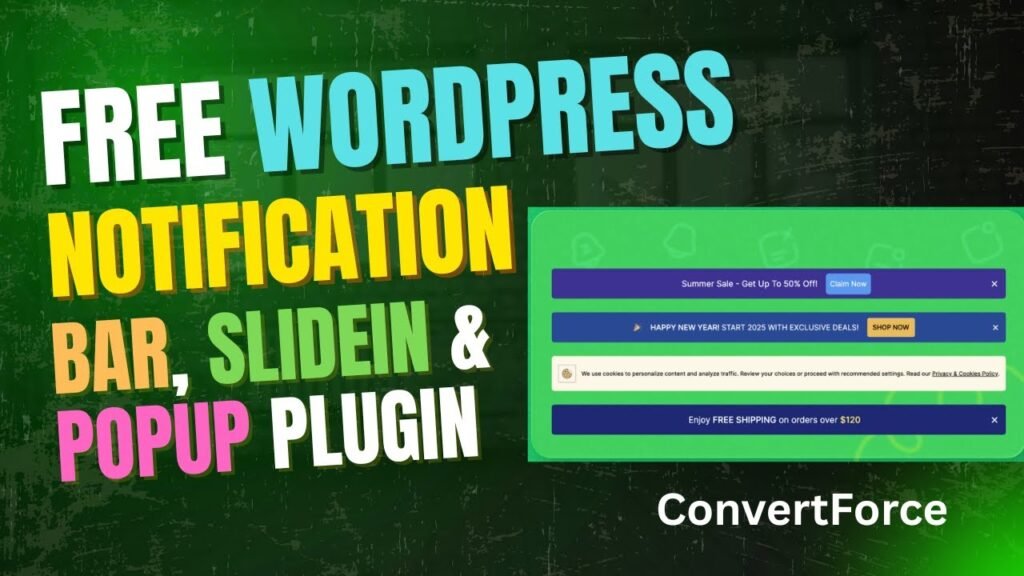
A WordPress notification bar is a thin, horizontal banner that appears at the top or bottom of your website. It stays visible as visitors browse your pages and delivers a focused message — a discount code, an important announcement, a newsletter signup prompt, or any call to action you want to highlight.
Unlike modal popups that block the screen, a notification bar sits quietly at the edge of the viewport, informing visitors without interrupting their experience. This makes notification bars one of the highest-converting, lowest-annoyance elements you can add to your WordPress site.
Types of Notification Bars
Notification bars come in a few common forms:
- Top bar: Displayed at the very top of the page, above the header.
- Bottom bar: Fixed at the bottom of the viewport, often used for cookie notices or CTAs.
- Sticky bar: Remains visible as visitors scroll down the page.
- Dismissible bar: Includes a close button so visitors can hide it once seen.
What Can You Use a Notification Bar For?
- Announcing sales, discounts, or limited-time offers
- Promoting a new blog post or product launch
- Sharing important website updates or maintenance notices
- Collecting email subscribers with a simple sign-up CTA
- Driving visitors to a specific landing page or product
Why Use a Notification Bar on Your WordPress Site?
If you’re not using a notification bar, you’re leaving conversions on the table. Studies consistently show that well-designed notification bars can significantly increase click-through rates on CTAs, especially when compared to inline links buried within page content.
Here’s why notification bars work so well:
They Are Non-Intrusive
Unlike full-screen popups that interrupt the browsing experience, notification bars are subtle. Visitors can easily ignore them if not interested, which means they don’t create negative feelings — and they’re less likely to cause visitors to leave your site.
They Have High Visibility
Because they appear at the top or bottom of every page (or targeted pages), notification bars accumulate impressions quickly. A visitor who spends several minutes on your site will see your message multiple times without you needing to trigger additional popups.
They Are Easy to Set Up
With modern plugins like ConvertForce, you can create and launch a professional-looking notification bar in under ten minutes — with no coding, no page builder subscription, and no design skills required.
They Work Across All Devices
A good WordPress notification bar plugin will render correctly on desktops, tablets, and mobile devices. ConvertForce includes per-device responsive controls so you can fine-tune how the bar appears on different screen sizes.
Introducing ConvertForce: The Free WordPress Notification Bar Plugin
ConvertForce is a modern, Gutenberg-native WordPress plugin built to help you create conversion-focused notification bars, lightbox popups, and slide-ins — all from within the familiar WordPress block editor.
What makes ConvertForce stand out from other notification bar plugins is its native block editor integration. Instead of learning a brand-new drag-and-drop interface or relying on shortcodes, you design your notification bar the same way you’d write a blog post or build a page — using Gutenberg blocks.
The plugin is developed by Imtiaz Rayhan and the DotCamp team, who are known for building high-quality, performance-optimized WordPress tools. ConvertForce is available for free on the WordPress plugin repository, and all core features are included in the free version with no upsells or paywalls.
Who Is ConvertForce For?
- Bloggers wanting to promote new content or grow their email list
- Small business owners running time-limited promotions
- WooCommerce store owners highlighting discounts or shipping offers
- Agencies building client websites who want a lightweight, universal solution
- Any WordPress user who wants a professional notification bar without paying for a premium plugin
Key Features of ConvertForce
Let’s take a deeper look at what ConvertForce brings to the table. Every feature listed below is available completely free.
Block Editor-Native Design
ConvertForce is built entirely on the WordPress block editor. This means you can use any core Gutenberg block inside your notification bar — paragraphs, buttons, images, group blocks, columns, and more. There’s no proprietary interface to learn, and the design process feels completely natural to WordPress users.
Three Display Types Out of the Box
ConvertForce gives you three powerful display options from the moment you install it:
- Notification Bar (top or bottom): A horizontal sticky or static bar that spans the full width of the page.
- Lightbox Popup: A centered modal that appears over the page content, great for lead generation or announcements.
- Slide-in: A small panel that slides in from a corner of the screen, less intrusive than a lightbox but more prominent than a notification bar.
Fully Customizable Appearance
You have complete control over the visual appearance of your notification bar. Customization options include:
- Background color and text color
- Width control (full-width or contained)
- Animation effects (fade, slide, etc.)
- Sticky behavior (scroll with page or stay fixed)
- Position (top or bottom)
- Close button visibility and positioning
Display Conditions
One of ConvertForce’s most powerful features is display conditions. You can control exactly where and when your notification bar appears. Target specific pages, posts, categories, or even device types. This lets you create hyper-relevant messages that match the content your visitor is currently reading.
Per-Device Responsive Controls
ConvertForce includes responsive controls that let you customize how your notification bar looks on desktops, tablets, and smartphones separately. You can even hide the bar on mobile if it doesn’t fit your design requirements.
Blazing Fast and Lightweight
Performance matters. ConvertForce is built to load only the minimal JavaScript and CSS required. It follows WordPress best practices and doesn’t inject bloat into your page. The plugin has been tested to have virtually zero impact on Core Web Vitals or page load time.
Works With All Themes and Plugins
Because ConvertForce uses native WordPress APIs and the block editor, it’s universally compatible with all WordPress themes — classic, block-based, and FSE themes. It also plays well with popular plugins like WooCommerce, Elementor, and all major caching plugins.
How to Install ConvertForce on WordPress
Installing ConvertForce takes less than two minutes. Here’s how to do it:
Method 1: Install from the WordPress Plugin Repository
- Log in to your WordPress admin dashboard.
- Navigate to Plugins > Add New Plugin.
- In the search box, type ConvertForce Popup Builder.
- Click Install Now on the ConvertForce Popup Builder plugin card.
- Once installed, click Activate.
- You’ll see a new ConvertForce menu item in your WordPress sidebar.
Method 2: Manual Installation
If you prefer manual installation, download the plugin ZIP file from wordpress.org/plugins/convertforce-popup-builder, then go to Plugins > Add New Plugin > Upload Plugin in your WordPress dashboard and upload the ZIP file. Activate the plugin after the upload completes.
System Requirements
ConvertForce requires WordPress version 6.1 or higher and PHP version 7.0 or higher. It has been tested up to WordPress 6.9, making it compatible with all current WordPress installations.
How to Create a Notification Bar with ConvertForce (Step-by-Step)
Now let’s walk through creating your first WordPress notification bar using ConvertForce. This process references the official tutorial video (youtu.be/wbkJgBzG6WE) by Imtiaz Rayhan.
Step 1: Access ConvertForce from Your Dashboard
After activating the plugin, go to ConvertForce in your WordPress sidebar. Click Add New Popup to start creating your notification bar. You’ll be greeted by a clean interface that prompts you to choose your display type.
Step 2: Select Notification Bar as Your Display Type
On the display type selection screen, click Notification Bar. You’ll then be taken to the WordPress block editor with a special ConvertForce canvas where you’ll design your bar. You can choose between a top bar and a bottom bar in the settings panel on the right side.
Step 3: Add Your Content Using Gutenberg Blocks
The notification bar canvas works like any other WordPress editor. Click the plus (+) button to add blocks. Common choices include:
- Paragraph block for your announcement text
- Button block for your call-to-action link
- Image block if you want to include a logo or icon
- Columns block to create a multi-element layout
Keep your message short, clear, and action-oriented. Visitors only have a moment to read a notification bar, so every word counts.
Step 4: Configure Display Settings
On the right side of the editor, you’ll find the ConvertForce settings panel. Here you can configure:
- Position: Choose Top or Bottom.
- Sticky: Toggle whether the bar stays fixed as users scroll or scrolls away with the page.
- Animation: Select an entry animation such as fade in or slide down.
- Width: Set to full-width or a custom maximum width.
- Close Button: Show or hide the dismiss button, and control its position.
Step 5: Set Display Conditions
Click on the Display Conditions tab in the settings panel. By default, your notification bar will appear on all pages. To narrow it down, you can add conditions such as:
- Show on: Specific pages, posts, or categories
- Hide on: Certain pages or post types
- Device targeting: Desktop only, mobile only, or all devices
Step 6: Preview Your Notification Bar
Use the built-in device preview to see how your notification bar looks on desktop, tablet, and mobile. ConvertForce includes preview controls directly in the block editor so you can spot responsive issues before going live.
Step 7: Publish and Go Live
When you’re happy with your notification bar, click Publish in the top-right corner of the block editor. Your notification bar is immediately live on your WordPress website — no page refresh or cache clear required.
Customizing Your WordPress Notification Bar
One of the biggest advantages of using ConvertForce is the level of customization available, all without touching a line of code.
Matching Your Brand Colors
Use the background color and text color pickers in the ConvertForce settings panel to match your notification bar to your brand palette. Since you’re working directly in Gutenberg, you can also use the block-level color controls to style individual elements within the bar independently.
Adding a Countdown Timer
For limited-time promotions, you can add a countdown block inside your notification bar to create urgency. While ConvertForce doesn’t bundle its own countdown block, you can use any compatible countdown block plugin and insert it directly into your notification bar canvas.
Using Pre-Built Patterns
ConvertForce includes pre-built block patterns that you can use as a starting point. These patterns are available through the Patterns option in the block editor and include layouts for announcement bars, promo bars, and CTA bars. This is a great way to get a professional-looking notification bar in under two minutes.
Adding Icons and Emojis
You can add icons using any icon block plugin (such as Icon Block by Nick Diego) or simply paste emojis directly into the text. This adds visual personality to your notification bar and helps it stand out from a plain text message.
Using Other Display Types: Lightbox Popups and Slide-ins
While this guide focuses on notification bars, ConvertForce also gives you access to two other display types from the same plugin. Understanding when to use each will help you build a comprehensive conversion strategy.
Lightbox Popups
A lightbox popup is a modal that appears over your page content. It’s more attention-grabbing than a notification bar and works well for lead capture forms, important announcements, or promotional offers. ConvertForce lightbox popups are created using the same block editor interface, so the design process is identical.
Use lightbox popups for: Email list opt-ins, welcome offers for new visitors, exit-intent promotions (coming in a future update).
Slide-in Popups
A slide-in is a small widget that enters from a corner of the screen — typically the bottom-left or bottom-right. It’s less intrusive than a lightbox but more noticeable than a bottom bar. Slide-ins work well for secondary CTAs, chat prompts, or resource downloads.
Use slide-ins for: Related content recommendations, special offer reminders, social proof notifications.
Combining Multiple Display Types
With ConvertForce, you can create multiple campaigns simultaneously. For example, you can have an active notification bar running a site-wide sale announcement while also using a slide-in to promote a free resource download on your blog posts. Each campaign has independent settings and display conditions.
ConvertForce vs. Other WordPress Notification Bar Plugins
There are several WordPress notification bar plugins on the market. Here’s how ConvertForce compares against the most popular alternatives:
Plugin | Free? | Block Editor? | Popup Types | Performance | Best For |
ConvertForce | 100% Free | Yes (Native) | Bar, Lightbox, Slide-in | Excellent | Gutenberg-first users |
WPFront Notification Bar | Free | No | Bar only | Good | Simple bar setups |
Easy Notification Bar | Free | No | Bar only | Good | Ultra-simple bars |
Hello Bar | Freemium | No | Bar, Popup, Slider | Moderate (external) | Analytics-focused users |
OptinMonster | Paid ($9+/mo) | No | Many types | Good | Enterprise lead gen |
NotificationX | Freemium | No | Bar, Social proof | Good | Social proof FOMO |
The comparison makes it clear: ConvertForce is the only 100% free option that offers native Gutenberg block editor support and multiple display types. If you’re building a modern WordPress website and want a powerful notification bar without a recurring subscription, ConvertForce is the standout choice.
When Might You Choose Another Plugin?
While ConvertForce is excellent for most use cases, there are scenarios where alternatives might make more sense:
- If you need A/B testing and analytics, Hello Bar or OptinMonster offer those features.
- If you need social proof notifications (e.g., ‘John just purchased…’), NotificationX is purpose-built for that.
- If you’re managing a large enterprise site with advanced targeting rules, OptinMonster’s rule engine is more mature.
Tips to Maximize Your Notification Bar Conversions
Creating a notification bar is just the first step. Here are proven tips to get the most out of your ConvertForce notification bar.
Keep the Message Short and Specific
The best notification bars contain 10 words or fewer in the main message. Be specific: ‘20% Off All Courses — Today Only’ converts better than ‘We have special offers available for you.’ The more specific your message, the more likely visitors are to click.
Use a Clear and Compelling CTA
Your call-to-action button text matters more than you think. Instead of generic labels like ‘Click Here’ or ‘Learn More’, use action-oriented, benefit-driven copy: ‘Get 20% Off’, ‘Claim Your Free Guide’, or ‘Join 5,000 Subscribers’. This small change can double your click-through rate.
Match the Bar to Your Brand
A notification bar that clashes with your site’s color scheme looks unprofessional and reduces trust. Use ConvertForce’s color settings to match your brand’s primary or accent color. This makes the bar feel like a natural part of your design rather than an intrusive addition.
Create Urgency with Time-Limited Messages
Urgency is one of the most powerful conversion triggers. Use phrases like ‘Offer ends in 24 hours’, ‘Last 5 spots remaining’, or ‘Sale ends Sunday’ to motivate visitors to take action now rather than later. Pair this with a countdown timer block for maximum impact.
Use Display Conditions to Show Relevant Messages
A notification bar promoting a coding course doesn’t need to appear on your food blog posts. Use ConvertForce’s display conditions to show relevant messages on the right pages. Visitors who see content that matches their current interest are far more likely to engage.
Test Different Positions
Some audiences respond better to a top bar while others engage more with a bottom bar. ConvertForce lets you switch positions with a single click. Try both over a week each and see which generates more clicks using your analytics tool.
Don’t Overuse It
If every page of your site has multiple popups, a notification bar, and a slide-in all firing at once, visitors will feel overwhelmed and leave. Be strategic. Use one prominent message at a time, and rotate messages for returning visitors.
Frequently Asked Questions
What is a WordPress notification bar?
A WordPress notification bar is a thin, horizontal banner that appears at the top or bottom of a website to display messages, promotions, announcements, or CTAs. It is one of the least intrusive ways to communicate with website visitors without disrupting their browsing experience.
Is ConvertForce really free?
Yes, ConvertForce Popup Builder is completely free to download and use from the official WordPress plugin repository at wordpress.org. All core features — including notification bars, lightbox popups, and slide-ins — are available in the free version. A premium version is planned for future release with additional advanced features.
Does ConvertForce work with all WordPress themes?
Yes, ConvertForce is fully compatible with all WordPress themes, including both classic PHP-based themes and modern block-based FSE (Full Site Editing) themes. Because it uses native WordPress block editor functionality, it integrates seamlessly regardless of which theme you’re running.
Will ConvertForce slow down my website?
No. ConvertForce is designed to be blazing fast and lightweight. It loads only the minimal assets required and follows WordPress best practices. The plugin has been reviewed to have very little impact on page load time or Core Web Vitals scores.
Can I display the notification bar on specific pages only?
Yes. ConvertForce supports display conditions that let you control exactly which pages or posts your notification bar appears on. You can target all pages, specific pages, posts, or custom post types — and exclude specific pages as well.
Does ConvertForce require coding knowledge?
No coding is required. ConvertForce is built entirely on the native WordPress block editor (Gutenberg), so you design and configure everything using the familiar drag-and-drop interface that WordPress users already know.
What types of popups can ConvertForce create?
ConvertForce supports three display types out of the box: Notification Bar (top or bottom position), Lightbox popup, and Slide-in. This makes it a versatile conversion tool well beyond just notification bars.
Is ConvertForce compatible with WooCommerce?
Yes. ConvertForce works with WooCommerce and other e-commerce plugins. You can use it to promote product discounts, free shipping thresholds, or flash sale announcements directly on your WooCommerce-powered store.
Conclusion
A WordPress notification bar is one of the simplest, most effective tools you can add to your website today — and with ConvertForce, you don’t need to spend a single dollar to get started.
ConvertForce stands out in a crowded plugin market because it does something no other free plugin currently does: it brings a fully block-editor-native notification bar experience to WordPress. You get three display types, flexible display conditions, per-device responsive controls, and blazing-fast performance — all for free.
Whether you’re a blogger looking to grow your email list, a small business owner running a promotion, or a developer building sites for clients, ConvertForce gives you everything you need to create professional notification bars without the complexity or cost of premium tools.
Ready to get started? Install ConvertForce for free at wordpress.org/plugins/convertforce-popup-builder and launch your first WordPress notification bar in under ten minutes.
Have questions or tips about using ConvertForce? Drop them in the comments below — we’d love to hear how you’re using notification bars on your WordPress site.