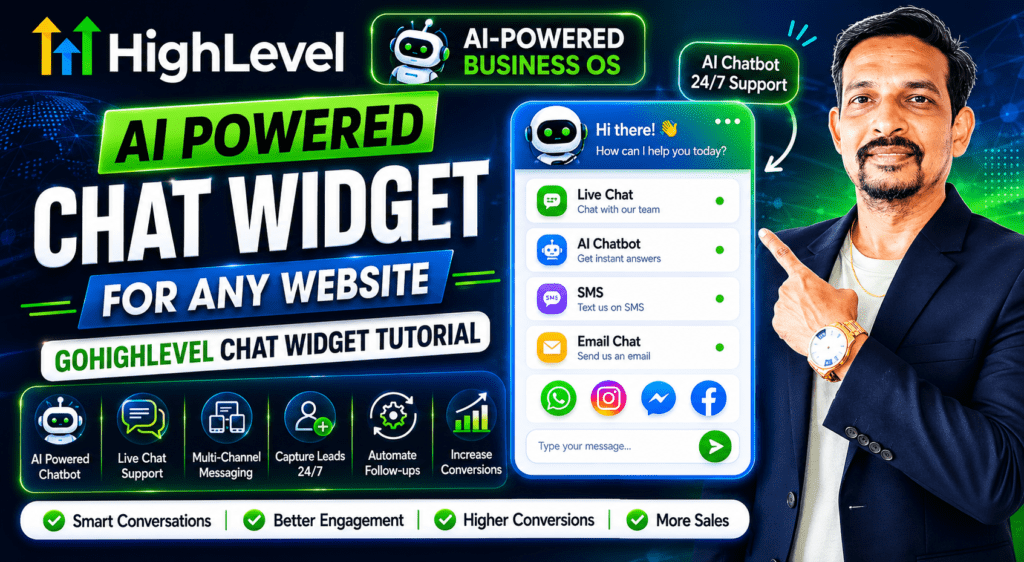
If you want to turn your website visitors into paying customers around the clock, the GoHighLevel Chat Widget is one of the most powerful tools available in 2026. Whether you run a small local business, a marketing agency, or a SaaS company, adding a GoHighLevel Chat Widget to your website gives you instant lead capture, automated AI responses, and multi-channel messaging — all inside one unified platform. In this complete step-by-step tutorial, you will learn how to create, customize, and install the GoHighLevel chat widget on any website, plus how to leverage its built-in AI automation to engage visitors and convert them into leads even while you sleep.
Watch step by step video tutorial: https://youtu.be/dm8GQarrWBM
Table of Contents
What Is the GoHighLevel Chat Widget?
The GoHighLevel Chat Widget is an embeddable messaging tool that lets website visitors start real-time conversations with your business directly from any web page. Once installed, it appears as a small chat bubble in the corner of your website. When a visitor clicks it, a conversation window opens, connecting them to your team, an AI chatbot, or an automated workflow — all managed from inside the GoHighLevel CRM.
GoHighLevel (also known as HighLevel or GHL) is an all-in-one business operating system built for agencies, consultants, and service businesses. It combines CRM, pipeline management, email and SMS marketing, sales funnels, website builder, and appointment booking under one roof. The chat widget is one of its most popular features because it bridges the gap between website traffic and real business conversations.
How Does It Work?
When you create a chat widget inside GoHighLevel, you generate a small JavaScript snippet. You paste this snippet into the header or footer of any website — whether it is built on WordPress, Wix, Squarespace, Shopify, or custom HTML. Once the script is live, the chat bubble appears for all visitors. Every message sent through the widget flows directly into your GoHighLevel Conversations inbox, where you or your AI bot can respond instantly.
Who Is It For?
The GoHighLevel Chat Widget is ideal for:
- Marketing agencies managing multiple client websites
- Local service businesses such as plumbers, dentists, or lawyers
- SaaS companies looking to capture and qualify leads 24/7
- E-commerce stores that want to reduce cart abandonment
- Coaches and consultants who offer booking through their websites
Why Every Website Needs a Chat Widget in 2026
Think about the last time you visited a website with a question. You probably scanned the page for a phone number or a contact form. If you did not find instant help, you likely left. That is the reality your visitors face every single day, and it is why chat widgets have become essential for modern websites.
The Cost of Slow Response Times
Studies consistently show that businesses that respond to leads within five minutes are far more likely to convert them compared to those that wait even 30 minutes. Every minute of delay costs you a potential customer. A well-configured chat widget eliminates that delay entirely by responding the moment someone types their first message.
Chat Widgets Drive More Conversions
A chat widget actively engages visitors at the exact moment they are considering your offer. Instead of passively waiting for a form submission, the widget proactively offers assistance, answers objections in real time, and guides visitors toward booking a call or making a purchase. According to GoHighLevel’s own documentation, chat widgets are one of the most effective ways to convert visitors into potential leads without spending money on additional advertising.
24/7 Lead Capture Without Extra Staff
With GoHighLevel’s AI-powered chat automation, your widget works around the clock. Even at 2 AM on a Sunday, a visitor can start a conversation, get their questions answered by the AI bot, and book an appointment — all without any human involvement. This makes the GoHighLevel Chat Widget one of the highest-return tools in a marketer’s toolkit.
Types of GoHighLevel Chat Widgets
GoHighLevel offers several distinct chat widget types, each designed for a specific use case. Understanding these options is critical before you begin setup, because the type you choose determines how conversations are handled and which features are available.
All-In-One Chat Widget
The All-In-One Chat Widget is the most powerful option. It combines multiple communication channels — Live Chat, Email/SMS, WhatsApp, Facebook Messenger, Instagram Direct, and Voice AI — into a single chat experience. Visitors choose how they want to connect, and all messages flow into one unified GoHighLevel inbox. This is the best choice for businesses that want maximum engagement across every channel.
SMS / Email Chat Widget
The SMS/Email Chat Widget captures visitor information and delivers messages to you via text or email. It does not require live staffing because it functions as an asynchronous lead capture tool. When a visitor submits a message, GoHighLevel can automatically send a confirmation and notify your team. This is ideal for businesses that do not have a live support team but still want to capture leads from their website.
Live Chat Widget
The Live Chat Widget enables real-time text conversations between your team and website visitors. All messages appear inside the GoHighLevel Conversations inbox, making it easy for agents to respond quickly. You can also use GoHighLevel’s Conversation AI in Suggestive mode, where the AI drafts responses for your agents to review and send — speeding up response times while maintaining a human touch.
Voice AI Chat Widget
The Voice AI Chat Widget is one of the most innovative options available. It lets visitors hold a live, spoken conversation with an AI agent entirely inside their web browser — no phone number required, no app to download. The conversation streams through WebRTC technology, creating a phone-call-like experience directly on your website. This is perfect for businesses that want to qualify leads through natural conversation without tying up human agents.
WhatsApp, Facebook, and Instagram Chat Widgets
GoHighLevel also supports dedicated widgets for WhatsApp, Facebook Messenger, and Instagram Direct. These widgets open the corresponding messaging app when clicked, starting the conversation inside a platform your visitors already use daily. All messages are still routed into your GoHighLevel inbox for centralized management.
GoHighLevel Chat Widget vs Competitors
Before committing to GoHighLevel for your chat needs, it helps to understand how it compares to standalone chat tools in the market.
Feature | GoHighLevel Chat Widget | Intercom | Tidio | LiveChat |
AI Chatbot | ✅ Built-in (Conversation AI) | ✅ Fin AI (extra cost) | ✅ Lyro AI (limited free) | ⚠️ Add-on required |
Voice AI | ✅ Included (Labs) | ❌ Not available | ❌ Not available | ❌ Not available |
Multi-channel (SMS, WhatsApp, IG, FB) | ✅ All-in-one | ⚠️ Limited channels | ⚠️ Limited channels | ⚠️ Limited channels |
CRM Integration | ✅ Native CRM included | ✅ Native CRM | ⚠️ Third-party only | ⚠️ Third-party only |
Workflow Automation | ✅ Advanced workflows | ✅ Available | ⚠️ Basic | ⚠️ Basic |
Price (starting) | From $97/month (all tools) | $74/month (chat only) | $19/month | $20/month |
White Label Option | ✅ Yes (agencies) | ❌ No | ❌ No | ❌ No |
The key advantage of the GoHighLevel Chat Widget over standalone competitors is that it comes bundled with a full CRM, marketing automation, funnel builder, and booking system. You are not paying extra for an AI chatbot or a separate CRM integration — everything is included in one subscription.
How to Create a GoHighLevel Chat Widget (Step-by-Step)
Follow these steps to create your GoHighLevel Chat Widget. If you do not have a GoHighLevel account yet, you can start with a free 30-day trial at gohighlevel.com.
Step 1: Log Into Your GoHighLevel Account
Sign in to your GoHighLevel account and navigate to the sub-account where you want to add the chat widget. Make sure you have admin-level permissions to access the Sites and Chat Widget settings.
Step 2: Navigate to Sites > Chat Widget
In the left-hand sidebar, click on Sites. Then look for the Chat Widget option within the Sites menu. This is the central hub where all your chat widgets are managed. You will see a list of any existing widgets along with options to create new ones.
Step 3: Click New to Create a Chat Widget
Click the New button to start creating your first chat widget. GoHighLevel will prompt you to select the widget type. Choose from the following options: All-In-One Chat, SMS/Email Chat, Live Chat, Facebook Chat, Instagram Chat, WhatsApp Chat, or Voice AI. For most businesses, the All-In-One Chat or Live Chat option provides the most flexibility.
Step 4: Configure the Widget Settings
Once you select the widget type, you will move through a setup wizard with multiple configuration pages. For Live Chat and AI-enabled widgets, you will typically see four pages: Widget appearance, Chat channels, AI bot settings, and the embed code. Work through each page carefully, as the settings you configure here determine how the widget looks and behaves on your website.
Step 5: Set Up Your Welcome Message
A compelling welcome message is one of the most important conversion elements of your chat widget. Keep it short — one or two sentences — and end with a simple question that invites a response. For example: ‘Hi there! How can we help you today?’ or ‘Welcome! Have a question? We usually reply in a few minutes.’ Avoid long paragraphs; visitors will not read them.
Step 6: Copy the Embed Code
After completing the configuration, GoHighLevel generates a JavaScript embed code for your widget. Click the Get Code or Copy Code button to copy this snippet. You will need this code in the next section when you install the widget on your website.
How to Customize the GoHighLevel Chat Widget
GoHighLevel provides extensive customization options to match the chat widget to your brand identity and optimize it for conversions. Here is a breakdown of the key customization settings available.
Appearance and Branding
Inside the Widget tab, you can customize the visual look of the chat bubble and conversation window. Key options include:
- Primary Color: Choose a color that matches your website’s brand palette. This color is applied to the chat button, header bar, and send button.
- Avatar Image: Upload a photo of your team member or a logo. A friendly face significantly increases engagement rates because it humanizes the interaction.
- Widget Placement: Choose whether the bubble appears in the bottom-right or bottom-left corner of the screen. Bottom-right is the industry standard and typically performs best.
- Widget Size: Adjust the size of the chat bubble to make it more or less prominent on the page.
- Theme Style: Select from available style themes to match your website’s design aesthetic.
Chat Form Fields
You can configure which fields visitors are asked to fill in before starting a conversation. For maximum lead capture, collect at minimum a name and either an email address or phone number. GoHighLevel supports up to 20 customizable fields per chat session, including both standard fields (name, phone, email) and custom fields that you define in your CRM. Keep the form as short as possible — the fewer fields you require upfront, the more people will complete it.
Intro Message and Prompts
The intro message appears at the top of the chat window before the visitor types anything. Use this space to set expectations and encourage action. You can also configure prompt bubbles that appear above the chat button — these are small pop-up messages designed to catch a visitor’s eye and invite them to start a conversation. If you enable prompt bubbles, consider disabling them on mobile if your site navigation is in the bottom area of the screen, as they can interfere with usability.
Availability Settings
GoHighLevel lets you configure business hours for your chat widget. During office hours, the widget can display as available for live chat. Outside of hours, it can automatically switch to an away message or activate the AI bot to handle conversations. This ensures visitors always receive a response, regardless of when they visit your site.
How to Install the Chat Widget on Any Website
One of the best things about the GoHighLevel Chat Widget is how easy it is to install on virtually any website platform. No coding experience is required. You just paste a single line of JavaScript and the widget appears.
Installing on a GoHighLevel Website or Funnel
If your website is built inside GoHighLevel, the installation process is even simpler. Inside the website or funnel editor, navigate to your website settings or page settings and look for the Chat Widget option. Select your widget from the dropdown list and save. GoHighLevel automatically adds the embed code to every page of your site.
Installing on WordPress
To install the GoHighLevel Chat Widget on a WordPress site, follow these steps:
- Copy your widget embed code from GoHighLevel (Sites > Chat Widget > Get Code).
- In your WordPress dashboard, go to Appearance > Theme File Editor, or install a plugin like Insert Headers and Footers.
- Paste the embed code into the footer section of your site (just before the closing </body> tag).
- Save your changes and reload your website to verify the chat bubble appears.
Using a header/footer plugin is the recommended approach because it does not require editing theme files directly and survives theme updates.
Installing on Wix, Squarespace, or Shopify
For third-party website builders, the process is similar. Look for a custom code or tracking scripts section in your site settings. In Wix, go to Settings > Custom Code. In Squarespace, use the Code Injection feature under Settings > Advanced. In Shopify, paste the code into the theme.liquid file just before the closing </body> tag. The GoHighLevel embed script works on any platform that supports custom JavaScript.
Installing on Custom HTML Websites
For custom-coded websites, simply open your HTML file and paste the GoHighLevel widget script just before the closing </body> tag in your footer. Save the file and upload it to your server. The chat bubble will appear on every page that includes the script.
How to Enable AI-Powered Automation in GoHighLevel Chat
The GoHighLevel Chat Widget becomes truly powerful when you pair it with GoHighLevel’s built-in AI automation tools. This is where the platform distinguishes itself from basic chat widgets — you are not just adding a messaging tool, you are deploying an intelligent lead generation system.
Conversation AI Bot
GoHighLevel’s Conversation AI is a built-in chatbot that uses artificial intelligence to answer visitor questions, qualify leads, and book appointments automatically. The bot has two primary operating modes:
- Suggestive Mode: The AI drafts a suggested response inside the agent’s message composer. Your team member reviews the suggestion and sends it with one click — or edits it before sending. This speeds up response times while keeping a human in control.
- Auto-Pilot Mode: The AI responds automatically on your behalf, without human intervention. This is ideal for handling common questions and initial lead qualification at any hour of the day.
Training the AI Bot
You can train the GoHighLevel Conversation AI using your business’s knowledge base. Upload FAQs, product descriptions, service pages, and policy documents. The bot learns from this material and uses it to answer visitor questions accurately. You can also provide feedback on individual bot responses using thumbs-up and thumbs-down buttons, which helps refine the bot’s performance over time. You can even run bot trials in a test mode to review how it responds before going live with your audience.
Connecting Workflows to Your Chat Widget
Every message received through the GoHighLevel Chat Widget can trigger a workflow automation. For example, when a visitor submits their name and email through the chat form, GoHighLevel can instantly:
- Tag the contact in your CRM
- Add them to an email nurture sequence
- Send them an SMS confirmation message
- Notify your sales team via internal notification
- Create a new opportunity in your pipeline
This level of automation means every chat interaction becomes a structured lead generation event, not just a random conversation that gets lost.
Spam Filtering and Smart Routing
GoHighLevel includes built-in spam filtering for chat widget submissions. You can set up workflow conditions to detect and exclude obvious spam entries, ensuring your CRM stays clean. You can also route conversations to specific team members based on the topic, the page the visitor is on, or custom field data collected during the chat.
GoHighLevel Voice AI Chat Widget
The Voice AI Chat Widget is one of the most forward-thinking features GoHighLevel has released. It transforms your website chat bubble into a real-time voice conversation interface, allowing visitors to speak with an AI agent using their browser’s microphone and speakers — no phone number, no download, no extra setup required.
How the Voice AI Widget Works
The Voice AI Chat Widget uses WebRTC technology to stream audio directly through the visitor’s browser. When a visitor clicks the voice chat option, they are immediately connected to your Voice AI agent. The AI listens, processes the visitor’s speech in real time, and responds conversationally. The entire interaction happens in-browser, making it frictionless and accessible on any device with a microphone.
Setting Up the Voice AI Widget
To set up the Voice AI Chat Widget in GoHighLevel, follow these steps:
- Navigate to Sites > Chat Widget > New and select Voice AI as the widget type.
- Go to AI Agents > Voice AI in your sub-account and create or configure your Voice AI agent. Set the agent’s greeting message, define its behavior, and connect any workflows you want it to trigger.
- Return to the chat widget settings and link your Voice AI agent to the widget.
- Copy the widget embed code and install it on your website following the same process described in the previous section.
Note: The Voice AI Chat Widget is currently available in GoHighLevel Labs and must be enabled by agency admins for sub-accounts. Visit your Labs settings to activate it before attempting to create a Voice AI widget.
Voice AI Features and Limitations
The GoHighLevel Voice AI Chat Widget supports a number of powerful features, including:
- Real-time microphone-based voice conversations in the browser
- Mute/unmute controls during the session
- Ability for visitors to provide contact information during the call
- Up to 100 Voice AI agents across your account
- Support for up to 20 concurrent voice sessions
- Anti-abuse protection via Google reCAPTCHA for rapid reconnections
Currently, text chat and Voice AI cannot be combined in a single widget, and call transfer to a human agent is not yet supported in the beta version. These capabilities may expand in future GoHighLevel updates.
Best Practices to Maximize Chat Widget Conversions
Creating and installing your GoHighLevel Chat Widget is only the beginning. The real results come from how you configure, position, and test the widget over time. Here are the most effective best practices for maximizing conversions.
Use a Real Photo as Your Avatar
Widgets with a real human face in the avatar consistently outperform those with generic icons or logos. A friendly photo of a team member creates an immediate sense of trust and approachability. Even on an AI-powered widget, showing a human face signals warmth and professionalism.
Keep the Welcome Message Concise and Action-Oriented
Your opening message should be one to two short sentences with a clear invitation. Avoid corporate language. Write the way your team actually speaks. End with a question: ‘Hi! What brings you to our site today?’ or ‘Got a quick question? We are happy to help!’ A question creates an irresistible conversational opening.
Minimize Required Form Fields
The more information you ask for upfront, the fewer people will complete the form. Start with just a name and one contact method — either an email address or a phone number. You can collect additional information through the conversation itself or via follow-up workflows.
Set Up a Fallback Message for Off-Hours
Always configure an away message or enable the AI bot for outside business hours. A fallback message like ‘We are not available right now, but leave your details and we will get back to you within one business day’ still captures the lead even when no one is online.
Test the Widget on Mobile
More than half of web traffic comes from mobile devices. Make sure your chat bubble does not cover important navigation elements on smaller screens. Test the widget on multiple screen sizes and consider adjusting its placement or disabling the prompt bubble on mobile if it interferes with the user experience.
Connect Every Chat to a Workflow
Every chat submission should trigger at least one workflow action — whether that is an internal team notification, a contact tag, or an automated SMS reply to the visitor. Without a workflow connection, chat leads can slip through the cracks and go uncontacted.
Common Mistakes to Avoid When Setting Up GoHighLevel Chat Widget
Even experienced marketers make avoidable mistakes with chat widget setup. Here are the most common ones and how to avoid them.
Not Purchasing a Phone Number Before Using SMS Chat
If you want your SMS/Email Chat Widget to send text message replies, you must purchase a phone number inside your GoHighLevel sub-account and complete the required A2P registration. Skipping this step means SMS notifications will not be delivered, and you will miss out on leads. Do this before you go live with any SMS-based widget.
Using the Wrong Widget Type
Choosing the SMS/Email widget when you actually need live chat leads to visitor confusion, because the form-based SMS widget looks like a live chat but works asynchronously. Choose your widget type based on how your team will actually handle incoming conversations — live and staffed, automated AI, or asynchronous form capture.
Neglecting to Test the Widget
Always test your chat widget after installation. Open your website in an incognito browser window, start a conversation, and verify that the message appears in your GoHighLevel Conversations inbox. Check that any automations connected to the widget are triggering correctly. This five-minute test can prevent you from losing leads for days or weeks without knowing it.
Installing the Script in the Wrong Location
Placing the embed code in the wrong section of your website — for example, inside a post template instead of the global header or footer — means the widget will only appear on certain pages. Always install the GoHighLevel chat widget script in the global header or footer to ensure it loads on every page of your site.
Forgetting to Enable Voice AI in Labs
If you want to use the Voice AI Chat Widget, you must enable the Labs feature first at the agency level. If you skip this step, the Voice AI widget option will not appear in your sub-account widget creation menu. Check your Labs settings and enable Voice AI before trying to create this widget type.
Frequently Asked Questions About GoHighLevel Chat Widget
What is the GoHighLevel Chat Widget?
The GoHighLevel Chat Widget is an embeddable website chat tool that lets visitors start conversations with your business directly from your website. It supports multiple channel types including live chat, AI chatbot, SMS, WhatsApp, Facebook Messenger, Instagram, and Voice AI — all managed from the GoHighLevel CRM inbox.
Is the GoHighLevel Chat Widget free?
The chat widget feature is included in all GoHighLevel plans starting at $97/month. There is no separate charge for the widget itself, though SMS messaging costs and AI usage may involve additional credits depending on your plan. GoHighLevel offers a 30-day free trial, giving you full access to test the chat widget before committing.
Can I install the GoHighLevel Chat Widget on WordPress?
Yes. You can install the GoHighLevel Chat Widget on any WordPress site by pasting the JavaScript embed code into your site’s footer using a header/footer plugin or your theme’s code editor. The widget works on all major website platforms including WordPress, Wix, Squarespace, Shopify, and custom HTML sites.
How do I add AI to my GoHighLevel Chat Widget?
To add AI to your GoHighLevel Chat Widget, enable Conversation AI inside the chat widget settings or connect a pre-configured Conversation AI bot. For Voice AI, create a Voice AI agent under AI Agents > Voice AI, enable the Voice AI Labs feature at the agency level, and then select Voice AI as your widget type. The AI bot can operate in Suggestive or Auto-Pilot mode.
Can the GoHighLevel Chat Widget work on multiple websites?
Yes. You can create multiple chat widgets inside GoHighLevel, each with its own configuration and embed code. This makes GoHighLevel ideal for agencies managing multiple client websites — each client can have a unique, branded chat widget all managed from one GoHighLevel account.
What is the difference between the SMS/Email Widget and Live Chat?
The SMS/Email Widget works asynchronously — it captures visitor information and delivers the message to you via text or email, but does not require anyone to be online. Live Chat is real-time — it requires a team member to be available in the GoHighLevel inbox to respond immediately. Live Chat can also be enhanced with the AI bot to handle conversations when no agents are available.
Does GoHighLevel Chat Widget work on mobile?
Yes, the GoHighLevel Chat Widget is fully responsive and works on all mobile devices. It is recommended to test the widget placement on mobile screens after installation to ensure the chat bubble does not overlap with important navigation elements. You can disable the prompt bubble on mobile within the widget’s display settings.
Can I connect multiple channels to one GoHighLevel Chat Widget?
Yes, with the All-In-One Chat Widget type, you can combine Live Chat, Email/SMS, WhatsApp, Facebook Messenger, Instagram Direct, and Voice AI in a single widget. Visitors choose their preferred communication channel, and all messages route to the same GoHighLevel Conversations inbox for centralized management.
Final Thoughts: Start Capturing More Leads with the GoHighLevel Chat Widget
Adding a GoHighLevel Chat Widget to your website is one of the highest-leverage moves you can make for lead generation and customer engagement in 2026. It takes less than 30 minutes to set up, requires no coding skills, and immediately starts working to capture visitors who would otherwise leave your site without taking action.
From real-time live chat and AI-powered conversation automation to Voice AI that speaks with your visitors in the browser, GoHighLevel gives you more tools in one platform than any standalone chat widget can offer. And because everything connects to the GoHighLevel CRM, every conversation automatically becomes a structured, trackable lead in your pipeline.
Ready to get started? Visit gohighlevel.com and sign up for your free 30-day trial today. Follow the steps in this guide, install your first GoHighLevel Chat Widget, and watch your website start converting visitors into leads on autopilot.