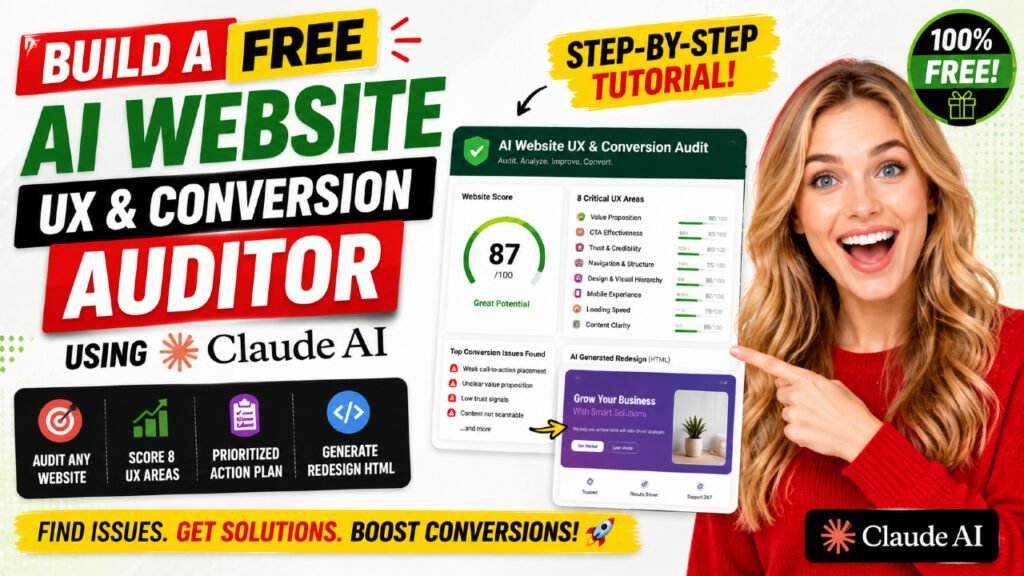
AI website UX audit tools used to cost thousands of dollars and weeks of waiting. Not anymore. In this step-by-step tutorial, you will learn how to build a completely free, AI-powered website UX and conversion audit tool using Claude AI — no coding experience required. This tool audits any website across 8 critical conversion parameters, generates a prioritized fix list, scores your page from 0 to 100, and even produces a redesigned HTML layout based on the audit findings. Whether you run a WordPress website, manage landing pages, or build sites for clients, this Claude AI tutorial gives you everything you need to start auditing and fixing conversion issues today.
Table of Contents
Detailed Prompt that I used to create AI website UX audit tool in Claude
Build a React artifact: an AI-powered UX & Conversion Audit Tool that analyses any webpage and generates a redesigned HTML layout. Use the Anthropic API (https://api.anthropic.com/v1/messages) for all AI calls. The API key is handled automatically — never include one.
—
## VISUAL DESIGN
Dark professional theme throughout:
– Page background: #0f172a
– Card/panel background: rgba(30,41,59,0.4) with border 1px solid rgba(71,85,105,0.5)
– Primary accent: #4f46e5 (indigo)
– Success/good: #22c55e
– Warning: #f59e0b
– Danger/critical: #ef4444
– Text primary: #f1f5f9
– Text muted: #94a3b8
– Font: ui-sans-serif, system-ui, -apple-system, sans-serif
Sticky header with logo icon, tool name “UX & Conversion Auditor”, “Powered by Claude AI” badge, and a “+ New Audit” reset button (only shown when step > 1).
—
## THREE-STEP FLOW
A step indicator at the top shows: Input → Audit Report → Redesign
– Active step: indigo pill (#4f46e5, white text, white circle with indigo number)
– Completed step: emerald tint (rgba(16,185,129,0.15)), emerald text, filled green circle with ✓
– Inactive step: slate-800 background, slate-500 text
– Connector line between steps: emerald if passed, #1e293b if not yet
—
## STEP 1 — INPUT
Two textarea fields inside a rounded-2xl card:
**HTML Source Code** (required, marked with red asterisk)
– Height: h-52, resizable
– Character counter top-right: amber colour if over 60,000 chars, slate-500 otherwise
– Hint box (indigo tint): “Open your WordPress page → Right-click → View Page Source → Select All (Ctrl+A / Cmd+A) → Copy → Paste below”
– Placeholder: DOCTYPE/html skeleton
– Truncated to 60,000 chars when sending to API (const MAX_HTML = 60000)
**CSS Styles** (optional)
– Height: h-36, resizable
– Label note: “— optional, helps audit identify color & contrast issues”
– Character counter top-right
– Hint box (slate tint): DevTools → Network tab → Reload → Filter CSS → Copy stylesheet
– Truncated to 20,000 chars (const MAX_CSS = 20000)
**Run Audit button**: full-width, indigo when enabled, slate-700 when disabled or busy. Shows a spinner + cycling loading message when busy.
—
## STEP 2 — AUDIT REPORT
### Summary card
Left side: animated SVG score ring (120×120) showing overall_score/100. Ring uses stroke-dasharray/dashoffset on a circle with r=42. Colour: green ≥75, amber ≥60, orange ≥40, red below. Below the ring: score label (Good/Fair/Needs Work/Poor).
Right side:
– Page title (h2) + page_type chip (indigo tint)
– verdict paragraph (2-3 sentences)
– Stat boxes: Critical issues count (red tint), Medium issues count (amber tint), total recommendations count (slate), quick wins count (emerald tint). Only show Critical/Medium boxes if count > 0.
### 8 Area Cards (2-column grid on md+)
Each area card is collapsible. Header row (clickable):
– Left: emoji icon + area name + status chip (Good=green, Needs Work=amber, Critical=red)
– Right: score number in the score colour + chevron that rotates 180° when open
Area icons map:
– “Above the Fold” → ⚡
– “Trust Signals” → 🛡️
– “CTA Effectiveness” → 🎯
– “Form Friction” → 📝
– “Copy & Messaging” → ✍️
– “Navigation” → 🧭
– “Visual Hierarchy” → 👁️
– “Page Speed Signals” → 🚀
When expanded, each issue shows:
– Issue title + severity badge (Critical=red, Medium=amber, Low=sky)
– “Why it hurts:” in muted text
– Fix recommendation in a green-tinted box
### Quick Wins section
Emerald-tinted panel, “⚡ Quick Wins — Low Effort, High Impact” heading, bulleted list with ✓ in emerald.
### Recommendations section
“🎯 Prioritized Recommendations” heading, list of RecCards.
Each RecCard: left border colour matches impact (High=emerald, Medium=amber, Low=slate). Indigo numbered circle. Title + Impact chip + Effort chip. Description below.
– Impact chip colours: High=emerald tint, Medium=amber tint, Low=slate tint
– Effort chip colours: High=red tint, Medium=amber tint, Low=emerald tint
### Action row
“← Edit Input” secondary button + full-width gradient “✨ Generate Redesigned Layout (Optional)” button (indigo→purple gradient, linear-gradient(135deg, #4f46e5, #7c3aed)).
—
## STEP 3 — REDESIGN OUTPUT
Header row:
– Left: “Redesigned Layout” h2 + subtitle “Self-contained HTML+CSS · Brand colors & fonts matched · Download to view in browser”
– Right buttons: “← Back to Audit” (secondary), “📋 Copy HTML” (secondary, shows “✓ Copied!” for 2s), “⬇️ Download HTML” (primary indigo)
A single HTML code panel (height: 68vh):
– Background #0d1117, border 1px solid #334155, rounded-2xl
– Header bar: filename “redesigned-page.html” + KB size chip + “Copy All” button (turns green on copy)
– Scrollable <pre> below with monospace font (ui-monospace, Cascadia Code), text colour #94a3b8
Info bar below (indigo tint):
“💡 Next steps: Click Download HTML to save the file, then open it in Chrome or Firefox to see the full redesign. Share the file with your developer as a visual reference, or use Copy HTML to paste into your editor.”
—
## API CALL 1 — AUDIT (Step 1 → Step 2)
Model: claude-sonnet-4-6, max_tokens: 7000
System prompt instructs: return ONLY valid JSON, no markdown. Keep all text values SHORT (issue/why/fix max 120 chars, verdict max 200 chars, description max 120 chars, quick wins max 80 chars). Audit exactly 8 areas in order: Above the Fold, Trust Signals, CTA Effectiveness, Form Friction, Copy & Messaging, Navigation, Visual Hierarchy, Page Speed Signals. Per area: 2-3 issues max. 5-6 recommendations sorted by impact. 3-4 quick wins.
JSON structure:
{
“overall_score”: <0-100>,
“verdict”: “<2 sentence max>”,
“page_title”: “<from HTML title tag>”,
“page_type”: “<Landing Page|Homepage|Product Page|Blog Post|Contact Page|Service Page|Other>”,
“areas”: [
{
“name”: “<exact area name>”,
“score”: <0-100>,
“status”: “<Good|Needs Work|Critical>”,
“issues”: [
{ “issue”: “<problem>”, “why”: “<conversion impact>”, “fix”: “<action>”, “severity”: “<Critical|Medium|Low>” }
]
}
],
“recommendations”: [
{ “priority”: <int>, “title”: “<5 words max>”, “description”: “<max 120 chars>”, “impact”: “<High|Medium|Low>”, “effort”: “<High|Medium|Low>” }
],
“quick_wins”: [“<max 80 chars>”]
}
User message: optionally prepend CSS (if provided), then HTML source (truncated to MAX_HTML).
**JSON parsing**: implement a parseAuditJSON(raw) function with 3-pass repair:
1. Strip markdown fences, try direct JSON.parse
2. Track braces/strings to find last fully-closed structure, retry parse
3. Close any open brackets/strings programmatically, retry parse
4. Throw descriptive error if all fail
Loading messages (cycling every 3s):
“Reading your page source code…”, “Analyzing content & structure…”, “Scoring all 8 audit areas…”, “Generating prioritized recommendations…”
—
## API CALLS 2-4 — REDESIGN (Step 2 → Step 3)
Three sequential API calls. Use a withProgress() helper that accepts an array of messages and cycles through them every 3 seconds while the async function runs.
Loading messages: “Extracting brand colors & fonts…”, “Building CSS design system…”, “Generating page layout (part 1)…”, “Generating page layout (part 2)…”, “Assembling complete page…”
### Pass 1 — CSS Design System
Model: claude-sonnet-4-6, max_tokens: 5000
System: Extract brand identity (primary/secondary/accent colours, fonts from Google Fonts links, visual tone). Generate complete self-contained CSS:
– @import for Google Fonts found
– :root custom properties: –color-primary, –color-secondary, –color-accent, –color-bg, –color-bg-muted, –color-bg-dark, –color-text, –color-text-muted, –color-border, –font-heading, –font-body, –radius, –radius-lg, –shadow, –shadow-lg, –transition, –max-width
– Cover all components: reset, base, .container, sticky header (.site-header .nav .nav__logo .nav__links .nav__link .nav__cta .hamburger), hero (.hero .hero__inner .hero__badge .hero__title .hero__subtitle .hero__price .hero__actions .hero__media), trust bar (.trust-bar .trust-bar__items .trust-bar__item .trust-bar__icon .trust-bar__value .trust-bar__label), sections (.section .section–muted .section–dark .section__header .section__tag .section__title .section__subtitle), cards (.card .card__image .card__body .card__badge .card__title .card__price .card__meta .card__actions), features (.features-grid .feature-item .feature-icon .feature-title .feature-desc), split layout (.split .split__inner .split__inner–flip .split__image .split__content .split__list .split__list-item), testimonials (.testimonials-grid .testimonial-card .testimonial-card__stars .testimonial-card__quote .testimonial-card__author .testimonial-card__name), gallery (.gallery-grid .gallery-item), stats (.stats-bar .stats-grid .stat .stat__number .stat__label), location (.location-grid .location-card .location-card__icon .location-card__title .location-card__dist), cta-banner (.cta-banner .cta-banner__inner .cta-banner__title .cta-banner__sub .cta-banner__actions), footer (.site-footer .footer__inner .footer__brand .footer__tagline .footer__cols .footer__col .footer__heading .footer__links .footer__link .footer__bottom .footer__copy), buttons (.btn .btn–primary .btn–secondary .btn–outline .btn–sm .btn–lg), forms (.form-group .form-label .form-input .form-select .form-textarea .form-row), utils (.badge .divider .tag .visually-hidden)
– Responsive @media at 768px and 480px
– NO CSS comments, shorthand properties, no redundant rules
– Return raw CSS only — no style tags, no markdown
User: (optional CSS prefix) + first 25,000 chars of HTML
After the call, extract the class names as a reference string for Passes 2-3:
const classRef = […new Set((generatedCSS.match(/\.[a-z][a-z0-9_-]*/gi) || []))].join(” “);
### Pass 2 — HTML Top Half
Model: claude-sonnet-4-6, max_tokens: 8000
CRITICAL RULES in system prompt:
1. Start with <!DOCTYPE html>, write through the amenities/features section only
2. In <head> write EXACTLY: <style id=”page-css”></style> — leave it COMPLETELY EMPTY (CSS injected later, this is critical)
3. Use ONLY the CSS class names in the classRef provided
4. Use original image URLs from source HTML exactly
5. Match the brand: same logo/name, same nav links, phone number, address
6. CRO improvements: hero with bold headline + sub-headline + price/stat + 2 CTAs; trust bar immediately after hero; testimonials BEFORE floor plans; floor plans with prices; features/amenities grid
7. DO NOT generate: gallery, location/neighborhood, final CTA banner, or footer
8. DO NOT close </body> or </html>
9. End output with exactly: <!– PART2 –> on its own line
10. No markdown, no code fences — raw HTML only
User: “AVAILABLE CSS CLASSES:\n” + classRef + “\n\nORIGINAL HTML (extract logo, nav, images, content, prices):\n” + html.slice(0, 50000) + “\n\nAUDIT FINDINGS:\n” + auditSummary
### Pass 3 — HTML Bottom Half
Model: claude-sonnet-4-6, max_tokens: 8000
System: Continue the HTML page. Generate ONLY: photo gallery section, location/neighborhood section, final CTA banner, site footer. Close with </body></html>. Do NOT repeat any content from part 1. Use same class names. Use original image URLs. No markdown.
User: same classRef + same HTML slice + same auditSummary
### Assembly
1. Strip <!– PART2 –> marker from end of htmlTop
2. Strip any premature </body></html> from htmlTop
3. Combine: cleanTop + “\n\n” + htmlBottom
4. Inject CSS: replace <style id=”page-css”></style> with <style id=”page-css”>\n{generatedCSS}\n</style>
5. Fallback: if placeholder not found, inject before </head>
—
## DOWNLOAD FUNCTION
Three-method cascade (try each, fall through on failure):
1. Blob URL: create Blob([newPage], {type:”text/html”}), URL.createObjectURL, create <a> element, set href + download=”redesigned-page.html”, style.display=”none”, APPEND TO document.body, click(), then removeChild + revokeObjectURL after 150ms timeout — the append-to-body step is critical, bare a.click() is silently ignored in sandboxed environments
2. data: URL: create <a> with href=”data:text/html;charset=utf-8,” + encodeURIComponent(newPage), same append/click pattern
3. Alert: tell user to use the Copy HTML button instead
## COPY FUNCTION
Try navigator.clipboard.writeText(newPage), catch with textarea fallback (create hidden textarea, append to body, select(), execCommand(“copy”), removeChild). Set copied=true for 2 seconds.
—
## STATE VARIABLES
useState only — no localStorage, no sessionStorage:
– step (1|2|3)
– html (string — HTML source input)
– css (string — CSS input)
– busy (boolean)
– busyMsg (string — current loading message)
– audit (object|null — parsed audit JSON)
– newPage (string — generated HTML)
– err (string — error message)
– copied (boolean — copy feedback)
Reset function: setStep(1), setAudit(null), setNewPage(“”), setErr(“”)
—
## CRITICAL TECHNICAL CONSTRAINTS
1. **No nested template literals** — The artifact runtime rejects backtick-inside-backtick. Use string concatenation instead:
WRONG: `${condition ? `inner ${value}` : “”}rest`
RIGHT: (condition ? “inner ” + value : “”) + “rest”
2. **No form tags** — Use div with onClick handlers for all interaction
3. **No localStorage/sessionStorage** — All state in React useState
4. **Download requires DOM attachment** — Always append anchor to document.body before calling .click(), then remove it. Never call .click() on a detached element.
5. **withProgress helper pattern**:
What Is an AI Website UX and Conversion Audit Tool?
An AI website UX and conversion audit tool is a software application that uses artificial intelligence to systematically evaluate a webpage’s user experience (UX) and conversion rate optimization (CRO) performance. Rather than manually reviewing a site for hours, you simply provide the HTML source code and the AI analyses dozens of signals — from headline clarity to button placement — and returns a structured, prioritized report.
UX Audit vs. CRO Audit: What’s the Difference?
A UX (User Experience) audit evaluates how easy, intuitive, and pleasant your website is to use. A CRO (Conversion Rate Optimization) audit goes a step further: it specifically examines what elements are preventing visitors from taking a desired action — clicking a button, filling out a form, or making a purchase. The tool built in this tutorial combines both, giving you a comprehensive picture of where your website is losing visitors and revenue.
Why Traditional Website Audits Fall Short
Most traditional website audit tools focus exclusively on technical SEO — broken links, page speed, and meta tags. They completely ignore the human side of conversion: Is your headline clear? Are your trust signals prominent? Is your CTA button easy to find? These UX and CRO factors have a far more direct impact on revenue than most technical issues, yet they are routinely overlooked by standard audit tools.
How AI Makes Website Auditing Faster and Smarter
Claude AI processes your entire page HTML in seconds, cross-referencing it against hundreds of UX best practices and CRO principles. It identifies specific issues (not vague recommendations), explains why each issue hurts conversions, and provides a concrete fix — all automatically. What would take a CRO consultant half a day to do manually, this tool accomplishes in under two minutes.
Why Use Claude AI for UX and Conversion Auditing?
Claude AI, developed by Anthropic, is one of the most capable large language models available today. Its ability to read and understand HTML, extract content structure, identify UX patterns, and generate recommendations makes it uniquely suited for building a website audit tool.
Claude AI’s Analytical Capabilities
Claude AI can read and interpret raw HTML source code, extract page content, identify structural patterns like navigation hierarchy and above-fold content, evaluate copy quality and messaging clarity, assess visual hierarchy signals from the HTML structure, and generate complete HTML redesigns based on its findings. This combination of analysis and generation is what makes Claude AI particularly powerful for a UX and conversion audit workflow.
Cost Comparison: Claude AI vs. Professional CRO Agencies
A professional CRO audit from a digital agency typically costs between $2,000 and $10,000 and takes one to four weeks. Automated tools like VWO or HotJar start at $50–$200 per month and require traffic data to function. The Claude AI tool described in this tutorial costs nothing beyond your existing Claude AI subscription and delivers results in under two minutes. For freelancers, small businesses, and agencies serving multiple clients, the cost savings are immediate and substantial.
Who Benefits Most From This Tool?
- WordPress website owners who want more leads without hiring an agency
- Digital marketing agencies running paid traffic to landing pages
- Web designers and developers who want to add CRO reviews to their service offering
- E-commerce stores where even a 1% conversion improvement directly increases revenue
- SEO professionals expanding their services to include UX and conversion optimization
Overview of the Tool We Are Building
The UX and conversion audit tool built in this tutorial is a React artifact running inside Claude AI. It makes direct calls to the Anthropic API (claude-sonnet-4-6 model) to perform all AI analysis. The tool requires no external services, no API keys from the user, and no installation — it runs entirely inside the Claude AI interface.
Tool Features at a Glance
- HTML source code input with optional CSS for better colour and font matching
- Automated audit across 8 UX and conversion parameters
- Overall CRO score from 0 to 100 with visual score ring
- Per-area scores, status badges (Good / Needs Work / Critical), and expandable issue cards
- Issue-level severity ratings (Critical, Medium, Low) with specific fix recommendations
- Quick Wins section highlighting low-effort, high-impact improvements
- Prioritized recommendations sorted by Impact and Effort
- Optional: one-click generation of a redesigned HTML layout
- Download the redesigned HTML as a standalone file for developer handoff
The Three-Step Workflow: Input → Audit → Redesign
The tool uses a clean three-step flow. In Step 1, you paste your website’s HTML source code. In Step 2, you receive a detailed audit report covering all 8 areas with scores, issues, and recommendations. In Step 3 (optional), you click a button to generate a complete redesigned HTML layout that addresses every issue identified in the audit. Each step is clearly labelled, and you can move backward to edit your input or re-run the audit at any time.
What Makes This Tool Unique
Unlike existing audit tools that only list problems, this Claude AI audit tool generates a conversion-optimized redesign of your actual page — in the same HTML structure and with matched colours and fonts. This gives you something tangible to hand to your developer or use as a reference for implementing changes. The redesign is a real, working HTML file that opens in any browser.
The 8 Audit Parameters Used in This Tool
The tool evaluates every page across 8 carefully chosen parameters that directly impact user experience and conversion performance. Each area receives an individual score from 0 to 100 and a status of Good, Needs Work, or Critical.
1. Above the Fold
This parameter evaluates everything visible to a visitor before they scroll — the first impression. Claude AI checks for a clear, benefit-driven headline, a visible sub-headline, a prominent primary CTA (call to action), and whether the page immediately communicates its value proposition. Research consistently shows that visitors decide whether to stay or leave within 3–5 seconds of landing on a page, making above-fold content the single most important conversion factor on any page.
2. Trust Signals
Trust signals are elements that make visitors feel safe taking action — testimonials, star ratings, reviews, security badges, guarantees, awards, and social proof. Claude AI checks whether these elements exist, how prominent they are, and whether they appear early in the page flow. Pages without visible trust signals typically convert at a fraction of the rate of pages that establish credibility within the first scroll.
3. CTA Effectiveness
Every CTA button on the page is evaluated for its copy, placement, visual contrast, size, and specificity. Weak CTAs say “Submit” or “Click Here.” Strong CTAs say “Get My Free Quote” or “Schedule a Tour Today.” Claude AI checks every button and link on the page and identifies which ones are letting visitors slip away.
4. Form Friction
Every field in a form is a potential drop-off point. Claude AI counts form fields, evaluates label clarity, checks for inline validation messaging, and flags unnecessary fields. Reducing a form from 8 fields to 4 fields typically increases completion rates by 50% or more — this parameter identifies exactly where you can reduce friction.
5. Copy & Messaging
This parameter evaluates the quality and clarity of the page’s written content. Claude AI checks whether the copy leads with customer benefits rather than product features, whether the language is clear and direct, whether headings communicate value, and whether the overall tone matches the target audience. Poor copy is one of the most common — and most fixable — conversion killers.
6. Navigation
Complex navigation creates cognitive load and decision paralysis. Claude AI evaluates the number of navigation items, the depth of navigation menus, whether the navigation is appropriate for the page type (a landing page should have minimal navigation), and whether the mobile navigation experience is clear. Every unnecessary click is a potential exit point.
7. Visual Hierarchy
Visual hierarchy is the order in which a visitor’s eye moves through a page. Claude AI analyses the heading structure (H1, H2, H3), the use of whitespace, the contrast between important and secondary elements, and whether the page guides the visitor’s attention toward the primary conversion action. Poor visual hierarchy makes visitors work too hard to find what matters.
8. Page Speed Signals
While the tool analyses HTML rather than live performance, it can identify heavy page elements, excessive scripts, unoptimized images, and other signals that typically indicate slow load times. Page speed has a direct correlation with bounce rate: a one-second delay in load time reduces conversions by an average of 7%.
Benefits of Running a UX and Conversion Audit
Running a regular UX and conversion audit on your website delivers compounding benefits over time. Here is what you gain with each audit.
Identify Revenue-Leaking Conversion Bottlenecks
Most websites have two or three critical issues that account for the majority of conversion losses. A structured audit surfaces these quickly. Rather than guessing why visitors are not converting, you get a specific, scored list of issues with severity ratings that tell you exactly where to focus.
Get a Prioritized Fix List — Not Just a Problem List
The tool sorts every recommendation by Impact (High, Medium, Low) and Effort (High, Medium, Low). This means you immediately see your quick wins — changes that take little time but drive significant improvement. You no longer have to choose between a long list of equal-priority items; the tool does the prioritization for you.
Generate a Redesigned HTML Layout Instantly
The optional Step 3 redesign feature generates a complete, self-contained HTML and CSS file that implements the audit recommendations. The redesign matches your brand colours and fonts, keeps your original content and images, and restructures the layout following conversion best practices. This file can be opened in any browser and shared directly with your developer as a visual brief.
Track Improvements Over Time
After implementing fixes, paste your updated HTML back into the tool and run another audit. Compare the before-and-after scores to measure your progress. Over multiple iterations, your CRO score will climb, and that improvement will be directly reflected in your conversion rates. The tool turns CRO from a one-time project into an ongoing, measurable process.
How to Create the Artifact in Claude AI (Step-by-Step)
Creating this tool requires no coding knowledge. You simply provide Claude AI with a detailed prompt and it builds the entire application for you. Here is how to do it.
Step 1 — Open Claude AI and Start a New Chat
Go to claude.ai and sign in to your account. Any Claude plan (including free) can create artifacts. Start a new conversation. Make sure Artifacts are enabled in your settings — look for the Artifacts toggle in your Claude preferences.
Step 2 — Use the Prompt to Create the Artifact
The full prompt to recreate this exact tool is provided in this article. Copy the entire prompt (it includes all technical specifications, UI design requirements, API call details, and exact system prompts used for each AI pass) and paste it into a new Claude AI conversation. Claude will build the complete tool as a React artifact, typically within 60–90 seconds.
Step 3 — Verify the Artifact Is Working Correctly
Once the artifact loads, you will see the three-step interface with the HTML source code input field. To test it, open any webpage in your browser, right-click anywhere on the page, select “View Page Source,” copy all the HTML, paste it into the tool’s input field, and click “Run UX & Conversion Audit.” The audit typically completes in 20–40 seconds.
How to Use the UX Audit Tool
Using the tool is straightforward. Here is the complete workflow from getting your website’s source code to reading your audit results.
Step 1 — Get Your Website’s HTML Source Code
Open the webpage you want to audit in Chrome or Firefox. Right-click anywhere on the page (not on an image or button) and select “View Page Source” from the context menu. This opens the raw HTML code of the page in a new tab. Press Ctrl+A (Windows) or Cmd+A (Mac) to select all the code, then press Ctrl+C / Cmd+C to copy it. Return to the audit tool and paste it into the HTML Source Code field.
Note: For WordPress websites, the “View Page Source” method captures all the HTML that browsers actually render, which is exactly what the tool needs. The tool accepts up to 60,000 characters, which covers most standard web pages.
Step 2 — Optionally Add Your CSS
The CSS input field is optional but recommended if you want the AI-generated redesign in Step 3 to more accurately match your brand colours and fonts. To get your CSS, open Chrome DevTools (press F12), go to the Network tab, reload the page, filter by CSS, click on your main stylesheet file, and copy its content. Paste it into the CSS Styles field.
Step 3 — Run the Audit
Click the “Run UX & Conversion Audit” button. The tool will display a loading message while it processes your HTML through the Anthropic API. You will see rotating status messages: “Reading your page source code,” “Analyzing content & structure,” “Scoring all 8 audit areas,” and “Generating prioritized recommendations.” The entire audit completes in approximately 20–40 seconds.
Step 4 — Read Your Audit Report
Once complete, you land on the Audit Report screen. At the top, you see your overall CRO score (0–100) with a visual score ring, followed by a summary verdict, and counts of Critical, Medium, and Low issues. Below are the 8 area cards — click any card to expand it and see the specific issues, why each one hurts conversions, and the exact fix recommended. The Quick Wins panel highlights the easiest improvements to make immediately.
How to Interpret Your Audit Score and Report
Understanding the CRO Score (0–100)
The overall CRO score represents the combined health of all 8 audit areas. A score of 75 or above is Good — your page is well-optimized with minor improvements available. A score of 60–74 is Fair — there are several medium-priority issues worth addressing. A score of 40–59 is Needs Work — there are significant conversion barriers that are likely costing you leads or sales. A score below 40 is Poor — critical issues are present that urgently need attention.
Reading Area-by-Area Results
Each of the 8 area cards shows its own score and status. An area marked Critical (red) means there are serious conversion-blocking issues that should be addressed first. Needs Work (amber) means there is meaningful room for improvement. Good (green) means that area is performing well. Focus your implementation effort on areas marked Critical before moving to Needs Work areas.
What Each Severity Level Means
Within each area, individual issues are tagged with severity levels. Critical issues directly block conversions — no CTA button, no trust signals, completely unclear value proposition. Medium issues reduce conversion rates without completely blocking them — weak button copy, cluttered navigation, buried pricing. Low issues are nice-to-have improvements that have marginal impact — minor copy tweaks, slight layout adjustments.
How to Fix UX and Conversion Issues on Your Website
Once you have your audit report, fixing the issues is a structured process. The tool gives you a specific fix recommendation for every issue. Here is how to approach the most common categories.
Fixing Above the Fold Issues
If your hero section scores poorly, the most impactful fixes are: (1) rewrite your headline to lead with the biggest customer benefit, not a feature or your company name; (2) add a sub-headline that provides supporting context; (3) ensure your primary CTA button is visible without scrolling on desktop and mobile; (4) add a price, key stat, or trust element to the hero section. These changes alone can increase above-fold conversion rates by 20–40%.
Improving CTA Effectiveness
For weak CTAs, the tool will identify every button on your page and flag those with generic copy. Replace “Submit,” “Click Here,” and “Learn More” with specific, benefit-driven copy like “Get My Free Quote,” “Book a 15-Minute Call,” or “Download the Free Guide.” Make the primary CTA visually dominant — it should be the most visually prominent interactive element on the page. Use a high-contrast colour that stands out from your page background.
Building Trust Signals
If trust signals are missing or buried, add them in this priority order: (1) customer testimonials with names, photos, and specific results; (2) star ratings or review counts; (3) client logos or media mentions; (4) security badges and guarantees near your primary CTA; (5) specific numbers (years in business, clients served, satisfaction rate). Move these elements above the fold or immediately after the hero section.
Reducing Form Friction
For form friction issues: remove every field that is not absolutely necessary for initial contact. A lead generation form should have at most 3–4 fields (name, email, phone, and one qualifying question). Save additional questions for after the initial conversion. Add clear labels above (not inside) each field. Add placeholder text as an example, not as the label. Add validation messages that appear inline, not after submission.
Sharing the Redesigned Layout with Your Developer
Download the redesigned HTML file from Step 3 of the tool and share it with your WordPress developer or web designer. The file is a complete, standalone webpage that opens in any browser and shows exactly how the improved layout should look and flow. Explain that it is a visual reference — the specific sections to focus on are [describe the areas from the audit]. Your developer can use it to update the Elementor, Divi, or Gutenberg layout on your live site.
Generating a Redesigned HTML Layout
The redesign feature is the most powerful part of this tool. After receiving your audit report, click the “Generate Redesigned Layout” button to trigger a three-pass AI process that creates a complete, working HTML redesign.
How the AI Redesign Works
The redesign process uses three separate Claude AI API calls to stay within token limits and ensure completeness. Pass 1 (CSS Design System) extracts your brand colours and fonts from the original HTML and generates a complete self-contained CSS stylesheet. Pass 2 (HTML Top Half) generates the DOCTYPE, head, header, hero, trust bar, testimonials, and floor plan sections. Pass 3 (HTML Bottom Half) generates the gallery, location, CTA, and footer sections. The app then assembles all three outputs into a single, complete HTML file.
What the Redesigned Layout Includes
The redesigned layout includes your original navigation links, logo text, images (using the original image URLs), phone numbers, addresses, and all page content. The structure is reorganized following conversion best practices: strong hero above the fold, trust signals immediately after, testimonials before pricing, pricing cards with clear CTAs, features and amenities, gallery, location section, and a final CTA banner before the footer.
How to Download and Use the HTML File
Click the “Download HTML” button to save the file as redesigned-page.html. Open the file in Chrome or Firefox to see the complete redesigned layout. The file is self-contained — all CSS is embedded in a style tag, so it does not need an internet connection to render the layout (though images will load from their original URLs). Share the file with your developer, or use the “Copy HTML” button to paste the code directly into your editor.
Use Cases: Who Should Use This AI Website UX Audit Tool?
WordPress Website Owners
If you run a WordPress website and are not achieving the leads or sales you expect from your traffic, this tool will show you exactly why. Paste your page source code, get your audit, and share the redesigned layout with your WordPress developer to implement the improvements in your Elementor, Divi, or Gutenberg page builder. Most WordPress CRO improvements can be implemented without touching code.
Digital Marketing Agencies
Agencies running paid traffic campaigns to client landing pages can use this tool as part of their monthly reporting. A CRO score gives clients a tangible metric beyond traffic numbers. The redesigned layout becomes a deliverable that justifies the retainer and demonstrates proactive value. The tool can audit a page in under two minutes, making it practical to audit multiple client pages in a single session.
E-Commerce Stores
For e-commerce websites, conversion rate improvement has a direct, measurable revenue impact. A store generating $50,000 per month at a 2% conversion rate would earn an additional $25,000 per month at a 3% conversion rate — without any increase in traffic. Use this tool to audit your homepage, product pages, and checkout flow to find and eliminate the friction points that are costing you sales.
Freelance Web Designers
Freelancers can use this tool to add a CRO review to every website they deliver. Running an audit before handoff, fixing the identified issues, and presenting the improved CRO score positions you as a conversion-focused designer rather than just someone who makes sites look good. This differentiates your services and justifies higher rates. The audit report also makes excellent supporting material for upselling ongoing CRO retainers.
Frequently Asked Questions
Is this AI website UX audit tool free to use?
Yes, the tool itself is free to create and use inside Claude AI. You need a Claude AI account (free or paid) to use it. The Anthropic API calls are handled automatically inside the artifact — you do not need your own API key or pay separately for API usage when running the tool inside Claude.ai.
What websites can I audit with this tool?
You can audit any publicly accessible webpage — WordPress sites, Shopify stores, custom HTML websites, landing pages, or any other web-based content. The tool works by analysing the HTML source code, so it works with any website regardless of the CMS or page builder used.
How accurate is the AI audit compared to a human CRO expert?
The tool analyses structural and content signals at the HTML level with high accuracy. It catches the majority of common UX and conversion issues that human CRO experts identify in initial audits. However, it does not have access to real user behavior data (such as session recordings or heatmaps), so issues that only become apparent through live user testing may not be flagged. For most websites, the AI audit will surface 80–90% of the issues a human expert would find.
Can I use this tool for client websites?
Yes. You can audit any client website by pasting its HTML source code into the tool. The audit report and redesigned layout file are yours to share with clients as deliverables. Many agencies include a CRO audit as part of their onboarding or monthly reporting process.
What is a Claude AI artifact?
A Claude AI artifact is an interactive application — built with React, HTML, CSS, and JavaScript — that runs directly inside the Claude AI interface. Artifacts can call external APIs, including the Anthropic API itself, making them capable of sophisticated multi-step AI workflows like the three-pass redesign system in this tool. You do not need to deploy or host an artifact — it runs entirely inside your Claude.ai session.
Does the redesigned layout work on WordPress?
The redesigned layout is a standalone HTML and CSS file — it is not a native WordPress template. However, it serves as an excellent visual reference and design brief for your WordPress developer. They can use it to replicate the improved layout in your page builder (Elementor, Divi, Gutenberg, etc.) without writing custom code. The redesign uses your original colours, fonts, content, and image URLs, so it closely approximates how the final WordPress implementation will look.
How do I get the HTML source code of a WordPress page?
Open the WordPress page in Chrome or Firefox. Right-click anywhere on the page (not on an image or button) and select “View Page Source.” This opens the complete HTML of the rendered page in a new browser tab. Press Ctrl+A (Windows) or Cmd+A (Mac) to select all, then Ctrl+C / Cmd+C to copy. Return to the audit tool and paste it into the HTML Source Code input field.
Can I re-audit a page after making improvements?
Yes, and this is one of the most powerful use cases for the tool. After implementing fixes on your website, get the updated HTML source code using the same View Page Source method, paste it into the tool, and run a new audit. Compare the before-and-after CRO scores to quantify your improvements. This makes the tool useful as an ongoing measurement system, not just a one-time diagnostic.
Conclusion
Building a free AI website UX and conversion audit tool using Claude AI is one of the highest-leverage things you can do for your website or for your clients’ websites. In the time it takes to read this article, you can have a working audit tool inside Claude AI — one that delivers the same level of analysis that professional CRO agencies charge thousands of dollars to produce.
The combination of structured auditing across 8 critical parameters, severity-based prioritization, and the AI-generated redesigned layout makes this tool genuinely useful at every stage of the web design and optimization process — from initial launch audits to ongoing monthly reviews.
The most important next step is to start. Open Claude AI, use the prompt provided in this tutorial to create your artifact, and run your first audit today. The results may surprise you.
→ Ready to build? Copy the full prompt from this article and paste it into a new Claude AI conversation. Your UX audit tool will be ready in under two minutes.