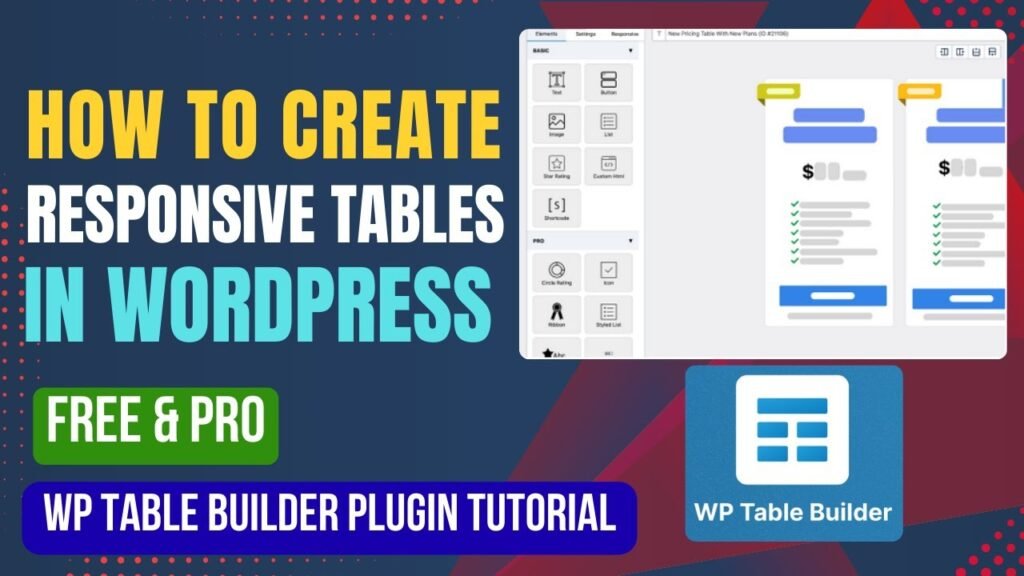
Creating tables in WordPress used to require custom HTML, CSS styling, and sometimes even JavaScript to make them responsive. But now, with modern plugins like WP Table Builder, you can easily create fully responsive tables without writing a single line of code.
In this detailed guide, you’ll learn:
How To Create Responsive Table In WordPress
How To Create Responsive Table In WordPress Using WP Table Builder Plugin
Features of WP Table Builder Plugin
WP Table Builder Free vs Pro Comparison
Benefits of Responsive Tables in WordPress
Why responsive tables are important for SEO and conversions
If you want to create pricing tables, comparison tables, product feature tables, pros and cons tables, or data tables that look professional and mobile-friendly — this tutorial is for you.
Watch Full Video Tutorial: https://youtu.be/Ef3pui-l-sU
What Is a Responsive Table in WordPress?
A responsive table in WordPress is a table that automatically adjusts its layout based on screen size.
Instead of breaking on mobile devices or causing horizontal scrolling issues, responsive tables:
Stack columns vertically
Enable smooth horizontal scrolling
Adjust font size and padding
Maintain readability on all devices
Since more than 60% of traffic comes from mobile devices, creating responsive tables is no longer optional — it’s essential.
Why Do You Need Responsive Tables in WordPress?
Let’s understand why responsive tables matter.
1. Better Mobile User Experience
Non-responsive tables:
Overflow outside the screen
Break layouts
Create frustration
Responsive tables:
Automatically adjust to screen size
Improve readability
Increase engagement
2. Improved SEO Performance
Google prioritizes mobile-friendly websites. If your tables break on mobile:
Your bounce rate increases
Dwell time decreases
SEO rankings may drop
Responsive tables help maintain:
Core Web Vitals
Mobile usability
Structured content clarity
3. Higher Conversion Rates
If you use:
Pricing tables
Product comparison tables
Feature comparison charts
Then responsive design ensures:
Better clarity
Clear call-to-action visibility
Increased conversions
What Is WP Table Builder Plugin?
WP Table Builder is a drag-and-drop WordPress table builder plugin that allows you to create responsive tables without coding.
It is perfect for:
Pricing tables
Comparison tables
List tables
Pros & Cons tables
Affiliate product tables
Data tables
It offers both Free and Premium versions, making it suitable for beginners and advanced users.
How To Create Responsive Table In WordPress Using WP Table Builder Plugin
Let’s go step-by-step.
Step 1: Install WP Table Builder Plugin
Go to WordPress Dashboard
Navigate to Plugins → Add New
Search for WP Table Builder
Click Install
Activate the plugin
Once activated, you will see a new menu option called WP Table Builder.
Step 2: Create a New Table
Go to WP Table Builder → Add New
Enter table name
Select number of rows and columns
Click “Create”
Now the drag-and-drop interface will open.
Step 3: Use Drag and Drop Elements
WP Table Builder works like a page builder.
You can drag elements like:
Text
Image
Button
List
Icon
Star rating
Shortcode
HTML
Simply drag the element into a table cell.
Step 4: Customize Table Design
You can customize:
Background color
Borders
Padding
Alignment
Typography
Button styling
Each cell can be customized individually.
Step 5: Make Table Responsive
WP Table Builder automatically makes tables responsive.
You can:
Enable responsive mode
Stack columns for mobile
Enable scroll mode
Adjust visibility for devices
No custom CSS required.
Step 6: Insert Table Into Page or Post
After saving:
Copy shortcode
Paste into any page or post
Publish
Your responsive table will display instantly.
Key Features of WP Table Builder Plugin
Let’s explore its powerful features.
1. Drag and Drop Table Builder
No coding required. Just drag elements and design visually.
2. Fully Responsive Tables
Tables automatically adjust for:
Desktop
Tablet
Mobile
3. Pre-Built Table Templates (Pro)
Save time using pre-designed templates for:
Pricing tables
Comparison tables
Feature tables
4. Sorting and Search Options
Users can:
Sort columns
Search data
Filter rows
Great for large data tables.
5. Custom CSS Support
Advanced users can:
Add custom styling
Modify layout deeply
6. Import & Export Tables
You can:
Export tables as JSON
Import tables easily
Perfect for developers managing multiple sites.
7. Merge & Split Cells
Create complex layouts by:
Merging rows
Splitting columns
8. WooCommerce Integration
Use tables for:
Product comparisons
Feature lists
Pricing breakdown
Benefits of Using WP Table Builder for Responsive Tables
1. No Technical Knowledge Required
Anyone can create professional tables.
2. Saves Development Time
No need to write HTML table code.
3. SEO Friendly Structure
Clean HTML markup improves search indexing.
4. Perfect for Affiliate Marketers
Create conversion-focused comparison tables.
5. Works with All Themes
Compatible with:
Elementor
Gutenberg
Classic Editor
Any WordPress theme
WP Table Builder Free vs Pro Plugin Comparison
Let’s compare both versions.
WP Table Builder Free Version
Includes:
Drag and drop builder
Basic elements
Responsive tables
Basic styling options
Shortcode support
Best for:
Beginners
Small websites
Basic tables
WP Table Builder Pro Version
Includes everything in Free, plus:
Pre-built templates
Advanced customization
Table sorting & search
Conditional formatting
WooCommerce elements
More styling options
Premium support
Best for:
Affiliate marketers
WooCommerce stores
Bloggers
Agencies
How WP Table Builder Works Behind the Scenes
WP Table Builder:
Creates optimized HTML table markup
Adds responsive wrappers
Uses CSS for adaptive layouts
Avoids heavy JavaScript where possible
This ensures:
Faster loading
Better performance
SEO-friendly output
Use Cases of Responsive Tables in WordPress
You can use WP Table Builder for:
Hosting comparison tables
Product review tables
Pricing comparison
Course comparison
Feature comparison
Pros and cons tables
Restaurant menu tables
Service packages
Why WP Table Builder Is One of the Best WordPress Table Plugins
Compared to traditional table plugins:
Easier interface
Modern UI
Fully responsive
Visual builder
Beginner-friendly
It combines simplicity with powerful features.
Common Mistakes to Avoid When Creating Tables
Overcrowding with too much data
Using too many colors
Ignoring mobile preview
Not optimizing buttons for conversions
Adding large images without compression
Keep tables clean and focused
Final Thoughts
If you’re wondering How To Create Responsive Table In WordPress Using WP Table Builder Plugin, this plugin offers one of the simplest and most powerful solutions available.
Whether you’re:
A blogger
Affiliate marketer
WooCommerce store owner
Agency developer
WP Table Builder helps you create stunning, responsive, and conversion-focused tables without coding.
Frequently Asked Questions (FAQs)
1. Is WP Table Builder free?
Yes, WP Table Builder offers a free version with essential features. Advanced features are available in the Pro version.
2. Are tables created with WP Table Builder responsive?
Yes, all tables are mobile-friendly and automatically adjust to different screen sizes.
3. Can I create pricing tables using WP Table Builder?
Yes, you can create fully customizable pricing tables using drag-and-drop elements.
4. Does WP Table Builder work with Elementor?
Yes, it works with Elementor, Gutenberg, and all major WordPress themes.
5. What is the difference between WP Table Builder Free and Pro?
The Free version includes basic features, while the Pro version offers templates, sorting, advanced customization, and premium support.